Save YouTube videos on iPhone
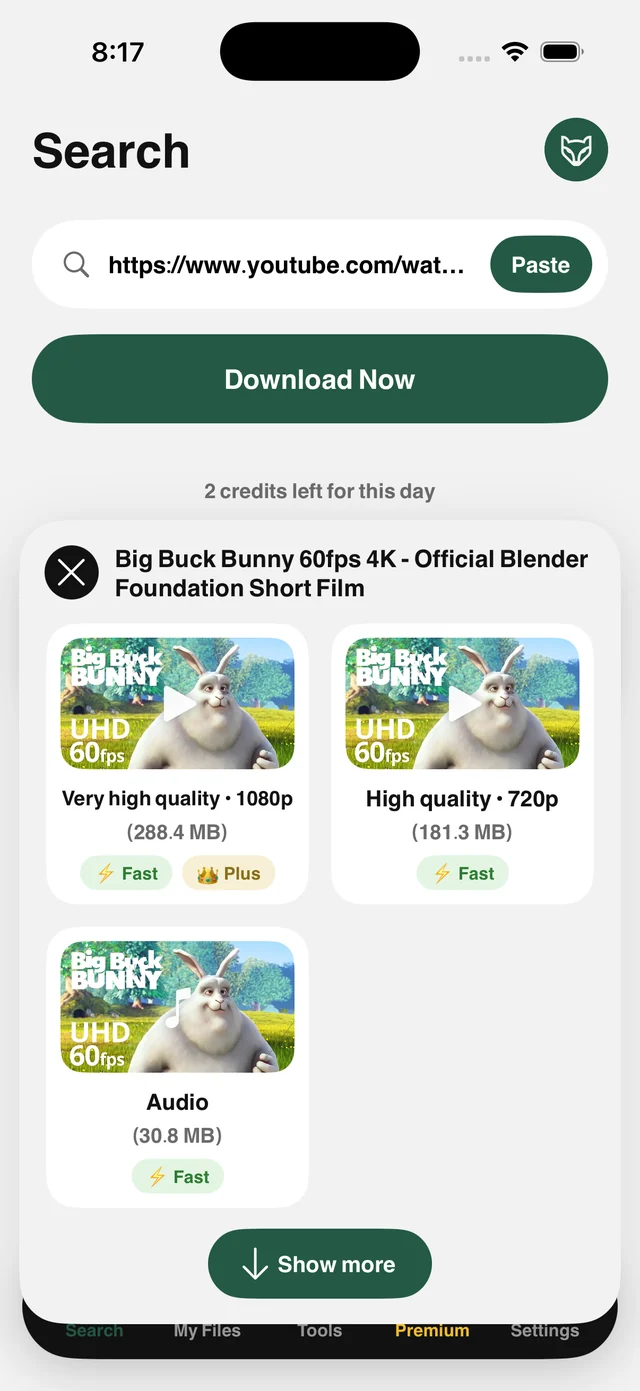
Raheeb shows every quality the link actually offers, up to 4K when the source has it, and you choose before a single megabyte is spent. Or save the audio alone as MP3.
How it works
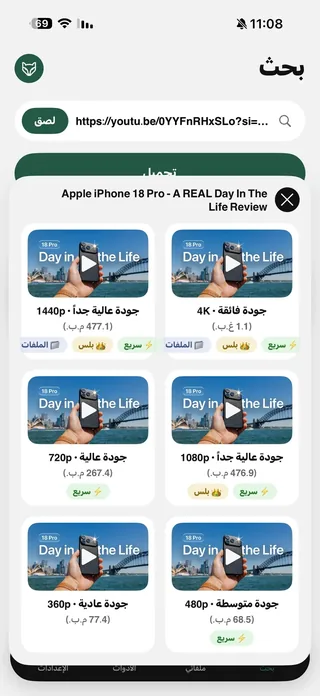
Raheeb doesn't just grab whatever it can get. It shows the real list of qualities for the link, with the size of each option in megabytes, before you tap: 2160p, 1080p, 720p, 480p, 360p and audio only. You choose what fits your storage and your connection, and exactly that version is downloaded.
High-quality video downloads over your own connection using several parallel connections, so a 70 MB video finishes in seconds instead of minutes. Once it's saved, the My Files tools are ready: extract MP3, trim without losing quality, and convert speech to text on the device itself.
A real quality list
Every option shows its size, so you decide before you spend data.
Up to 4K
If the video was uploaded in high resolution, it's in the list.
MP3 audio
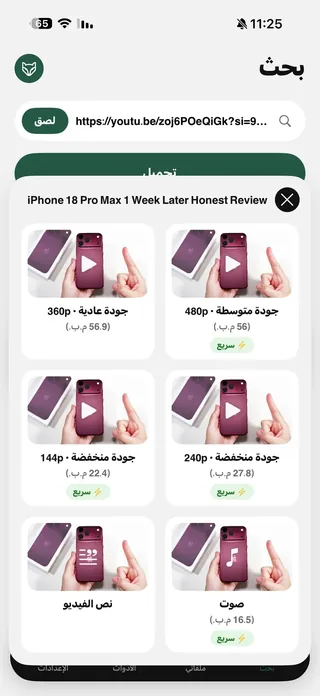
An Audio option in the same list, for podcasts, lectures and music.
Parallel downloads
Large files download over several connections at once, much faster.
How to use it
- 1
Copy the video link
In the YouTube app: Share → Copy Link.
- 2
Paste it in Raheeb
Tap Paste, then Save.
- 3
Pick a quality
Every option appears with its size. Tap the one you want.
- 4
Save or convert
The video is saved to My Files and Photos, ready for MP3 or a transcript.
When to use it
Lectures and courses
Save the lesson for offline playback, or turn it into text to review.
Podcasts
Save the audio only and spare both storage and data.
Your own videos
Keep a copy of your videos at the highest resolution available to edit or archive.
Frequently asked questions
Can I save audio only as MP3?
Is 4K really saved?
Do short video links work?
Can I turn a video into text?
Is saving free?
Guides
 The best app to save videos on iPhone: 3 ways comparedScreen recording vs. download sites vs. a file manager app: an honest comparison with steps.5 min readSave YouTube Videos in HD, 1080p and 4K on iPhoneEvery quality of the video with its size, up to 4K, and follow the download from the Lock Screen.5 min read
 YouTube to MP3 on iPhoneThe Audio card saves just the audio track, and it plays with the screen locked.5 min read
Get Raheeb Free
On the App Store for iPhone and iPad. No account, and your first save takes seconds.