In this guide
When you need audio in writing
- A long WhatsApp voice note while you're in a meeting or somewhere you can't play sound.
- A lecture recording you made on your phone and want a written summary of.
- A recorded meeting or call you want to turn into bullet points and notes.
- An idea you recorded in Voice Memos and want as text to keep working on.
Reading two minutes of text is faster than listening to five minutes of audio, and text you can search, copy from, and paste into your notes or a message.
Step one: get the recording into Raheeb (free)
Any audio or video file you have can go into My Files through the share sheet — the same share button you download clips with — offline, and without counting as a download from your daily allowance:
- From Voice Memos: open the recording, tap the share button, then choose Raheeb.
- From WhatsApp: long-press the voice message and share it from its options to Raheeb (where the button sits can vary by WhatsApp version).
- From the Files app or iCloud: in My Files, tap the import button → “From Files” and pick the recording.
- A clip with speech: a lecture video or podcast you downloaded with Raheeb is already in My Files.
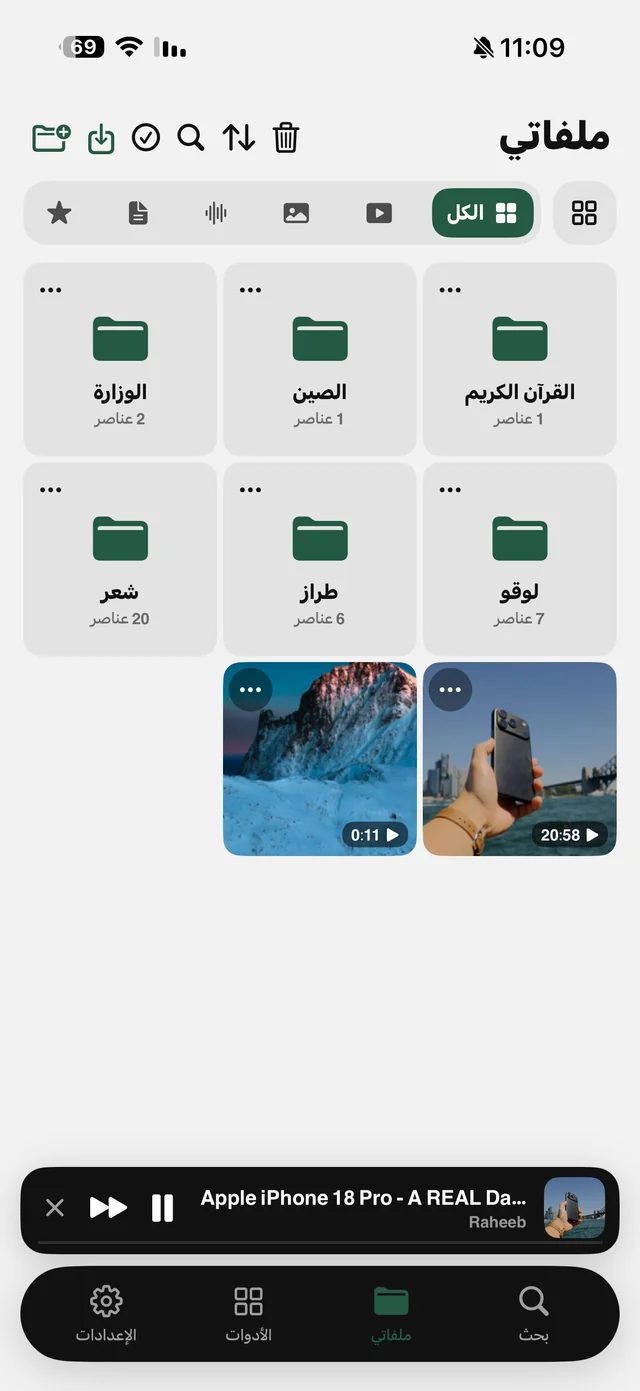
Step two: “Transcribe to text”
- 1Open My Filesand tap ⋯ on the audio or video file.
- 2Choose “Transcribe to text”under the “Audio & text” group.
- 3Set the “Audio language”Arabic or English — picking the right language makes a big difference to accuracy.
- 4Wait for it to finish“Transcribing…” shows until it's done.
- 5Use the text“Copy text” or “Share” — with a timed SRT file when available — or “Translate”.
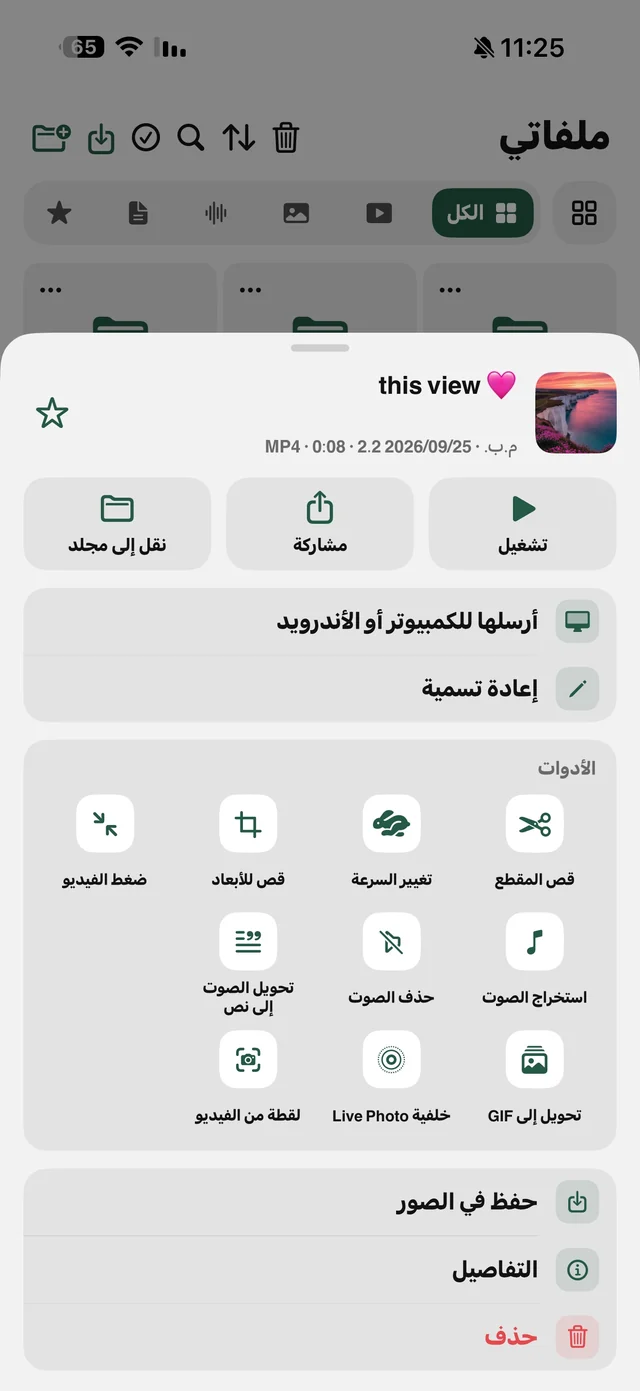
Where does transcription happen — does my audio leave my phone?
Transcription relies on Apple's speech recognition: it runs on the phone itself if your device supports the language, and if not, the audio goes through Apple's service. In every case the file is never uploaded to Raheeb's server. The first time, iOS asks for speech recognition permission; allow it or transcription won't work.
That's an important difference from web transcription sites that ask you to upload the recording and create an account — especially when the recording is a work meeting or a family conversation.

Add your recording to My Files for free and try transcribing it.
3 situations where transcription saves you time
Students and lecture recordings
Recorded the lecture in Voice Memos? Share it to Raheeb, file it in the course folder inside My Files, then turn it into text to study from. If it's longer than 30 minutes, trim it into two or more parts and transcribe each one separately.
Professionals and recorded meetings
Turn the meeting recording into text and copy the decisions and action items into a message for the team. The file never passes through Raheeb's server, which matters for work conversations.
A long voice note from the family group
Five minutes of details while you're somewhere quiet where you can't play audio? Share it to Raheeb and read it as text — and if it's in English from a colleague or friend, turn it into Arabic with the “Translate” button.
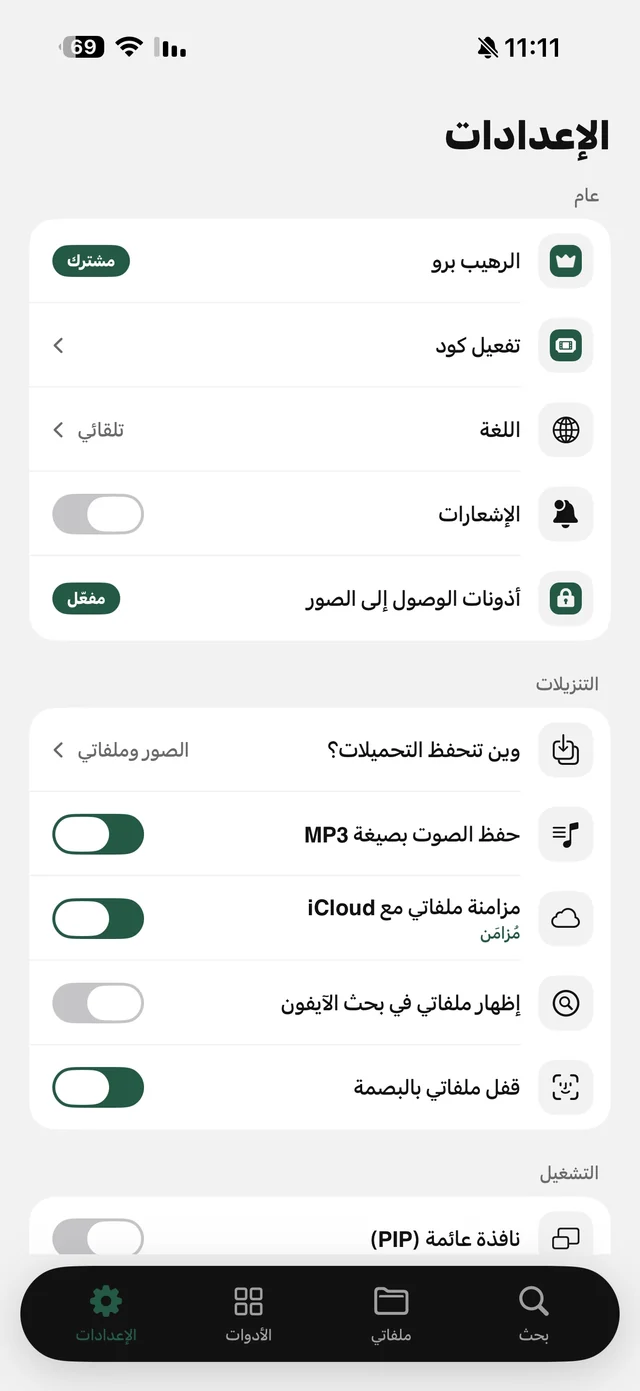
Translation and timed text
After transcribing, the “Translate” button converts the text between Arabic and English on the device on iOS 18 and later. Useful for a voice note from a foreign colleague, or an English lecture recording you want the gist of in Arabic. When you share, the text comes with a timed SRT file when available — the format editing apps accept if you want to add the speech as subtitles on a clip.
Tips for a more accurate transcript
- Pick the right language: an Arabic voice note transcribed as English comes out as nonsense.
- A clear recording close to the mic comes out far better than a hall recording with echo or noise.
- Mixing Arabic and English in the same sentence hurts accuracy; choose the dominant language.
- Cut a long recording into parts under 30 minutes with “Trim video” before transcribing.
- If the source is a video and you also want the audio as its own file, use “Extract audio” from the same menu — see video to audio.