In this guide
Why doesn't AirDrop work with Android?
AirDrop is for Apple devices only, sending through WhatsApp compresses photos and videos and lowers their quality, and transfer apps have to be installed on both phones. Send to Device in Raheeb turns your iPhone into a transfer page inside your home network: the Android opens it in its browser, any browser, and takes the files as they are.
Steps
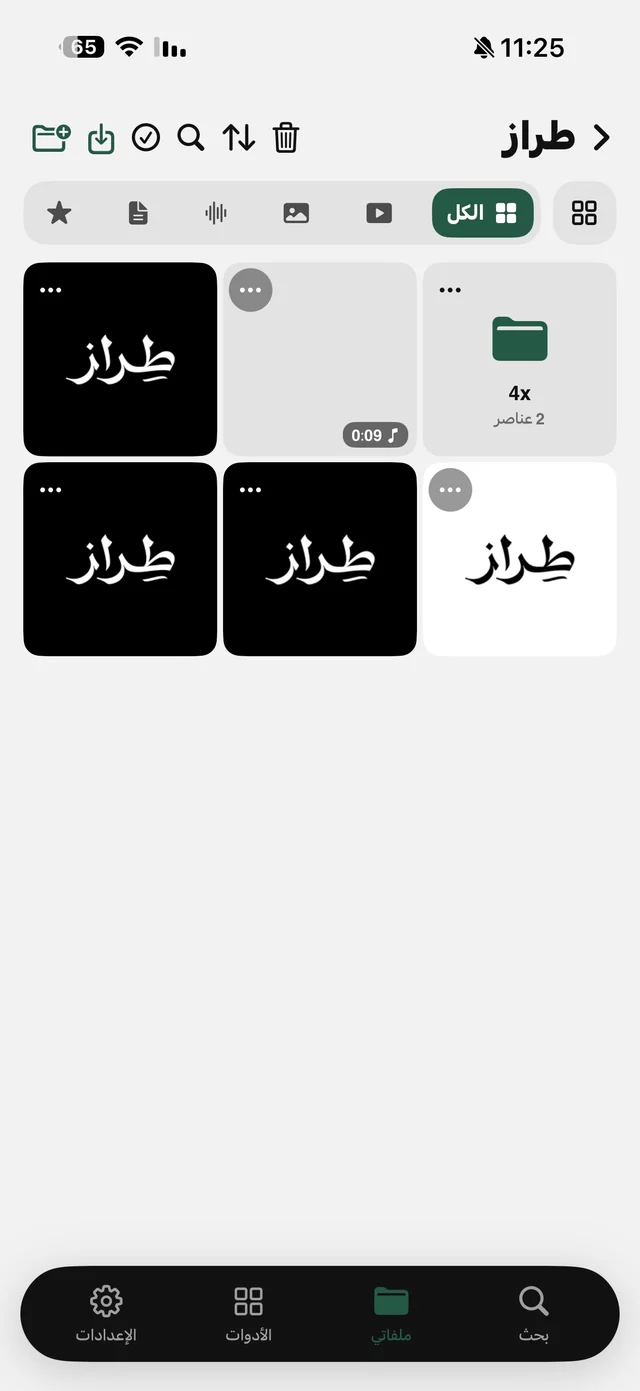
- 1Put the photos in My FilesFrom Import Files → From Photos, or in Photos: select the photos, then Share → Raheeb.
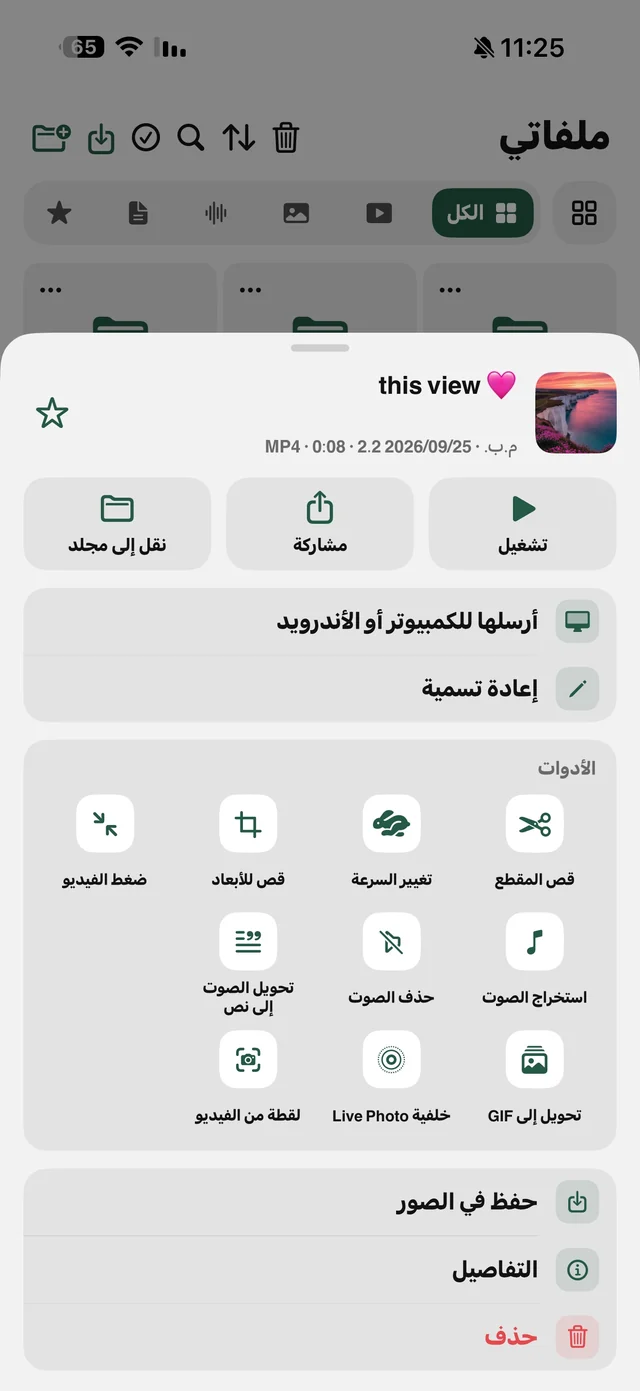
- 2Select what to sendIn My Files tap Select and choose the files, then Send. For one file: ⋯ then Send to Device.
- 3Scan the code on AndroidA page shows a QR code, a short address and a 6-digit code. Scan the QR with the Android camera, or type the address in its browser.
- 4Download the filesThe files appear with small previews: download them one by one, or all at once with “Download all (ZIP)”.
The other way: Android to iPhone
The same page in the Android browser has a “Send files to the phone” box: pick photos or drop them there, and they arrive straight in My Files on the iPhone, with each file's name shown as it lands. From My Files, put them in Photos with Save to Photos.
No Wi-Fi?
Turn on Personal Hotspot on the iPhone, connect the Android to it, then open Send to Device. The transfer happens directly between the two phones and doesn't use your data plan, because the files never go over the internet.

Move your photos now: Send to Device is free, and nothing is installed on Android.
Quick comparison
| A transfer app on both phones | Send to Device in Raheeb | ||
|---|---|---|---|
| Quality | Often compressed | Original | Original |
| On the Android | The transfer app | Just the browser | |
| Internet | Goes through it | Depends on the app | Stays in the network |
| In one go | With a count limit | Yes | Yes, and as one ZIP |
Security
- A code each time: a new 6-digit code every session, and the code in the QR lets you straight in.
- Limited tries: after several wrong codes the transfer stops, so nobody on the network can guess it.
- No server in between: files go device to device inside your network and are never uploaded anywhere.
- Ends when you close it: closing Send to Device on the iPhone stops everything.
The same method works with a Windows or Mac computer. Read transfer files from iPhone to a computer.