In this guide
What does the iPhone give you on its own?
Before any app, to be fair: the Photos app has albums and album folders, and the Hidden album locks with Face ID since iOS 16 — but it's only for photos and videos, with no folders inside it. The Files app sorts any kind of file into folders, but it isn't built for playing videos and can't lock a specific folder. And since iOS 18 you can lock an entire app with Face ID. If that's enough for you, great.
My Files helps when you want everything in one place: the videos you download, PDFs and Word documents, audio and photos — sorted into your own folders, with a player that works offline and tools for every file. See the My Files page for a quick rundown.
How to sort your files into folders
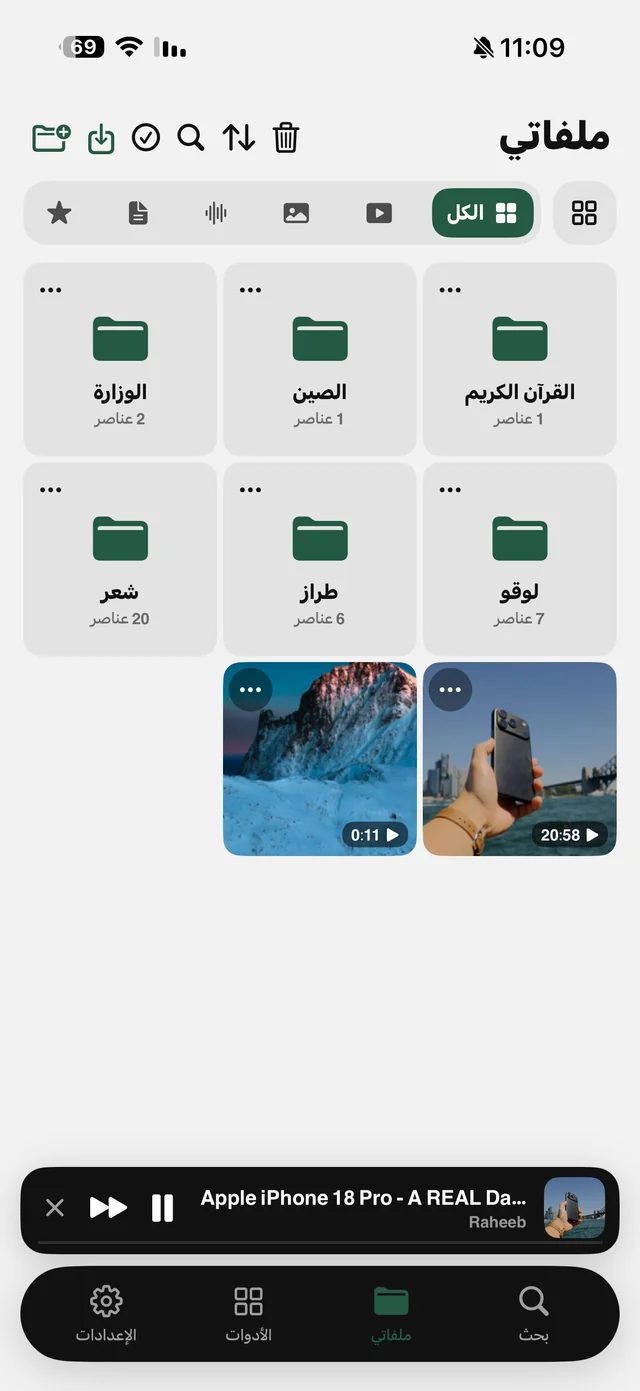
- 1Open the My Files tabEverything you've downloaded with Raheeb is already there.
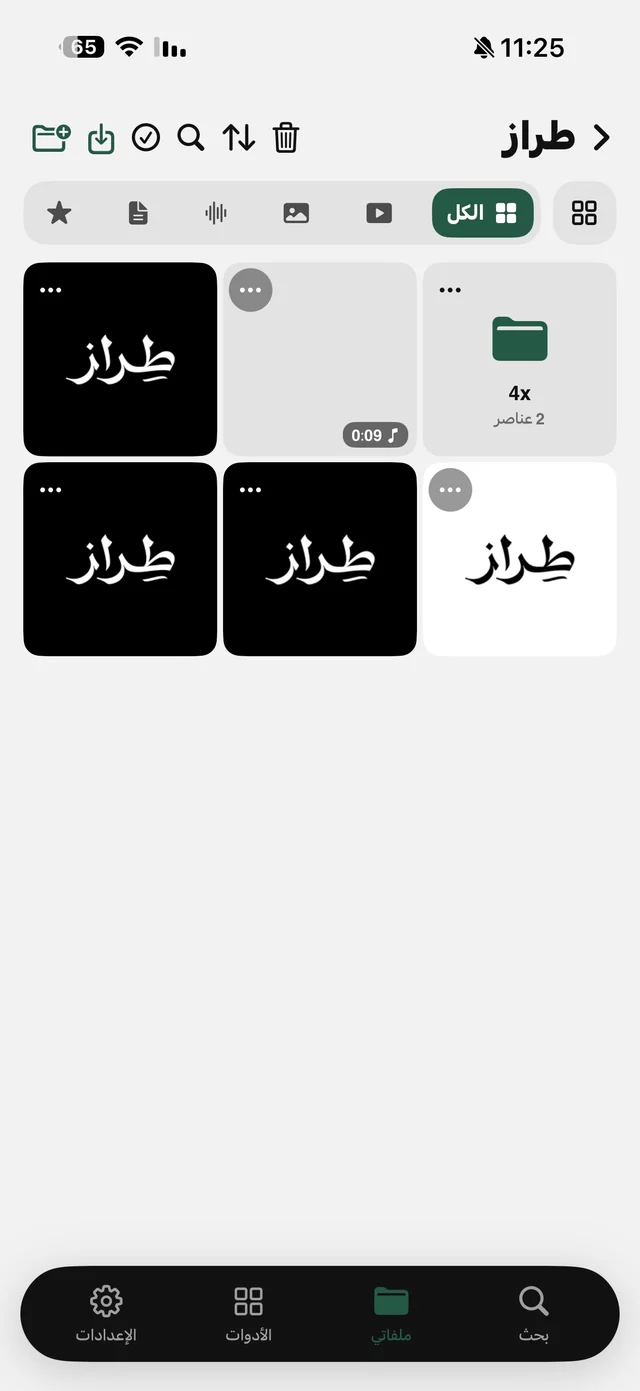
- 2Create a folderUse the folder icon at the top and name it after the course or project — you can nest folders inside it as deep as you like.
- 3Move your filesPress a file until it lifts and drag it onto a folder until “Drop here” appears, or tap ⋯ and choose “Move to folder” from the folder tree.
- 4FilterAll · Video · Images · Audio · Documents · Favorites — one tap each.
Drag-and-drop tricks
- Drag a file onto the back arrow to move it up one level.
- In select mode you drag everything you've selected at once, and you can add more files to the stack while dragging.
- Drag a file out of My Files and drop it straight into WhatsApp, Messages or Notes (iOS 15 and later).
- Deleting a folder doesn't delete what's inside: the files move up one level.
Bring all your files in: import, ZIP and the browser
My Files isn't just for downloads. The import button at the top brings files into the open folder from four sources: “From Photos” (without asking for access to your library), “From Files” for any type from the Files app or iCloud, “Take with the camera”, and “From the clipboard” for copied images. And from any app — WhatsApp, Voice Memos, Mail — share the file to Raheeb and it's added for free, offline, without counting as a download.
- ZIP files unpack on the device into a folder named after the archive, with the same folder structure inside, supporting non-English file names and large archives (Zip64). Password-protected archives are skipped.
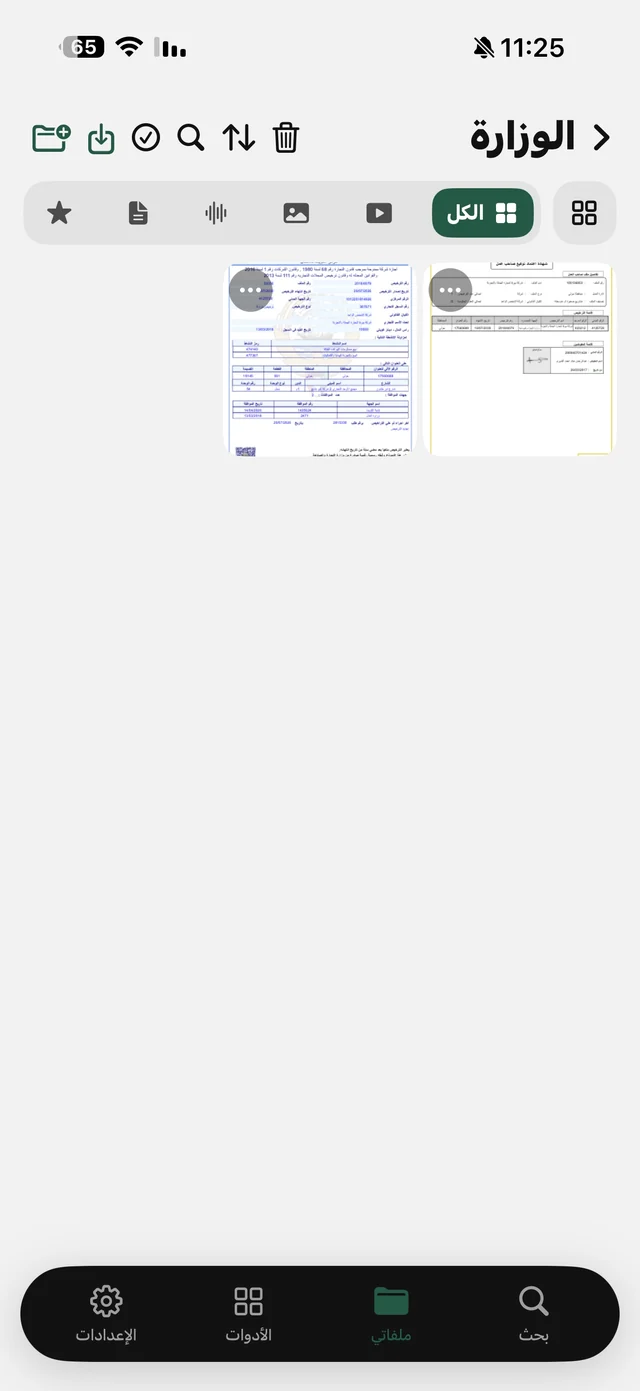
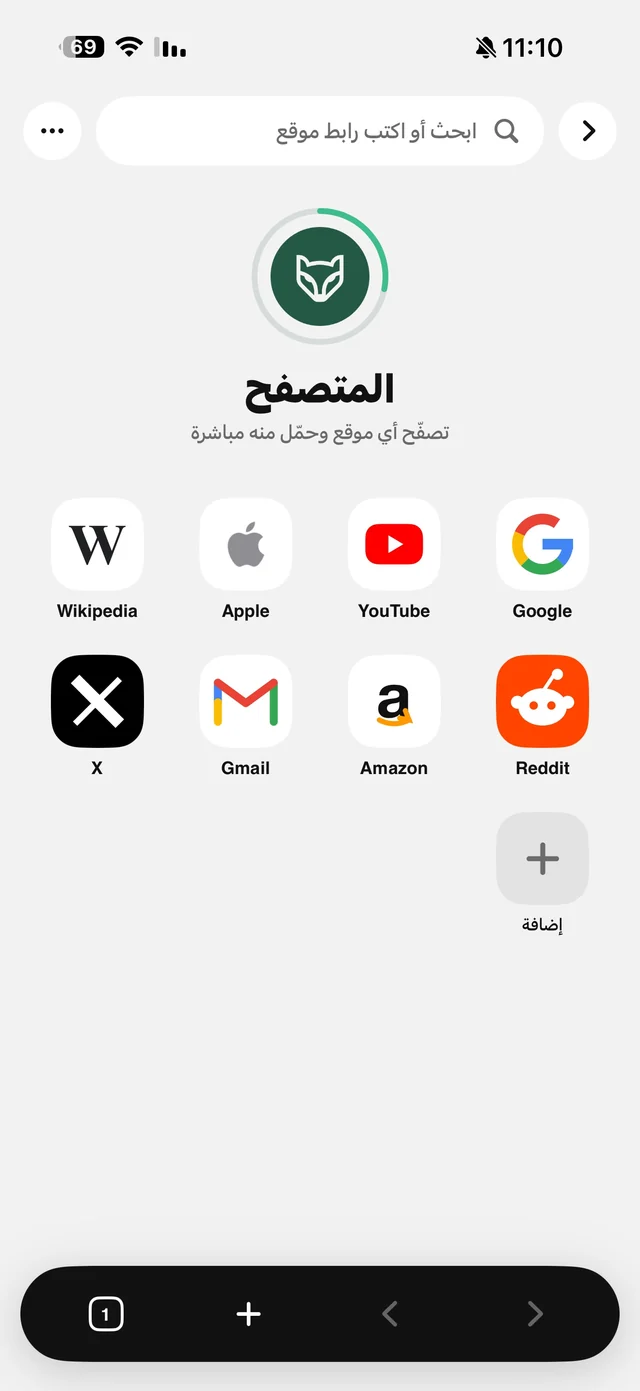
- University and government sites: a PDF or Word file you download with the Raheeb browser goes to My Files instead of getting lost in the Downloads folder, and counts as a download for free users.
- Documents show up under the Documents filter and open in an in-app preview, with PDF tools such as merging, signing and printing.
Find any file in seconds
- Search 🔍 looks through every folder at once, by file and folder name.
- Sort: Newest first · Oldest first · Name (A–Z) · Name (Z–A).
- Favorites: star any file and find it under the Favorites filter.
- Multi-select ✓: share, send to a computer or Android, move, favorite or delete several files at once.
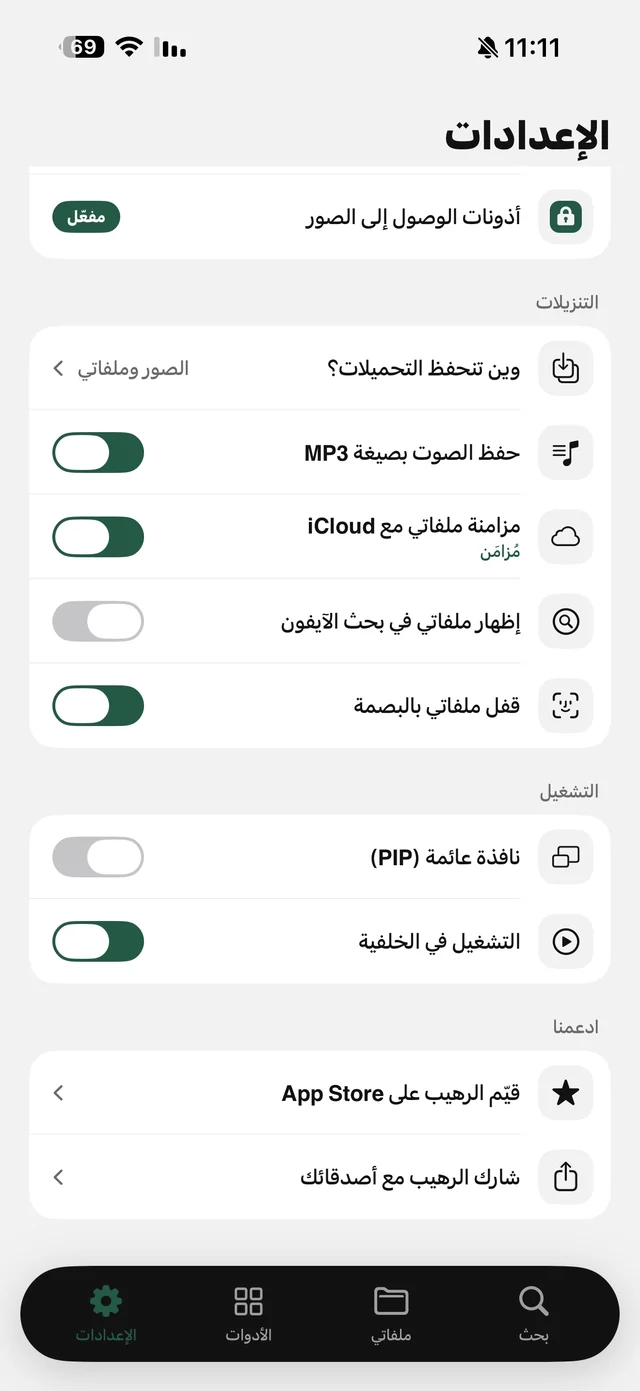
- iPhone search: the “Show My Files in iPhone search” option puts your files in Spotlight so you can open them from there directly.
Want to send a whole folder of lectures to your laptop? See transferring files from iPhone to PC without a cable.
Protect your files: Recently Deleted, the lock and iCloud
Recently Deleted is free: any file you delete from My Files goes there instead of disappearing, and you can restore it to its place within 30 days from the bin button at the top. After that it's gone for good, and “Empty” erases everything in it and can't be undone.
“Lock My Files” is part of Raheeb Pro: find it in Settings → the “Downloads” section. It covers My Files until you open it with Face ID or Touch ID, stays unlocked until you leave the app, automatically removes your files from iPhone search, and turning it off also requires authentication. Your phone needs a passcode set. Details on the lock page.
“Sync My Files with iCloud” is also part of Raheeb Pro: it copies your files to iCloud Drive › Raheeb › MyFiles with the same folder structure, visible in the Files app, so if you switch phones or delete the app your folders come back as they were. The storage comes from your own iCloud plan, and favorites and custom names don't sync. Deleting a file in My Files removes it from iCloud, but deleting it in iCloud itself doesn't remove the copy on your phone.

Get Raheeb and sort your files into your own folders today.
Where do downloads go? Decide once
In Settings → “Where downloads are saved” you choose: Photos and My Files (the default), Photos only, or My Files only — the last one keeps the family photo library free of clips, and you play them in Raheeb's player instead. Documents and audio always go to My Files whatever you choose, and any video in My Files can be saved to Photos later from its menu.