Trim a video without losing quality
Set a start and an end for any video in My Files and save a trimmed copy. No re-encoding, so quality stays the same and it takes seconds.
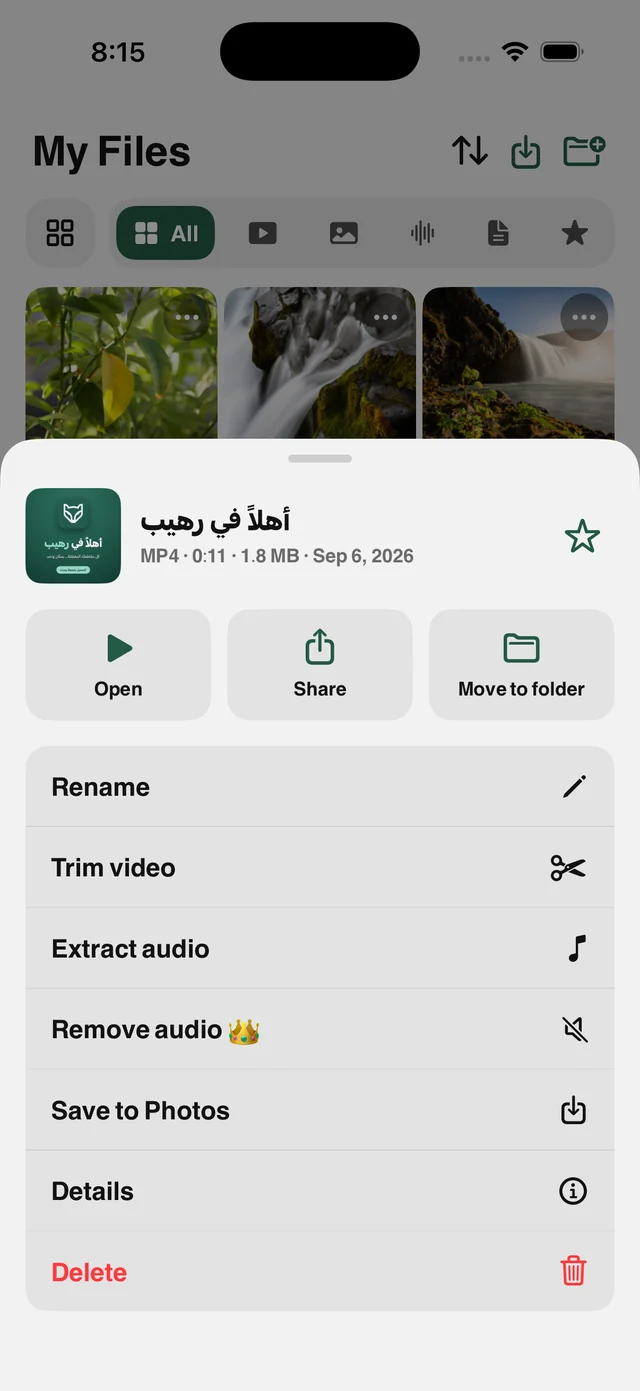
What is this feature?
Many trimming tools re-encode the video, costing you quality and minutes of waiting. Raheeb's trim tool cuts at the points you choose and copies the same video and audio data into a new file. The result is identical in quality, in seconds.
The interface is simple: a filmstrip of the video and two handles you drag to set the start and end. The new copy is saved next to the original, which is never changed, whether it's in My Files or in Photos.
No re-encoding
Exactly the same quality as the source, with no second compression.
Fast
Seconds even for long videos, because the file is copied, not rebuilt.
The original stays
The trimmed copy sits beside it, and the original is unchanged.
Filmstrip
See the video's frames while you set the start and end.
How to use it
- 1
Open My Files
And pick the video you want to trim.
- 2
Tap ⋯ then Trim Video
The trim screen opens with the filmstrip.
- 3
Drag the handles
Set the start and end of the part you want.
- 4
Save
A new copy appears next to the original in seconds.
When to use it
Part of a lecture
Cut the important minute and send that instead of the whole file.
Short videos
Trim your video to fit the allowed length before you share it.
Saving space
Keep the part you care about and delete the rest.
Frequently asked questions
Does the video lose quality?
Is the original changed?
How long does it take?
Does it work with videos from Photos?
Is it free?
Guides
 Save Twitter (X) and Facebook Videos on iPhoneA copy of the video in your files, before the post is deleted.5 min read
 How to compress a video and reduce its size on iPhoneShrink any video in three taps and see the size before and after.4 min read
 Trim, merge and change video speed on iPhoneTrim, vertical ratio, speed and merge: four free tools on your phone.5 min read
Get Raheeb Free
On the App Store for iPhone and iPad. No account, and your first save takes seconds.