Extract audio and convert video to MP3
Take the sound alone from any video in My Files: a podcast, a lecture, a talk, a family recording. An on-device tool that works right on your files.
What is this feature?
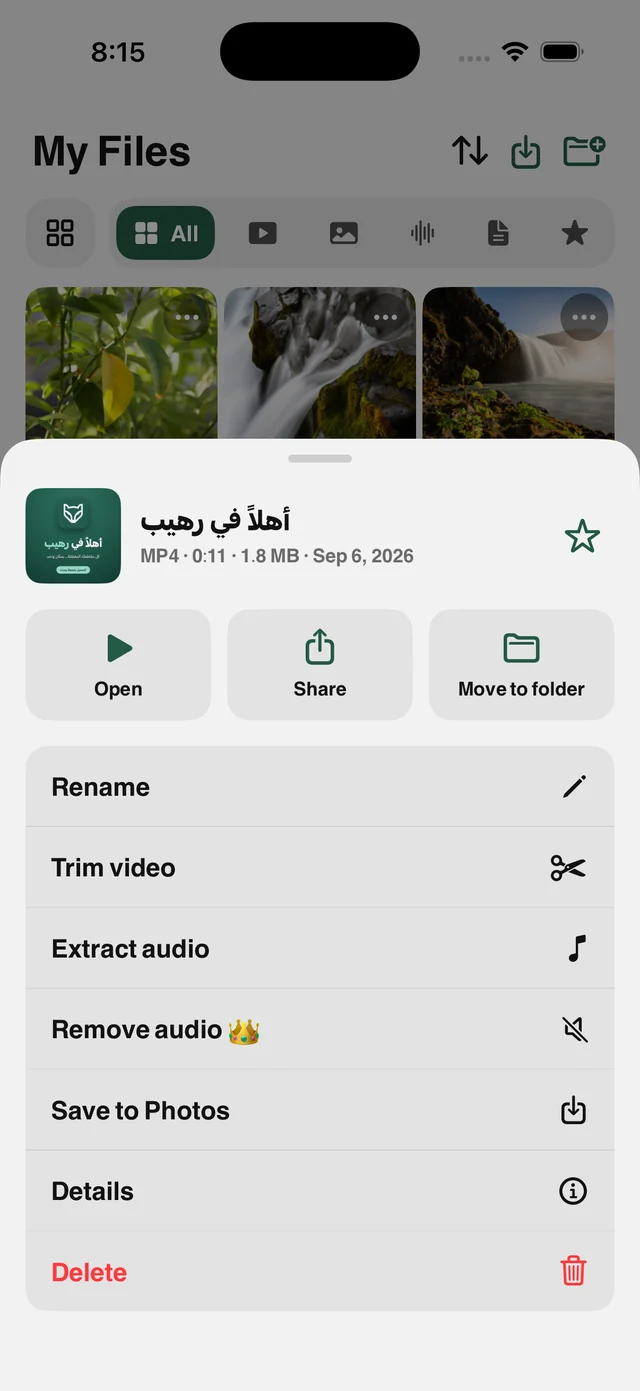
Raheeb gives you two routes to audio. The first is the Extract Audio tool in the menu of any video in My Files, which separates the sound into its own file. The second is when you save from a link: the quality list has an Audio option that saves only the sound, cutting nine tenths of the size and data.
Extraction runs on your device with the system's own tools, so nothing is uploaded to a server and nothing waits in a processing queue. The result appears in My Files under the Audio filter and plays in the app's player, with background playback supported.
Two routes
An extract tool for any saved video, or the Audio option when saving.
On your device
No upload, no server queue. Processing is local.
Background playback
Listen with the screen locked or while using another app.
Ready to share
An ordinary audio file you can send in any chat or open in any app.
How to use it
- 1
Open My Files
And pick the video whose sound you want.
- 2
Tap ⋯ on the video
The file's tool sheet opens from the bottom.
- 3
Choose Extract Audio
It takes seconds, depending on the video's length.
- 4
The file is ready
Find it under the Audio filter in My Files.
When to use it
Podcasts and lectures
Listen without video and save battery and space.
Your own recordings
Keep the sound from a video you shot at an event or a party.
Study review
Turn a lecture into audio and listen in the car.
Frequently asked questions
What format is the result?
Does quality drop?
Does it work with videos from Photos?
Does it need internet?
Is this tool free?
Guides
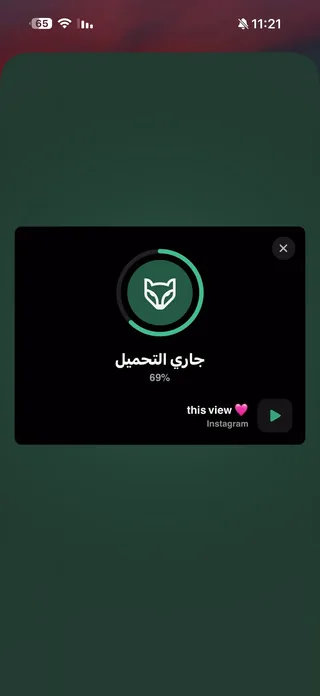 Save TikTok Videos on iPhone in the Best QualityFrom the Share button or a pasted link: videos up to 1080p and complete photo slideshows.5 min read
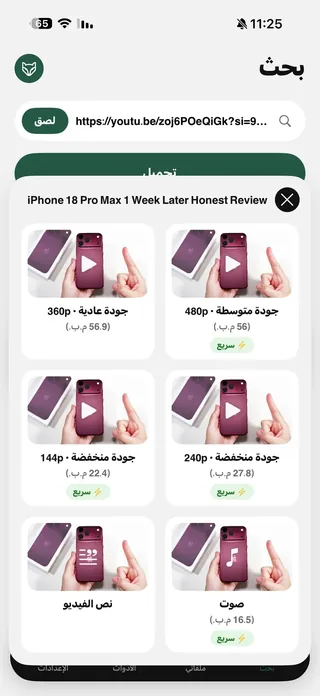 YouTube to MP3 on iPhoneThe Audio card saves just the audio track, and it plays with the screen locked.5 min readTurn a video or lecture into text on iPhoneA full lecture as text you can copy and study, with SRT and Arabic ↔ English translation.5 min read
Get Raheeb Free
On the App Store for iPhone and iPad. No account, and your first save takes seconds.