Background playback and Picture in Picture
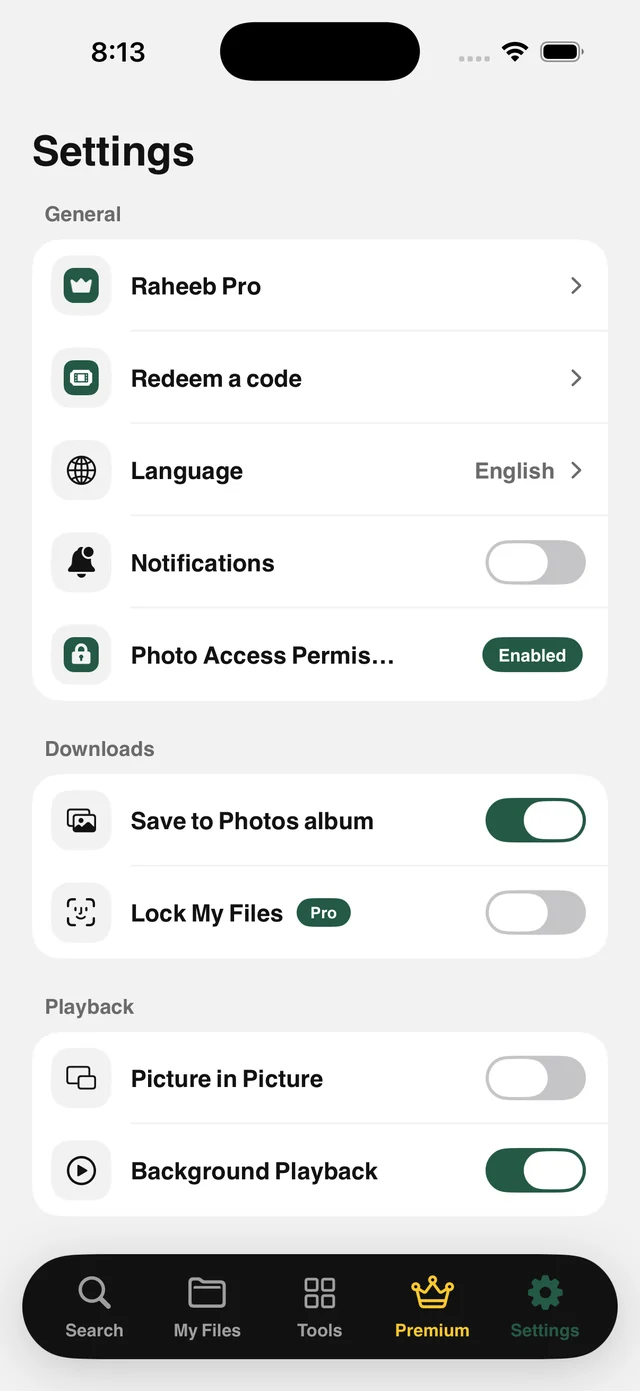
Listen to your files with the screen locked, or pin a video in a small window that floats above other apps while you reply to a message.
What is this feature?
Videos and audio in My Files play in the app's own player, which keeps going in the background: lock the screen or switch apps and the audio continues, with controls on the Lock Screen and in Control Center like any music player.
To watch while you do something else, there's Picture in Picture: the video moves into a small window you can drag and resize above any app. Each has a switch in Settings. Turn it on once and it applies to all your files.
Screen locked
Audio continues, with Lock Screen controls.
Floating window
Watch above any app while you reply or browse.
No internet needed
Files are on your device, so playback needs no connection.
One switch
Turn it on in Settings and it applies to every file.
How to use it
- 1
Open Settings
Go to the Playback section.
- 2
Turn on what you want
Background Playback, Picture in Picture, or both.
- 3
Play a video
From My Files.
- 4
Leave the app
Audio keeps playing, or the floating window appears.
When to use it
Lectures
Listen to the lesson while taking notes in another app.
Podcasts and long videos
Play them with the screen locked to save battery.
Watching while working
A small window in the corner while you answer messages.
Frequently asked questions
Does it work with any file?
Does it need internet?
Do Lock Screen controls appear?
Are both features free?
How do I turn them off?
Guides
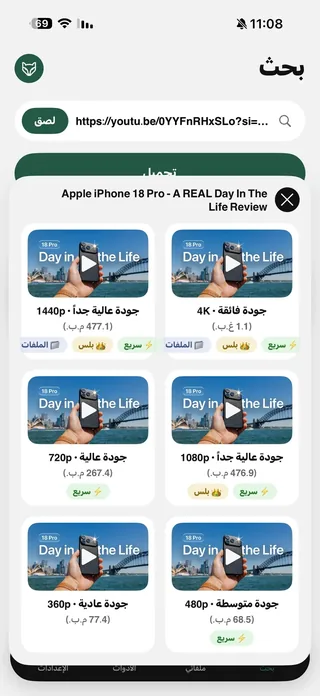 Save YouTube Videos in HD, 1080p and 4K on iPhoneEvery quality of the video with its size, up to 4K, and follow the download from the Lock Screen.5 min read
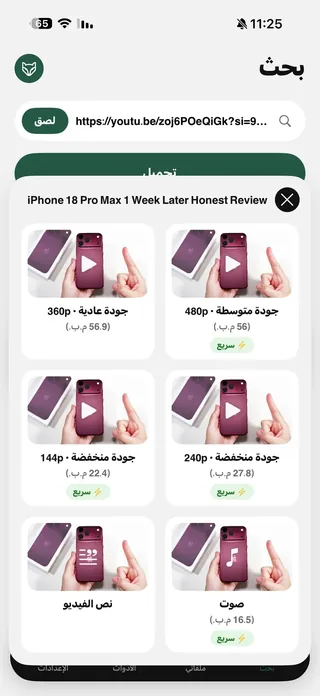 YouTube to MP3 on iPhoneThe Audio card saves just the audio track, and it plays with the screen locked.5 min read
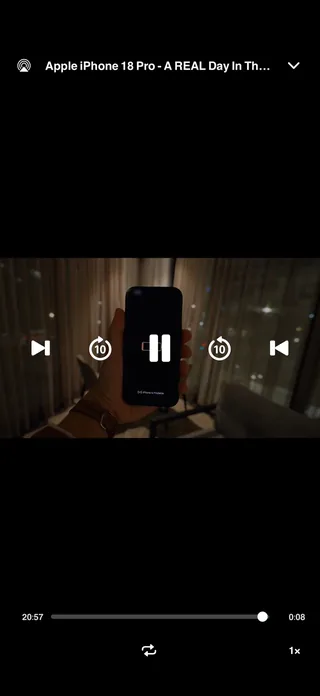 Watch videos offline on a plane on your iPhoneLoad up the kids' videos and lectures before the trip and play them offline.5 min read
Get Raheeb Free
On the App Store for iPhone and iPad. No account, and your first save takes seconds.