In this guide
- 1Why won't videos play on a plane?
- 2Getting ready before the trip, step by step
- 3The player: everything you need on the trip
- 4Picture in Picture and audio that keeps playing when locked
- 5Your kids on the plane
- 6Lectures and talks: audio is enough
- 7Save space on your phone
- 8Quick checklist before you leave the house
Why won't videos play on a plane?
TikTok, YouTube and Instagram stream the clip from the internet while you watch. Without a connection, the screen just spins. Some platforms let you download certain content inside their own app, but the file stays locked inside that app.
The difference with Raheeb: the clip is saved as a real file on your phone, in My Files — and in your Photos library if you want. The file needs no internet to play — not on a plane, not out in the desert, and not in a hotel with weak Wi-Fi.
Getting ready before the trip, step by step
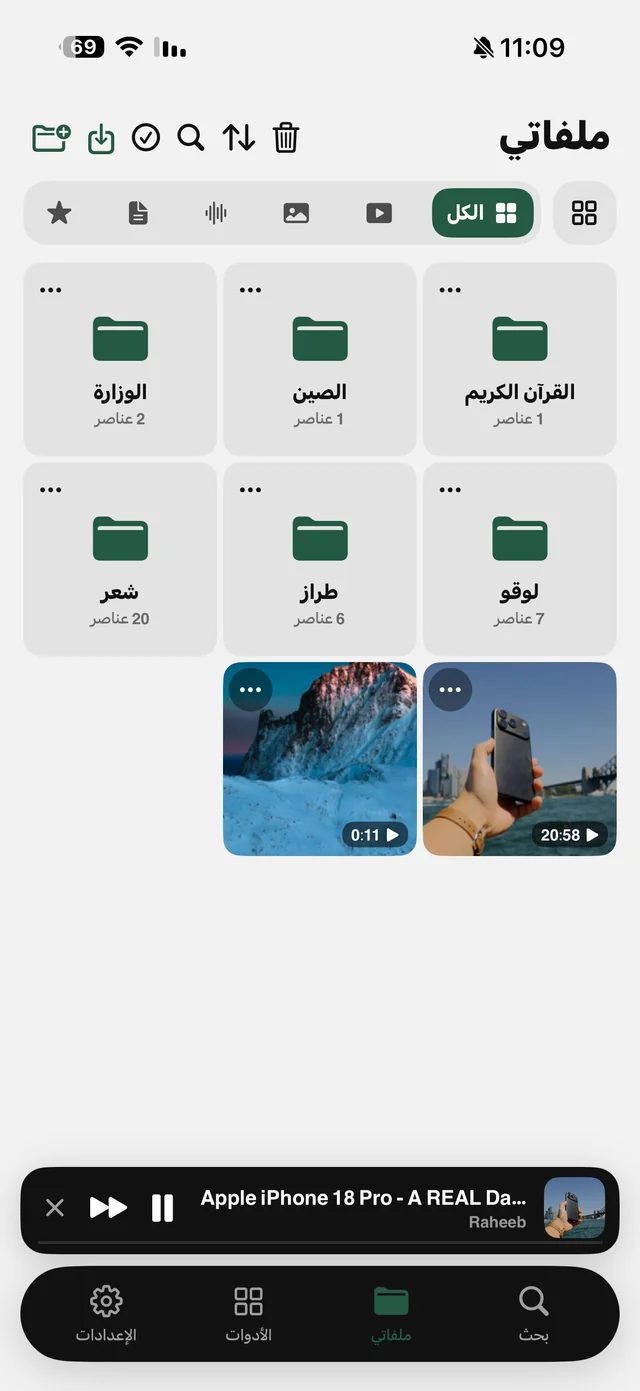
- 1Make a folder for the tripIn the My Files tab, tap “New folder” and name it “Kids” or “Travel” — or one folder per child or series if you like.
- 2Download the clipsFrom the “Share” button in YouTube, TikTok or elsewhere, choose Raheeb — or paste the link in the Search tab and pick the quality.
- 3Choose 720p or lowerOn a phone screen the difference is small and the file is much smaller — and each quality's size is shown before you download.
- 4Move them into the folderWith ⋯ → “Move to folder”, or drag them straight onto the folder.
- 5Test in Airplane ModeTurn on Airplane Mode and play a clip from the folder to make sure before the trip.
The player: everything you need on the trip
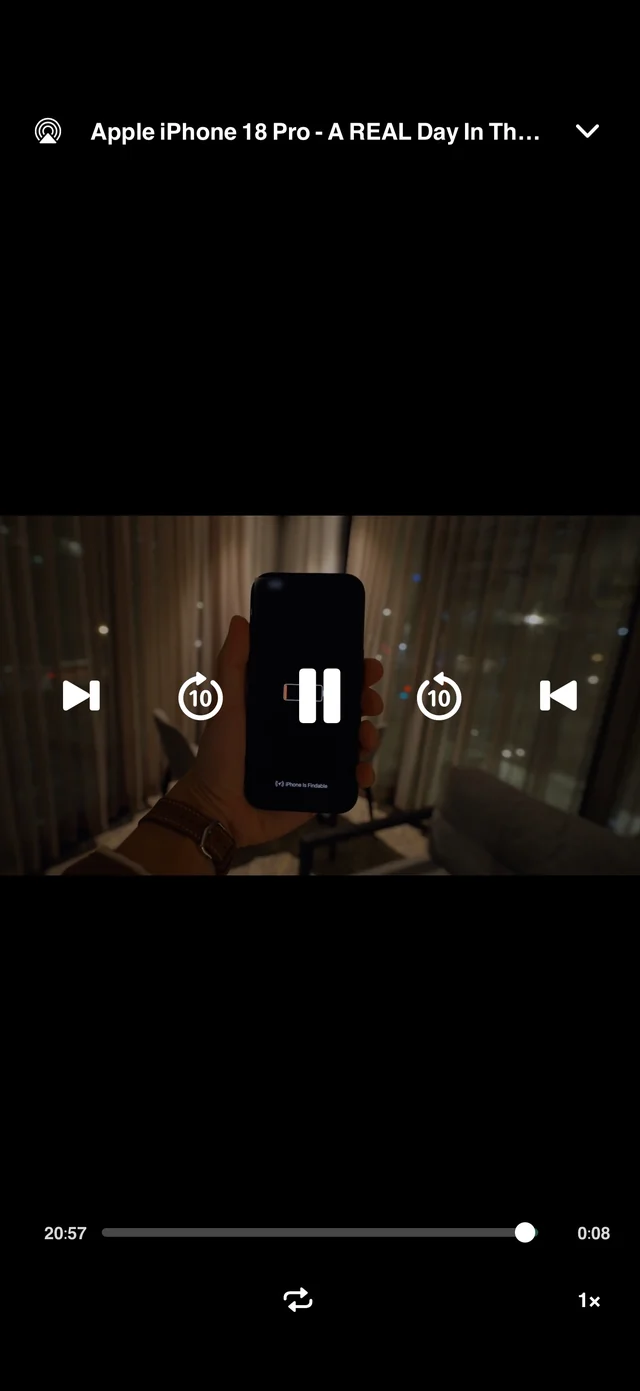
- Skip forward and back 10 seconds, plus next and previous between the files on the same screen, in the same order — so a child's folder becomes a playlist.
- Loop: for the clip your little one asks for twenty times.
- Speed: 0.5×, 1×, 1.25×, 1.5× and 2× — for lectures and podcasts.
- AirPlay: send the audio or video to the hotel TV or a speaker.
- Mini player: swipe down to shrink it to a bar above the tabs while you move around the app.
Picture in Picture and audio that keeps playing when locked
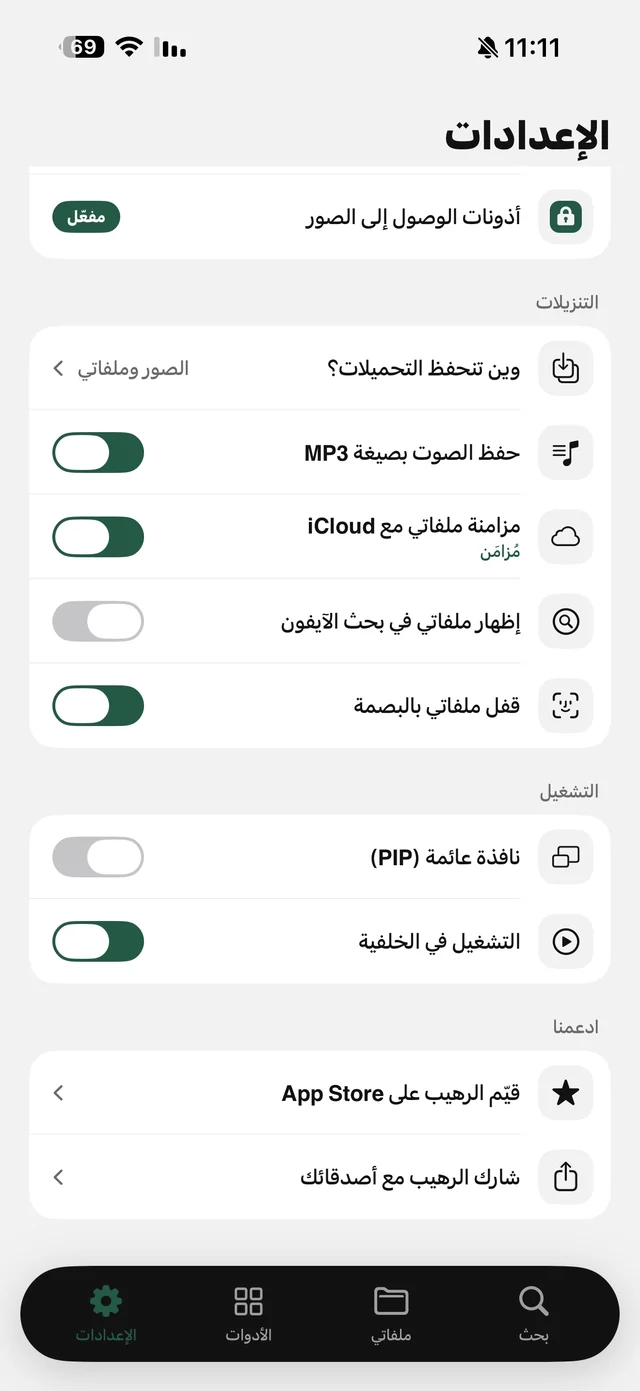
In Settings, the “Playback” section has two switches. “Picture in Picture” is off by default: turn it on and the PiP button appears in the player, and the video keeps playing in a small window over any app. “Background Playback” is on by default: if you lock the screen or leave the app, the audio keeps going, and you control it from the Lock Screen and Control Center.
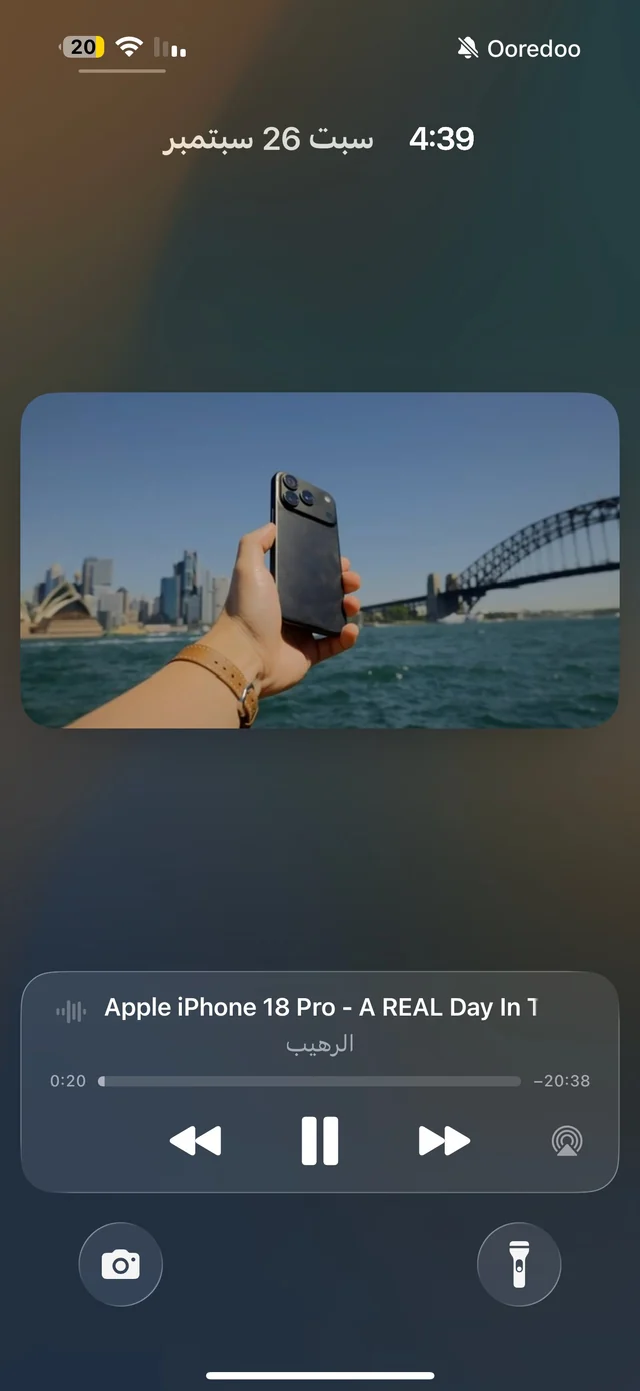
The Lock Screen shows play, previous and next, with the clip's name and the artist or folder name. Skipping forward and back 10 seconds is only inside the player. Details on the background playback page.

Load up your next trip with Raheeb — free with 3 downloads a day.
Your kids on the plane
- A folder per child so they don't fight over clips, and each one moves through their own folder with next and previous.
- “Where downloads are saved” → “My Files only” in Settings, so cartoon clips don't fill up the family photo library.
- Locking My Files with Face ID (part of Raheeb Pro) stops the little one from opening your other files inside the app — see Lock My Files.
Lectures and talks: audio is enough
For lectures, lessons and recitations you don't need the video: the “Audio” card in the quality sheet downloads a much smaller file — see video to audio. Make a folder for them in My Files, move the lessons in, play the first one and move on with next and previous while the screen is locked, at 1.5× if you want to save time.
Save space on your phone
- Choose 720p or lower when downloading, or the “Audio” card for podcasts.
- Already have a big clip? Compress it to 540p from the ⋯ menu.
- After the trip, move the clips to your laptop over Wi-Fi and delete them from the phone (deleted files go to “Recently Deleted” and stay there for 30 days before they're gone).
Quick checklist before you leave the house
- All the clips are in their folders inside My Files.
- You tested a clip from each folder in Airplane Mode.
- “Background Playback” is on, and “Picture in Picture” is enabled if you want it.
- There's room on your phone — otherwise compress the big clips.
- The phone is charged, and you have headphones for the kids.