In this guide
Steps
- 1Put the file in My FilesFrom Import Files → From Files, or from any app: Share → Raheeb.
- 2Tap ⋯ on the audio fileYou'll find it under the Audio filter.
- 3Choose Convert to MP3“Converting to MP3…” appears with progress.
- 4The copy is ready“MP3 saved to My Files”, next to the original, which doesn't change.
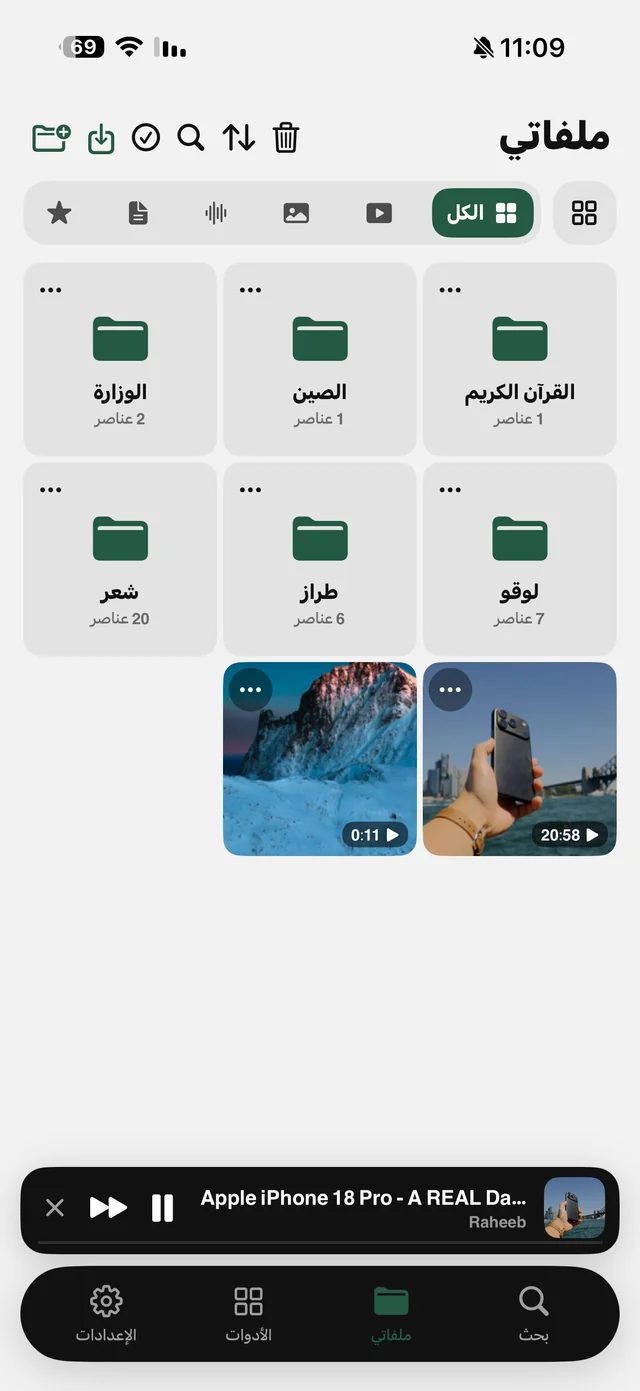
Convert to MP3 appears on any audio file that isn't already MP3. The encoding happens on the iPhone with a real MP3 encoder, so the result is a genuine MP3, not a renamed file, and it plays in cars, speakers and editing apps that refuse M4A.
A Voice Memos recording to MP3
- 1Open the recording in Voice MemosTap ⋯ on it, then Share.
- 2Choose RaheebYou'll see “Adding to My Files…”.
- 3Convert itOpen Raheeb, tap ⋯ on the recording in My Files, then Convert to MP3.
Which formats convert?
| Format | Where it usually comes from | To MP3 |
|---|---|---|
| M4A | Voice Memos, and audio extracted from video | Yes |
| WAV | Recorders and audio apps on a computer | Yes |
| AAC | Audio files sent or downloaded | Yes |
| Formats iPhone can't play | Some chat apps and Android | May fail, with a message saying why |
The rule: anything Raheeb's player can play converts to MP3. If a conversion fails, you get a message and no broken file is saved.

Convert your first file to MP3 now: the tool is free, no account.
Want MP3 automatically?
With Raheeb Pro, turn on “Save audio as MP3” in Settings → Downloads, and every audio you save from a link or extract from a video is saved as MP3 straight away, with no conversion step. Without it, Convert to MP3 stays free for every file.
After converting
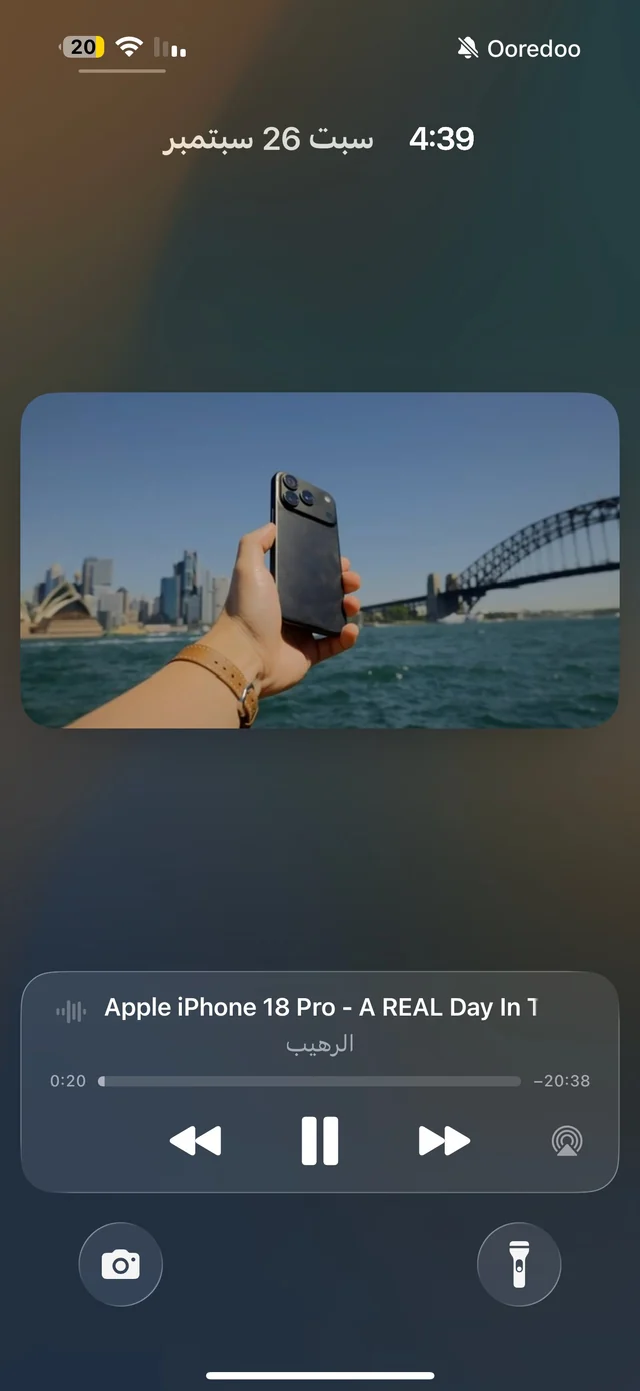
- Listen in the background: Raheeb's player keeps going with the screen locked, at speeds from 0.5× to 2×. Details in Background Playback.
- Organize it: a folder per topic in My Files, and the player moves through the folder with next and previous.
- Move it to a computer or Android: Send to Device over Wi-Fi. Read transfer files to Android.
- Want it as text? Audio to text is part of Raheeb Pro. Read audio to text.