In this guide
Steps
- 1Put the file in My FilesA photo from Import Files → From Photos, or a PDF from From Files or Share → Raheeb.
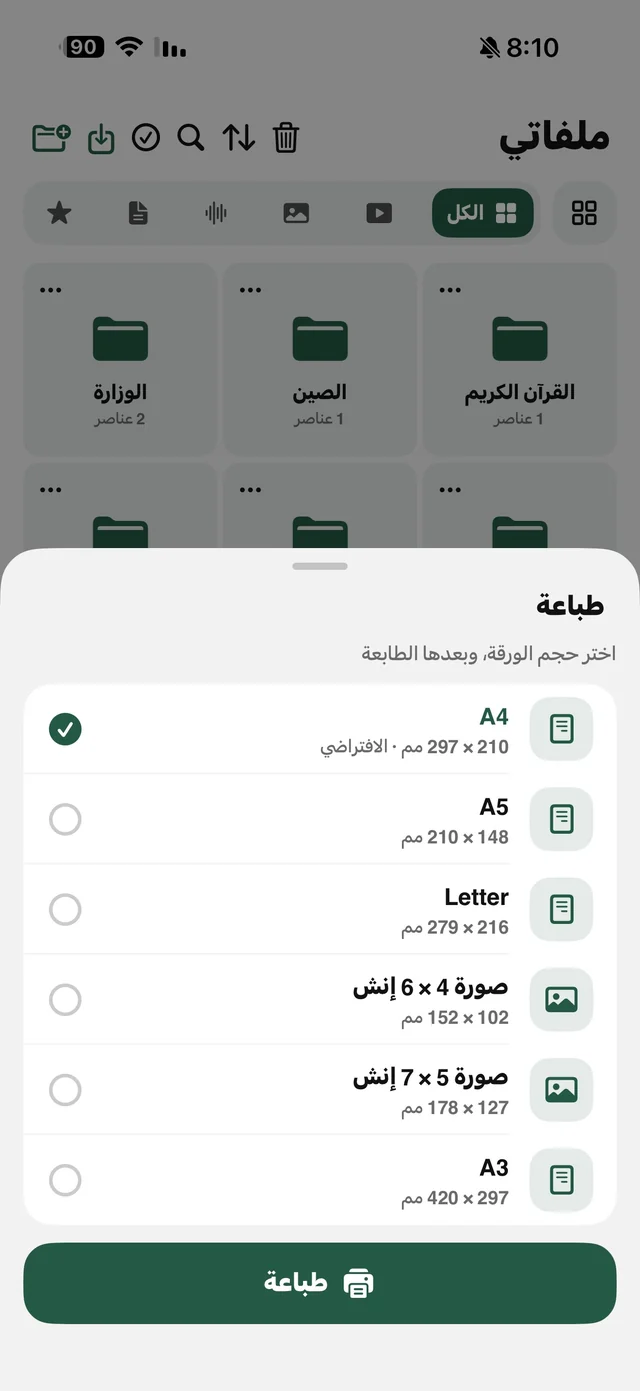
- 2Tap ⋯, then PrintThe paper sizes appear, with A4 first. Raheeb remembers the last size you picked.
- 3Pick the sizeFor photos: A4, A5, Letter, 4 × 6 in and 5 × 7 in photo, and A3. For documents: A4, A5, A3, Letter and Legal.
- 4Pick the printer and printThe iPhone print panel opens: the printer and number of copies, then Print.
Why does the photo come out cropped or tiny?
When you print a photo straight from Photos, the printer decides how to place it on the paper, so it may crop the edges or shrink it into a corner. In Raheeb, the photo is drawn on a page of the size you picked before it reaches the printer: centred, on white, in portrait or landscape to match the picture. What you see in the preview is what comes out.
Printing a PDF from iPhone
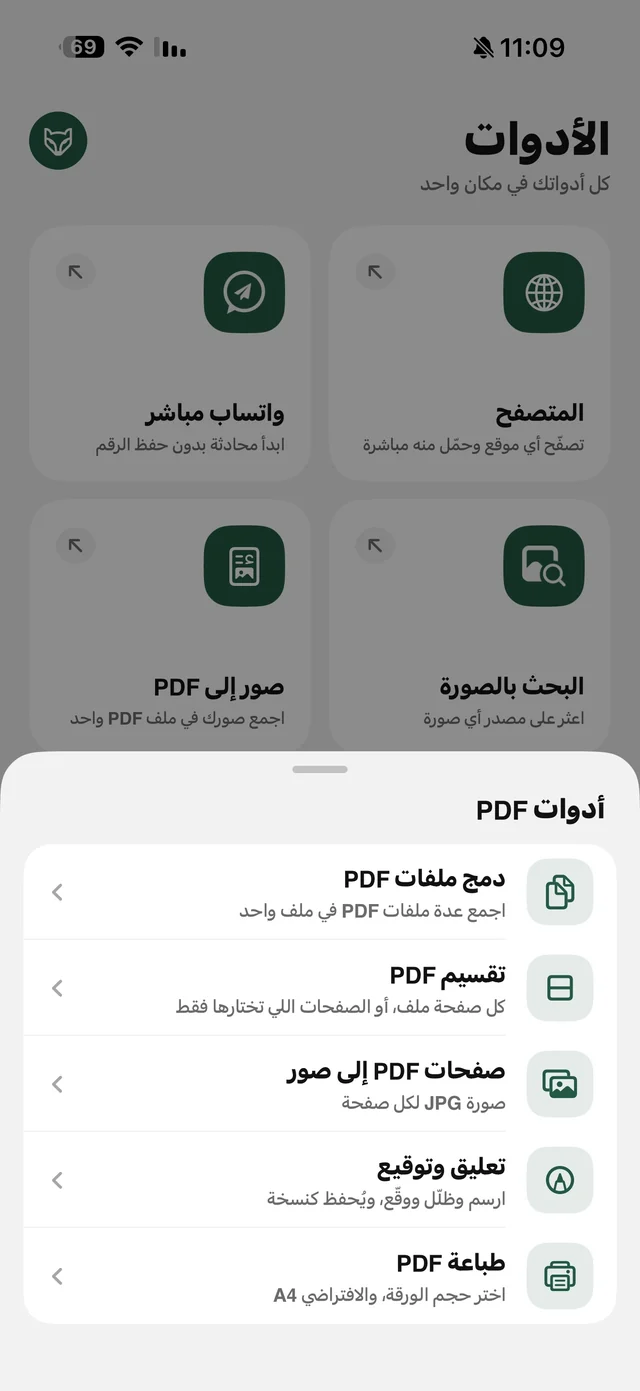
A PDF prints as it is, and Raheeb steers the printer to the paper you picked. You'll also find Print PDF in the PDF tools card in the Tools tab, next to merge, split and sign. A form you need to sign before printing? Read PDF tools on iPhone.
Many photos on one sheet or in one file?
To print several photos in one go, combine them into one PDF with Convert to PDF (part of Raheeb Pro), choose the A4 page layout, then print the file. An old photo you want sharper on paper? Enhance and enlarge it first. Read enhance photo quality.

Print your photo at the right size: Print is free in Raheeb.
Before you print, check these
- The printer supports AirPrint: most recent HP, Canon, Epson and Brother printers do. If yours doesn't show up, make sure it's on the same Wi-Fi.
- The paper in the tray matches your choice: choosing 4×6 with A4 in the tray prints a small photo on a big sheet.
- The photo has enough resolution: a small photo from an old chat comes out blurry on A4, so print it at 4×6 or enhance it first.