In this guide
Who this guide is for
- Students: you photographed your homework or the whiteboard and need to hand it in as one tidy file, or you want a single chapter out of a huge lecture PDF.
- Employees: a contract or form arrived that needs your signature while you're out of the office.
- Parents: a school form to sign and print.
- Shop owners: a month of invoices that the accountant wants as one document.
Files reach you in several ways: a direct PDF link from your university's site downloads straight into “My Files”, a file you import from the Files app or iCloud via “Import to My Files” → “From Files”, or a file you share to Raheeb from WhatsApp or the Files app. Every PDF shows up in “My Files” under the “Documents” filter.
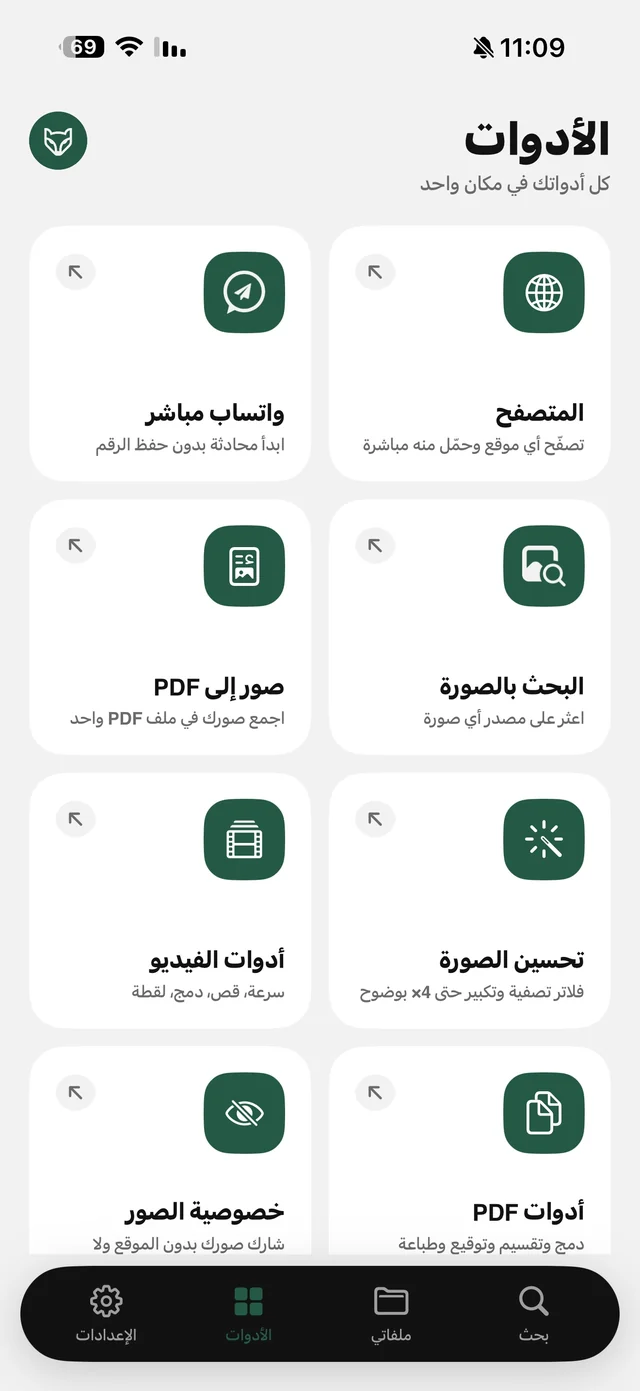
Convert images to PDF in your order
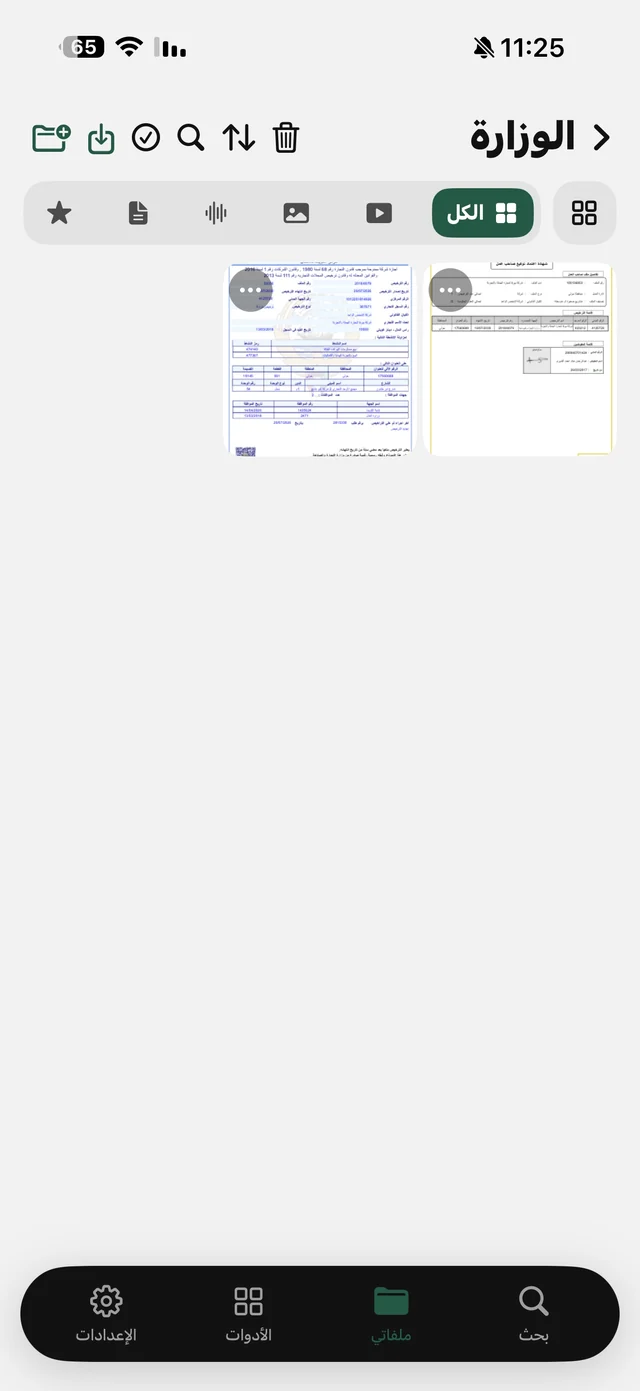
The “Images to PDF” tool shows your “My Files” images, and you can add from your library with “Add from Photos”. The key point: the order you tap is the page order, and the page number appears on each image you select.
- 1Open “Images to PDF”From the “Tools” tab, or “Convert to PDF” from ⋯ on any image in “My Files”.
- 2Tap the images in orderThe first image you tap is page one, and each image shows its page number.
- 3Choose the page layout“Image size” makes each page the size of its picture, while “A4” places each image inside an A4 page — best for printing and formal submission.
- 4ConvertTap “Convert N images to PDF”; the file opens right away and is saved under “Documents” in “My Files”.
PDF tools: merge, split, pages to images
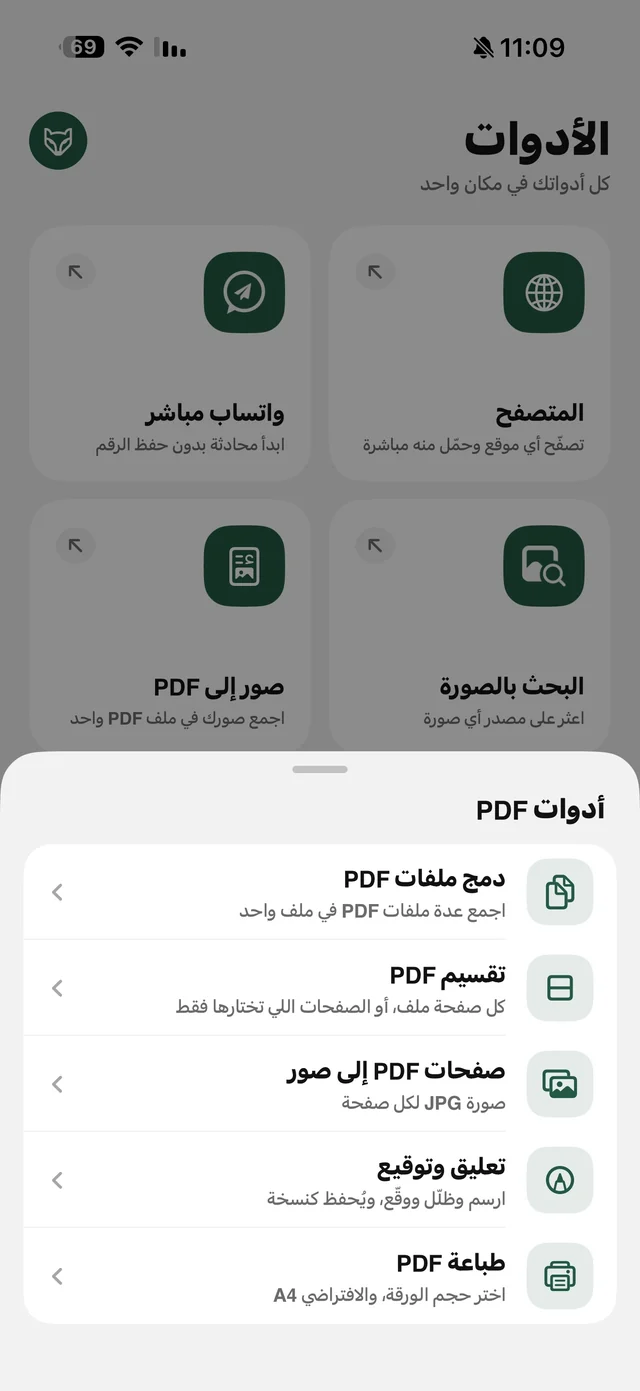
The “PDF tools” card in the “Tools” tab holds five tools: “Merge with another PDF” · “Split PDF” · “PDF pages to images” · “Markup & sign” · “Print PDF”. The ⋯ menu on any PDF inside “My Files” reaches its tools too. Every result is saved as a new file, and the original is never touched.
Merge two PDFs
Cover page in one file and the assignment in another? “Merge with another PDF” combines them into one new file, and both originals stay as they are.
Split a PDF into specific pages
- 1Open “Split PDF”From “PDF tools” in the “Tools” tab.
- 2Pick the fileFrom the list of PDFs in “My Files”, or “From Files”.
- 3Type the pagesSingle pages, or a range like “1-3, 5”.
- 4Collect the filesThe resulting files are placed in a new folder named after the original file.
PDF pages to images
Some sites only accept images, or you want to send a single page on WhatsApp as a picture. “PDF pages to images” turns each page into a high-resolution JPG.
Sign a PDF or an image on iPhone
“Markup & sign” lets you write, draw, highlight and sign on a PDF or an image (JPG · PNG · HEIC) saved inside “My Files”. Tap ⋯ on the file → “Markup & sign”, sign with your finger, then save. You get a new copy named after the file with “(Edited)” added, and the original stays clean — share it on WhatsApp or by email, upload it, or print it.

PDF tools and printing are free in Raheeb — no account needed.
Print from your iPhone at the right size
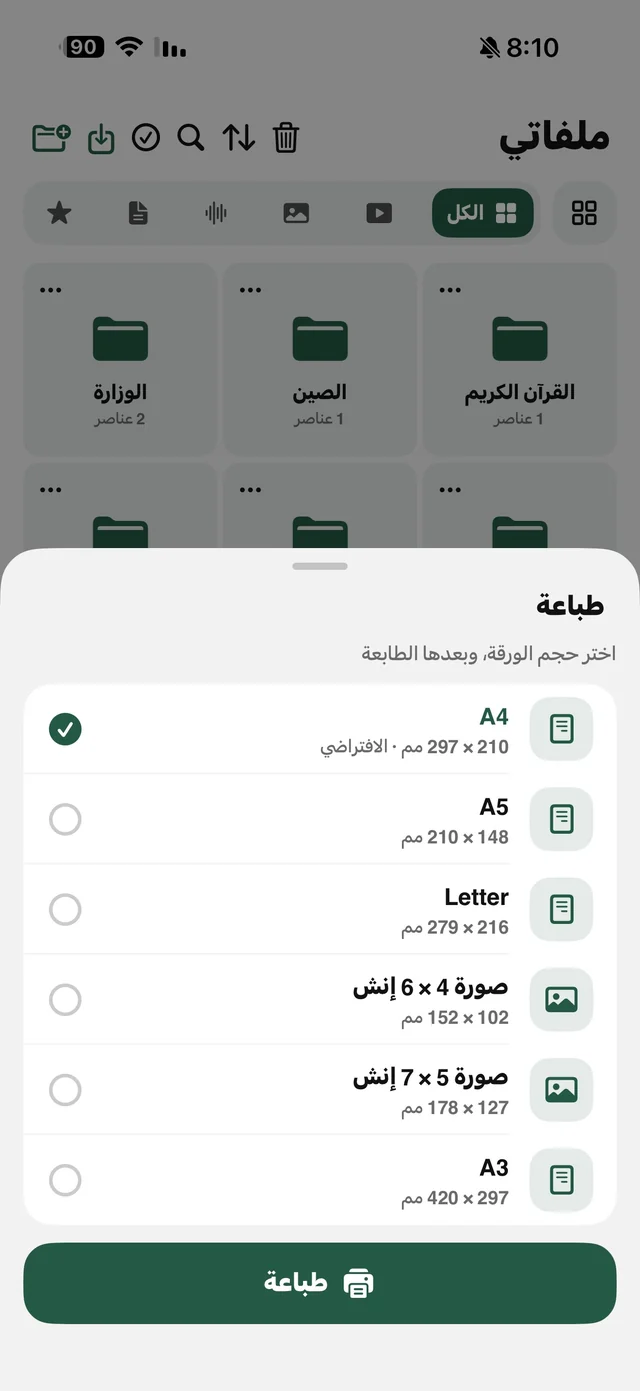
From ⋯ on any image or PDF in “My Files” choose “Print”, or “Print PDF” from “PDF tools”, or the printer button above an image while viewing it full screen. Before the print screen you pick the paper size, and the app remembers your last choice. A PDF prints as it is, while an image is laid out on the page before printing — portrait or landscape to match the image, centered with an 8 mm margin, and edge to edge on photo paper.
| Size | Best for |
|---|---|
| A4 (default) | School, university and work papers, and forms |
| A5 · A3 | Half-page sheets, or a poster and a large table |
| Letter · Legal | Documents in US paper sizes |
| Photo 4 × 6 · Photo 5 × 7 | Printing photos on photo paper |
Next comes the iPhone's familiar print screen: choose an AirPrint printer, the number of copies and the page range, and the preview shows exactly the sheet that will come out. After sending you'll see “Sent to the printer”. No wireless printer? Send the file to a computer with a printer over Wi-Fi and print it from there.
Quick comparison with the built-in iOS tools
The iPhone's Files app can create a PDF from images, and the iOS Markup tool lets you sign a file. Those are good tools for one-off tasks. The difference in Raheeb is conversion in an order you set, splitting by a page range you type, turning pages into images, and printing with a remembered paper size — all in one place with your files organized in folders, and every result a new copy that leaves the original untouched. And if the images you're combining are HEIC or very large, see converting HEIC to JPG and resizing photos.