In this guide
Why is getting files from iPhone to Windows such a hassle?
AirDrop is great, but it only works between Apple devices. The laptop at school or the computer at the shop is usually Windows, and the phone at home may well be Android. A cable needs the right adapter, and Windows only sees your camera photos — files inside apps need Apple's software on the computer. The third option — uploading to a cloud service or emailing or WhatsApping the file to yourself — means uploading and then downloading again, using data, hitting size limits, and sending your file through servers outside your home.
| AirDrop | Cable | Cloud upload | Raheeb over Wi-Fi | |
|---|---|---|---|---|
| Other device | Apple devices only | Computer | Any device | Any device with a browser |
| Needs software | No | Yes, for app files | The service's app or website | No, a browser is enough |
| Needs internet | No | No | Yes, upload and download | No, just the same network |
| Files pass through an outside server | No | No | Yes | No |
| Back to the iPhone | From Apple devices | With Apple's software | Yes | Yes, up to 8 GB |
How to transfer files from iPhone to a computer over Wi-Fi
Before you start, put both devices on the same Wi-Fi network. No network around? Turn on Personal Hotspot on the iPhone and connect the computer to it — this works over a hotspot too.
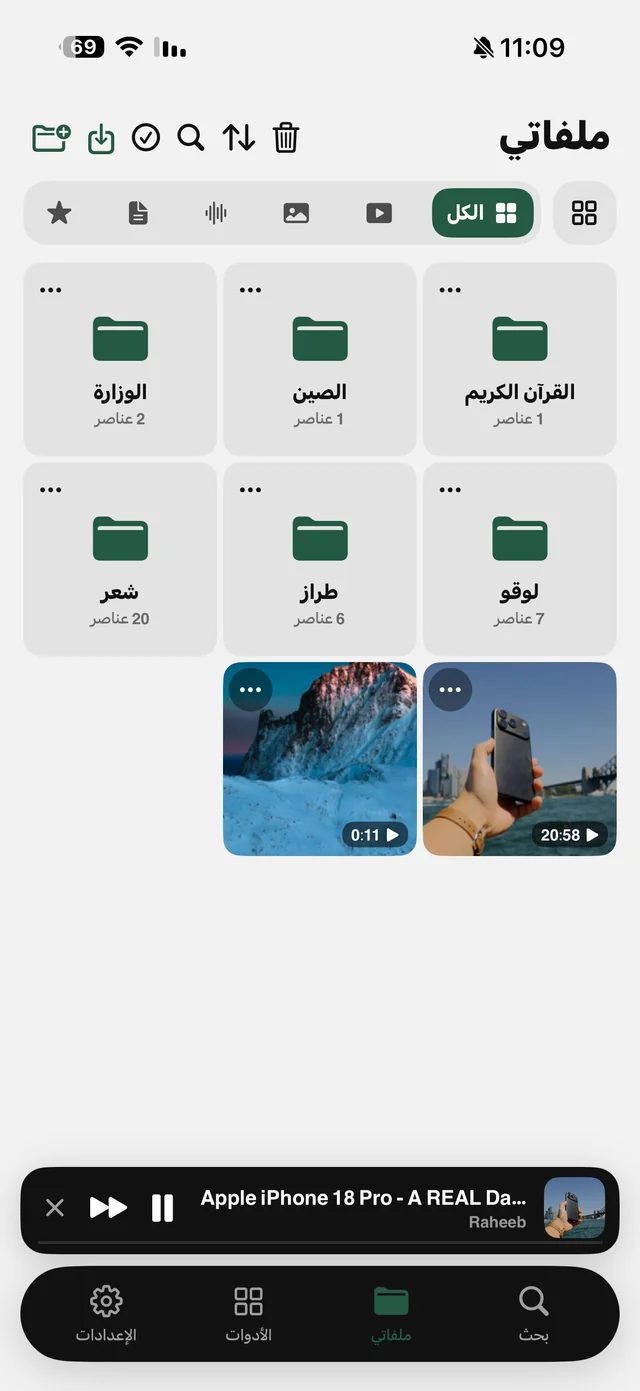
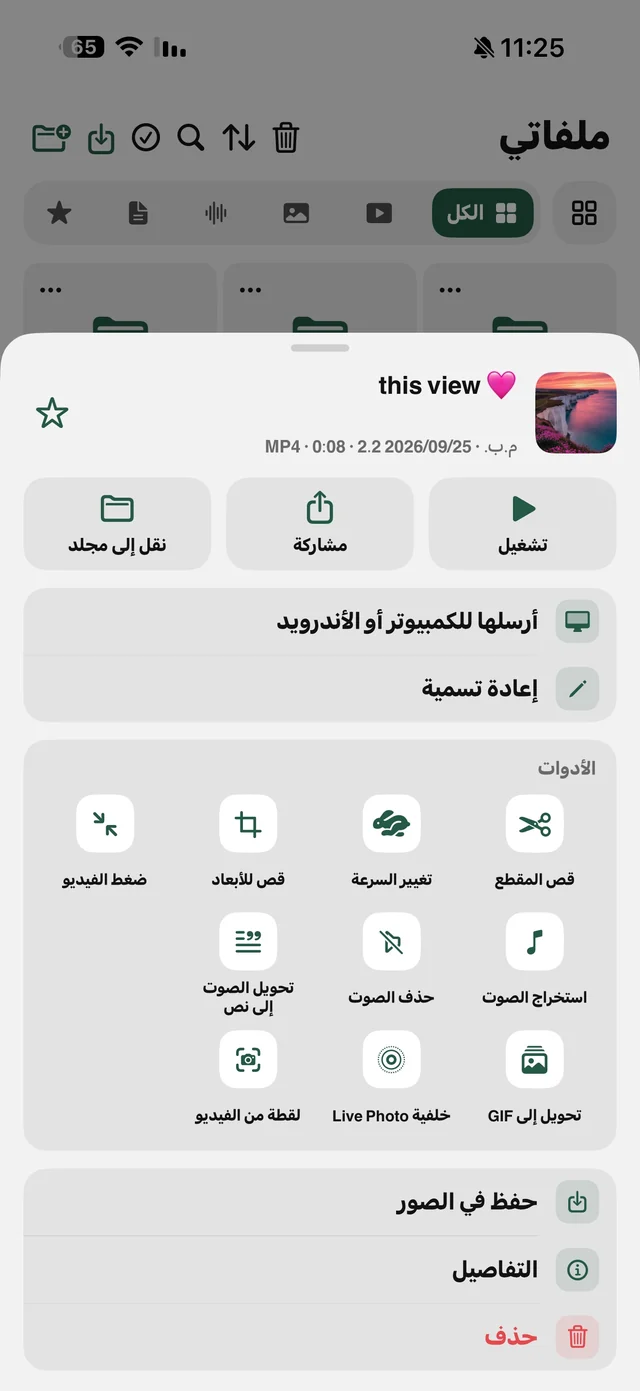
- 1Pick the file in My FilesTap the ⋯ button on the file and choose “Send to computer or Android”. For several files: tap the ✓ select button at the top, select the files, then tap “Send” in the bottom bar.
- 2Note the address and PINThe iPhone shows a QR code, an address in the form http://‹IP›:8765 and a 6-digit PIN.
- 3Open the address on the other deviceOn a computer, type the address into any browser (Chrome, Edge, Safari). On Android, scan the QR code with the camera.
- 4Enter the PINYou get a new PIN every time you start sending.
- 5Download the filesOne by one, or all at once with the “Download all (ZIP)” button.
Lots of files? Grab them all as a ZIP
A whole trip's photos or a full course's files don't need to be downloaded one at a time. The “Download all (ZIP)” button on the browser page bundles them into a single archive, with the original file names intact — Arabic names included. The button disappears when the files add up to more than 4 GB; in that case, download them in batches.
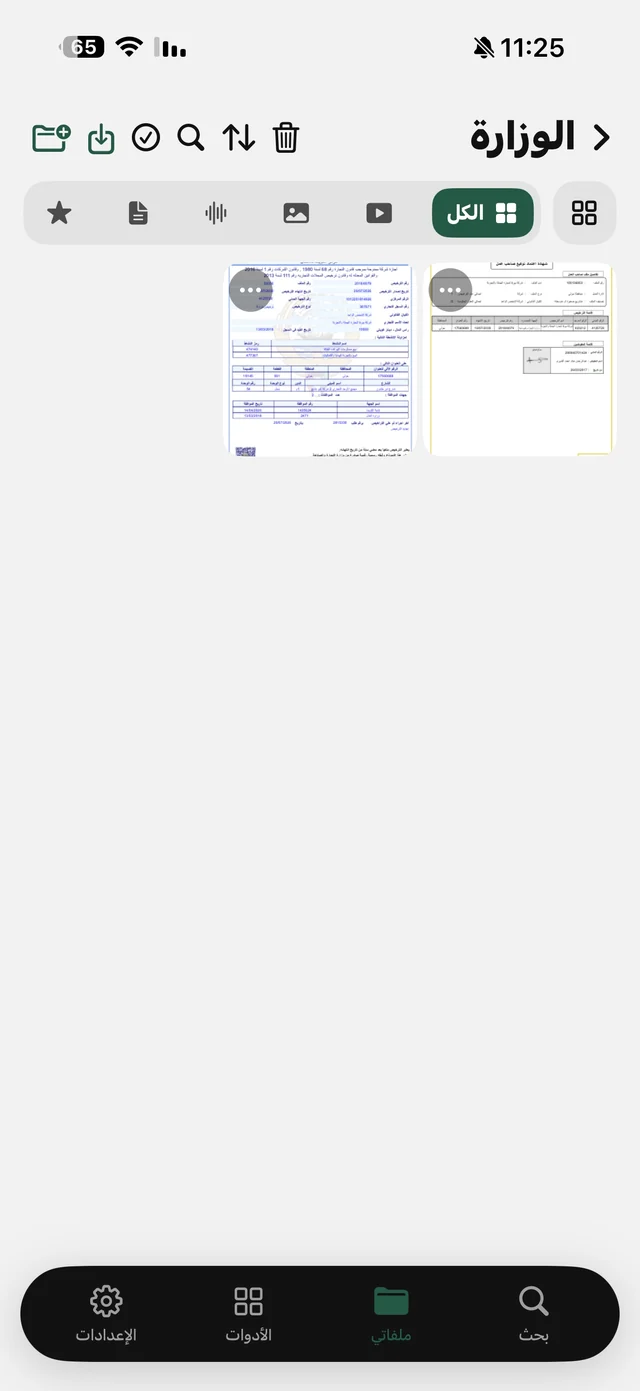
A practical note: multi-select picks files, not folders. Want to send a folder? Open it and select all its files. And if the photos are in your camera roll rather than My Files, bring them in first with the “Import to My Files” button → “From Photos” — free, and it doesn't count as a download. More on keeping things tidy in organizing files on iPhone.
The other way: from a computer or Android to your iPhone
The same page you opened in the browser lets you upload files into My Files, up to 8 GB, and they land in the folder that was open when you started sending. So if you want a presentation from your work computer or a video from an Android phone to arrive in a specific folder, open that folder first, then start. After that, every file tool works on it: trim, compress, merge PDFs, or print.
Is it safe?
- Files never leave your network: they go straight from the iPhone to the other device, with no outside server in between — not even Raheeb's.
- A new PIN every time: 6 digits, and without it nobody can open the list, even on the same network.
- 8 wrong attempts lock the session: nobody can keep guessing until they hit the right number.
- It stops when you leave: sending never keeps running in the background after you've forgotten about it.

“Send to computer or Android” is free and doesn't count toward your daily downloads.
Who is this most useful for?
- Students: course notes downloaded from the university site with the Raheeb browser, or whiteboard photos combined into a single PDF, needed on a Windows laptop before class.
- Shop owners: product photos from the iPhone to the shop computer, ready to upload to the online store.
- Family: holiday or trip videos to a relative's Android phone, without WhatsApp compressing them.
- Office workers: work files to the office computer, with replies coming back to My Files through the same page.