In this guide
Way 1: in the Photos app (free)
- 1Open the video in PhotosTap Edit at the top of the screen.
- 2Tap the speaker iconAt the top of the edit screen. It turns into a crossed-out speaker.
- 3Tap DoneThe video is now silent, and any copy you send from it goes without sound.
This is quick and free, but it edits the video itself in your library: you don't get two copies, one with sound and one without. You can turn it back to the original later from the same Edit screen.
Way 2: Remove Audio in Raheeb (a separate copy)
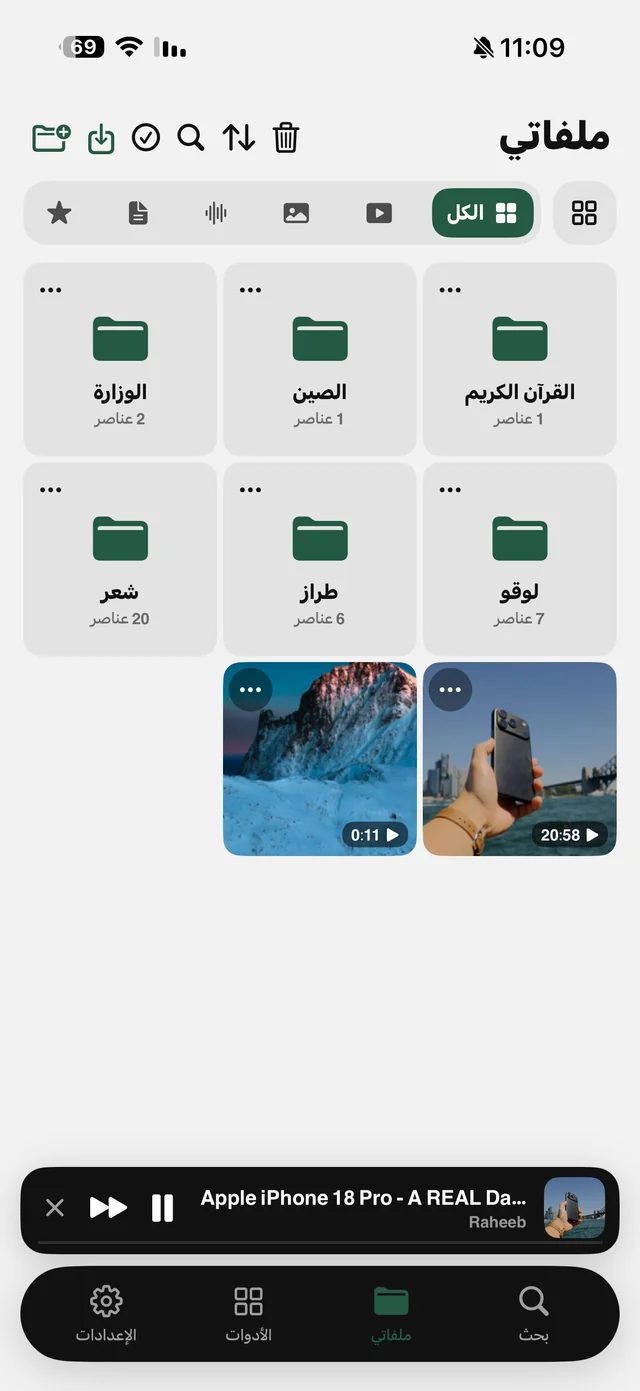
- 1Put the video in My FilesA video you saved in Raheeb, or add one from Import Files → From Photos, or with Share → Raheeb in any app.
- 2Tap ⋯ on the videoThe file's tools appear.
- 3Choose Remove AudioIt's under Audio & Text and takes a few seconds.
- 4The silent copy is readyIt appears next to the original, named after it with “Silent”, and the original keeps its sound.
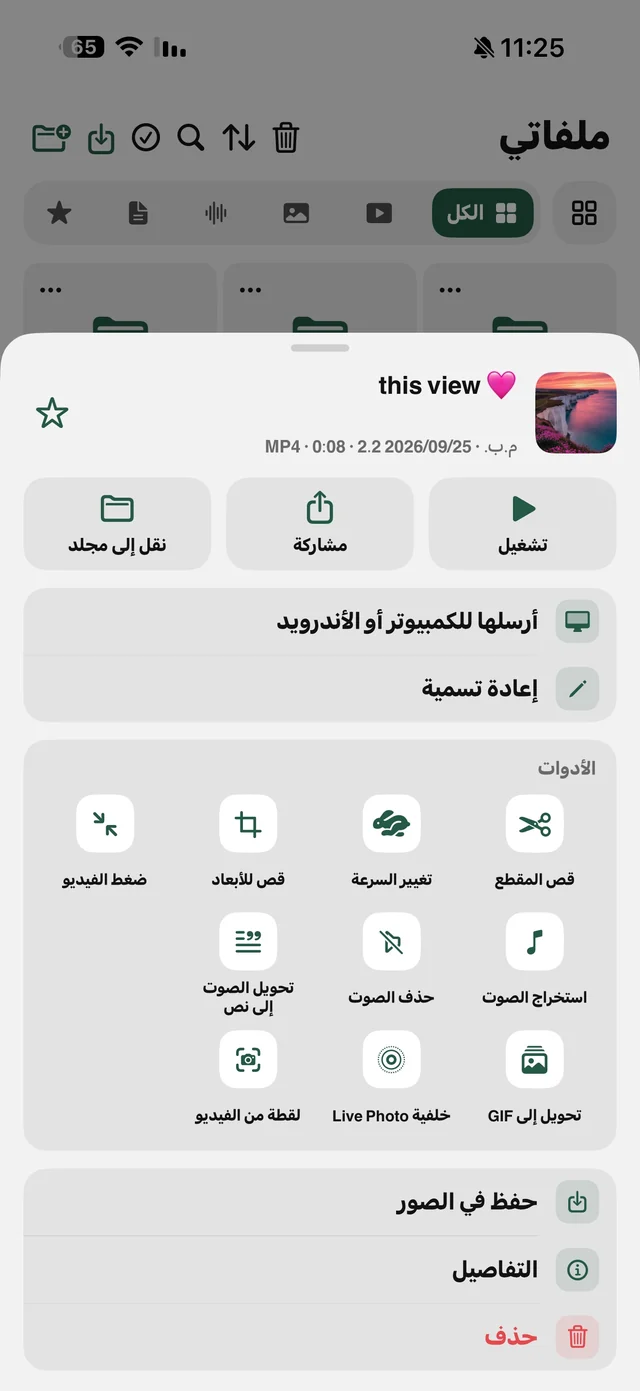
For most files Raheeb copies the picture as is, without re-encoding, so the resolution and orientation stay the same and it finishes quickly. The video is never uploaded anywhere; everything happens on your phone. Remove Audio is part of Raheeb Pro. Details on the remove audio page.
Which one should you use?
| Photos | Remove Audio in Raheeb | |
|---|---|---|
| Result | The video itself becomes silent | A new silent copy next to the original |
| The original with sound | Restored by reverting the edit | Stays as its own file |
| A video saved from a link | After saving it to Photos | Straight from My Files |
| Price | Free | Raheeb Pro |
If the video is in your camera roll and you just want it silent, Photos is enough. If you're preparing material for an edit or a post and need both versions, or the video is already in My Files, Raheeb is easier.

Try the video tools in My Files: trimming, compressing and extracting audio are free.
Want the audio too? Separate it first
Sometimes you need both: the picture without sound to put your voice-over on, and the original sound as its own file. Use Extract Audio first (free), then Remove Audio: you now have a silent video, an audio file and an untouched original. Read convert a video to MP3.
When do you need to remove audio?
- Music you don't want: a video you shot somewhere with loud music that you'd like to post without it.
- Private conversations: background talk you don't want the person you send it to to hear.
- Voice-over: footage you'll add your voice or licensed music to in an editing app.
- Showing it somewhere quiet: a video playing on a screen at a booth or office with no sound.
After removing it
- Trim it: Trim Video keeps only the part that matters.
- Shrink it: Compress Video before sending it on WhatsApp. Read compress a video.
- Save it to Photos: Save to Photos from the file's menu, to post it from any app.