In this guide
Why is the video so big in the first place?
The iPhone camera records at high resolution, and every high-resolution minute means a heavy file. The same goes for a clip you downloaded from YouTube at top quality. That's great for watching on a big screen, but annoying when you want to send it: email rejects the attachment, WhatsApp takes forever to upload, and the other person is left waiting.
Compressing re-saves the video at a lower resolution, so it gets smaller. On a phone screen the difference between 1080p and 720p is usually hard to notice, while the difference in file size is big.
Which resolution should you pick?
| Option | Best for |
|---|---|
| “High quality (1080p)” | Keeping the detail while saving a bit of size |
| “Medium (720p)” | Best for WhatsApp and everyday sharing |
| “Small (540p)” | The smallest size — great for watching on a phone or freeing up space |
How to compress a video in Raheeb
- 1Open My Filesand tap ⋯ on the video you want to shrink.
- 2Choose “Compress video”under the “Edit video” group.
- 3Pick the resolution1080p, 720p or 540p — the screen shows the file's current size.
- 4Wait for the ringThe progress ring fills up, and you can cancel midway if you change your mind.
- 5Check the new sizeIt appears as soon as it's done, and the new copy sits next to the original with “(Compressed)” in its name.
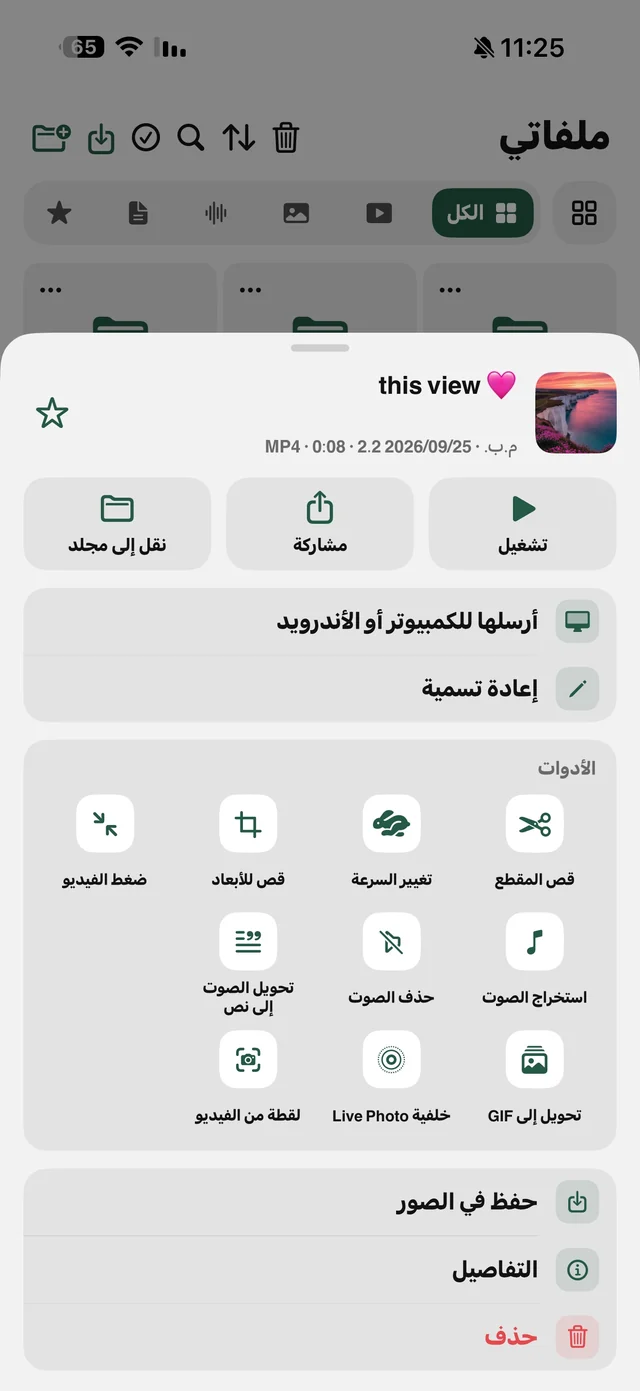
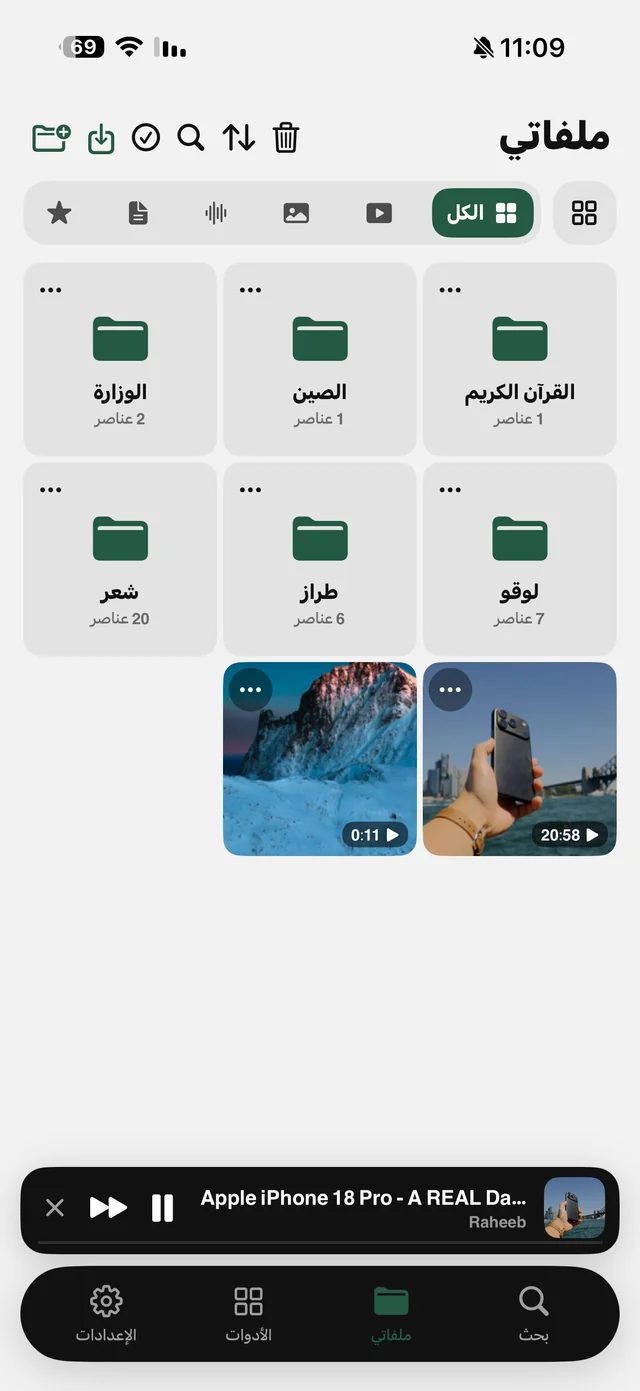
The original is never touched. If the video is a Raheeb download saved in your Photos library, the compressed copy goes back to Photos; if it lives in My Files, the copy is saved there. A video you shot with the camera? Bring it into My Files with the import button → “From Photos” and then compress it — importing is free and doesn't count as a download.
3 tricks to shrink it even more
- Trim before you compress: length affects size as much as resolution. To send one minute of a ten-minute clip, use “Trim video” first, then compress the trimmed copy.
- Audio only: if the speech is what matters — a class, a sermon or a long voice note — “Extract audio” from the same menu gives you a much smaller file. Details in video to audio.
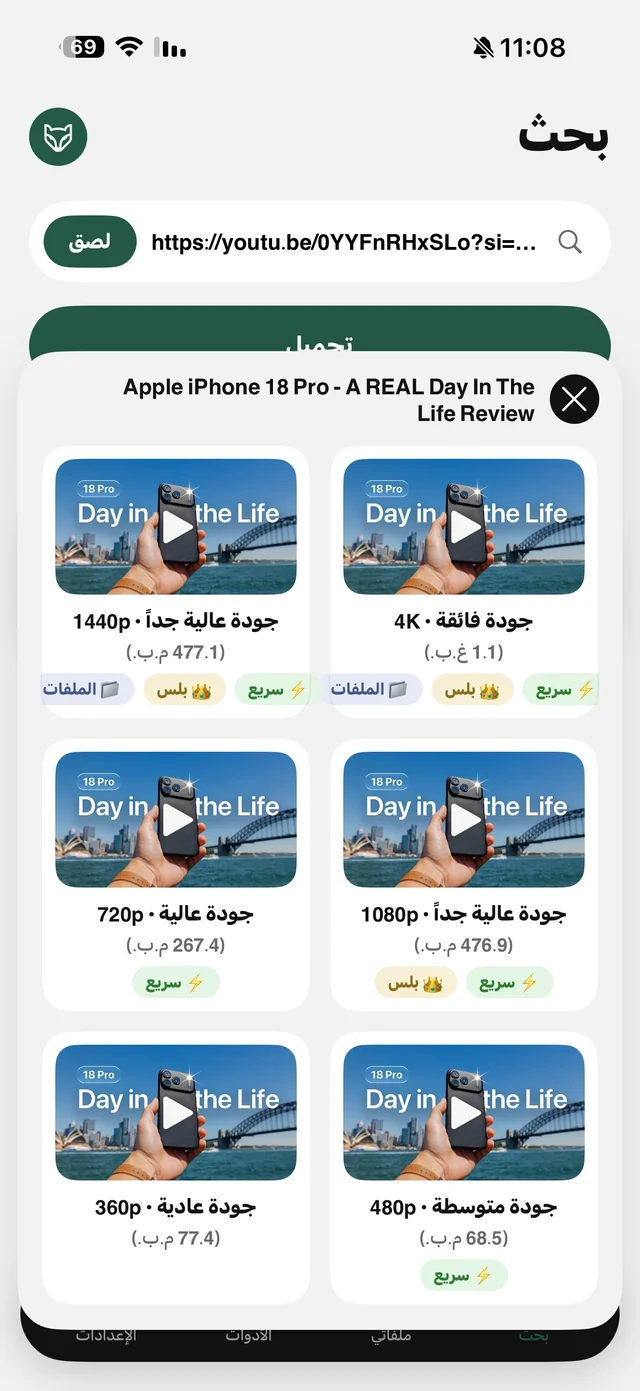
- Pick the quality up front: for a clip you haven't downloaded yet, the quality picker shows the size of each resolution in MB; 720p or lower saves you compressing later.

“Compress video” is free in Raheeb and runs on your device.
When people need to compress a video
- A long clip for WhatsApp: a party or trip video that's slow to upload; 720p lightens the load on both ends.
- An attachment in a work email: email has an attachment size limit, so compress the clip and try before falling back to a storage link.
- A shop owner sending a product video: a 540p copy is plenty for a customer on a phone and arrives faster, while you keep the full-quality original for ads.
- A full phone: old clips you don't need in high resolution? Compress them, then delete the originals yourself once you've checked the copies.
On your device, no upload
Video compression websites make you upload the file to their server and then download it again — double the time, double the data, and a family video passing through a server you know nothing about. In Raheeb, compression happens on the phone itself and the video isn't uploaded anywhere.
And if you want to move the video to a computer rather than send it, you don't need to compress it at all: transfer it over Wi-Fi at full quality.
The built-in iPhone option (for future recordings)
The iPhone can't compress an existing video, but you can make new recordings smaller from the start: iPhone Settings → Camera → Record Video, and choose a lower resolution. That affects everything you shoot from then on, so it's usually better to record in high quality and compress only when you need to.