In this guide
Way 1: Share, then Raheeb
- 1Open the compressed fileIn a WhatsApp chat, an email attachment or the Files app.
- 2Tap ShareChoose Raheeb from the app row. You'll see “Adding to My Files…”.
- 3Open RaheebIt's uncompressed in the background, and a message says “Uncompressed N files”.
- 4Open the folderMy Files has a folder named after the compressed file, with its subfolders as the sender arranged them.
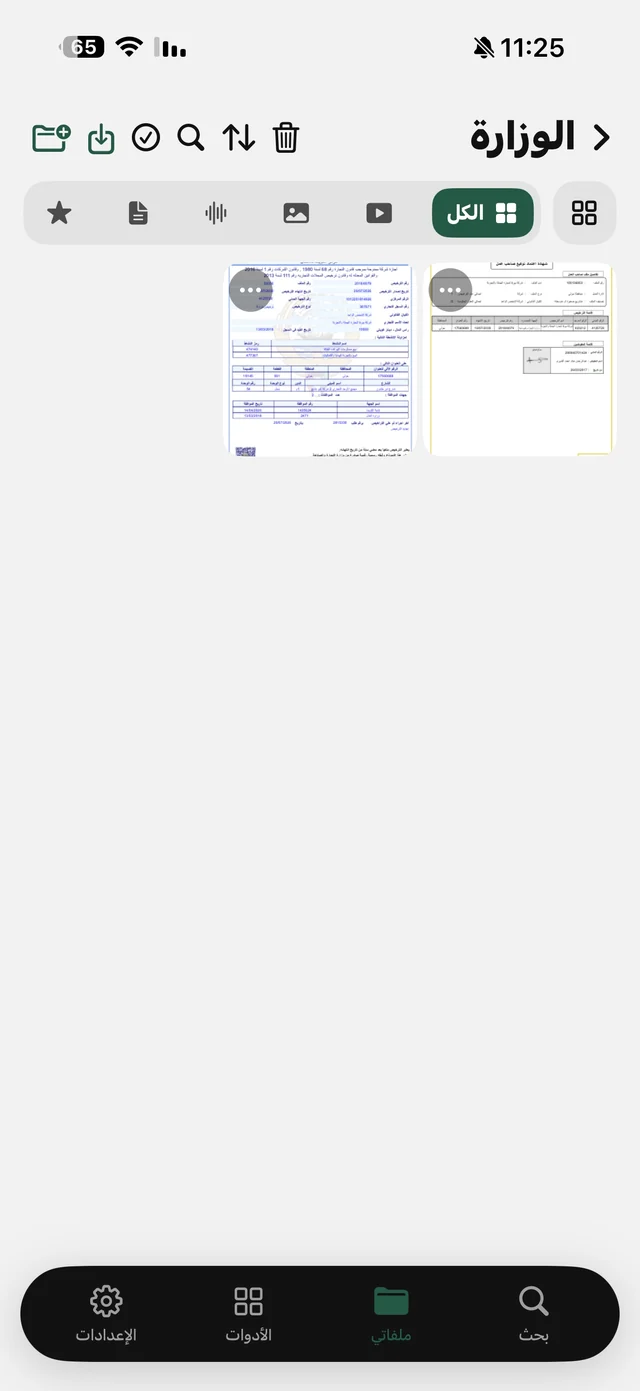
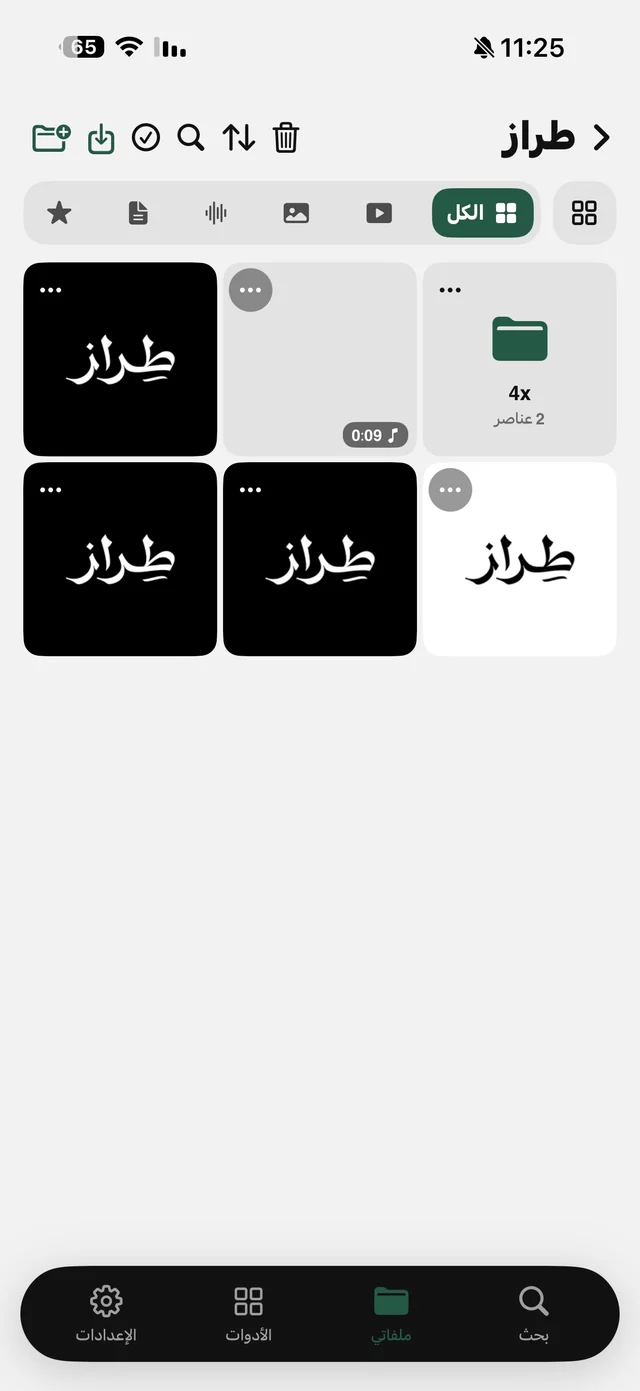
If the archive holds a single file, it goes into My Files on its own, without a folder. System files that computers add when compressing, such as the __MACOSX folder and .DS_Store files, are skipped automatically so they don't clutter the folder.
Way 2: from inside My Files
In My Files tap the add button, then Import Files → From Files, and pick a ZIP from Files or iCloud Drive. It's uncompressed into a folder named after it, just like in way 1.
Way 3: a ZIP from a link
A link that ends in a ZIP, from a university site, a font shop or a designer sending a delivery? Copy the link and paste it into the Search tab in Raheeb. The file downloads straight to your phone, then it's uncompressed into a folder the same way. Details on the save from any link page.

Open your first ZIP now: Raheeb is free, no account.
What about the iPhone's Files app?
The Files app itself can uncompress a ZIP: tap the file and a folder appears next to it. That's enough if the archive is already there. The difference in Raheeb is that the compressed file comes straight from the chat without saving it to Files first, and the contents are ready for Raheeb's tools: videos play in the player with background playback, photos go through the photo tools, PDFs through the PDF tools, and everything sits in folders you can move and arrange as you like.
| Files app | Raheeb | |
|---|---|---|
| From a chat or email | Save it to Files first | Share, then Raheeb, directly |
| Inner folder structure | Kept | Kept, inside a folder named after the archive |
| Extra system files | Shown | Skipped |
| After unzipping | File previews | Player plus photo, video and PDF tools |
After unzipping
- Documents: PDF, Word and others open in a quick preview inside Raheeb.
- Photos and videos: Save to Photos from any file's menu to put it in your camera roll.
- PDF files: merge, split and sign from the file's menu. Read PDF tools on iPhone.
- More order: move files between folders, and lock My Files with Face ID with Raheeb Pro. Read organize files on iPhone.
- In Files too: My Files appears in the Files app as “Raheeb”, so you can open the folder from any other app.
Messages you might see
| Message | Why, and what to do |
|---|---|
| “… isn't a ZIP archive” | The file is another format, such as RAR or 7z, and Raheeb only unzips ZIP. Ask the sender to compress it as ZIP. |
| “Couldn't uncompress …. The archive is damaged.” | The file didn't finish downloading or got damaged. Download it again. |
| “Not enough space to uncompress …” | The archive is bigger than your free space. Delete what you don't need and try again. |
| “N skipped” | Password-protected files or unusual compression, or extra system files. |