In this guide
Why is saving a carousel such a pain on iPhone?
A carousel is the post you swipe left and right through — you can spot one by the little dots under the image. It can hold up to 20 items, a mix of photos and videos. Instagram gives you no button to save them to your camera roll: the bookmark only saves the post inside Instagram, and it's gone if the owner deletes it or goes private.
So most people screenshot: ten screenshots for ten photos, each one with the status bar, the account name and the buttons, then cropping by hand. And the videos inside the carousel? A screen recording for each. The right way is to download the actual files the owner uploaded.
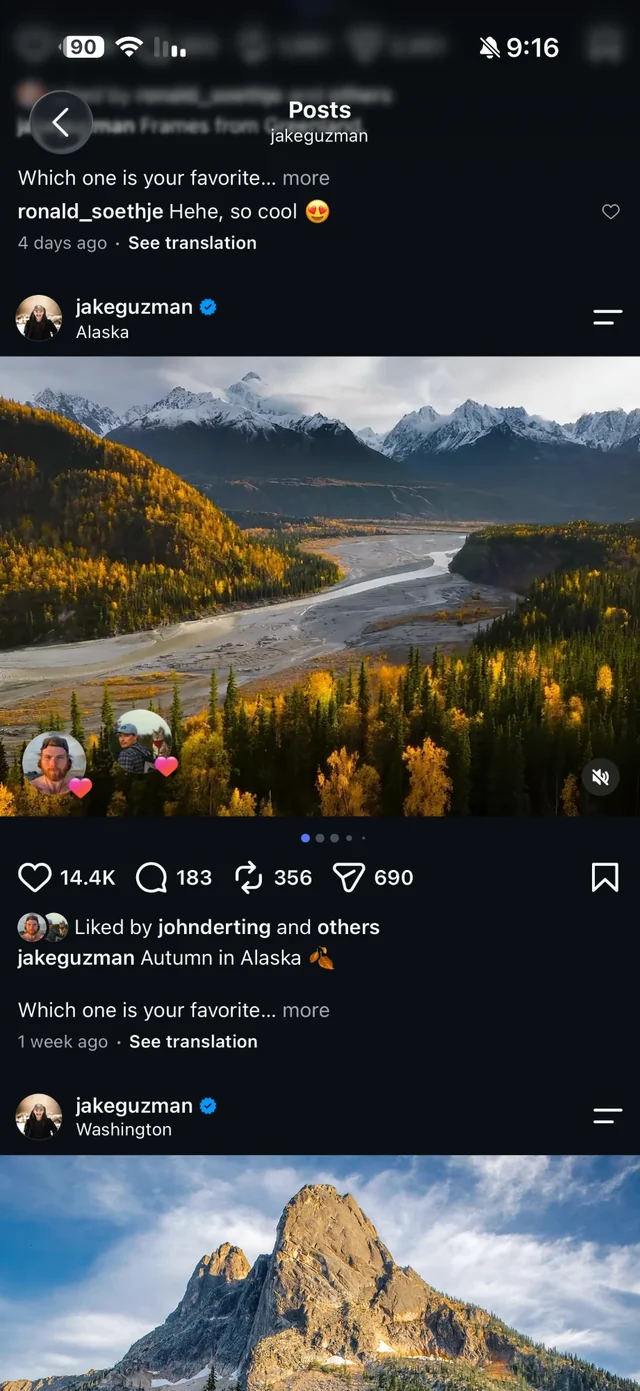
Method 1: from the Share button (without leaving Instagram)
- 1Open the postAny carousel from a public Instagram account.
- 2Tap the share iconThe paper plane under the post. Instagram's own menu opens with names and buttons.
- 3Choose “Share to…”The first button in the bottom row — it opens the iPhone share sheet.
- 4Tap RaheebIn the app row. Can't see it? Scroll to the end of the row, tap More and add Raheeb to your Favorites once so it sits at the front.
- 5Wait for the ringA Raheeb card appears over Instagram with the post's title and the download percentage, then “Saved to the photo album”.
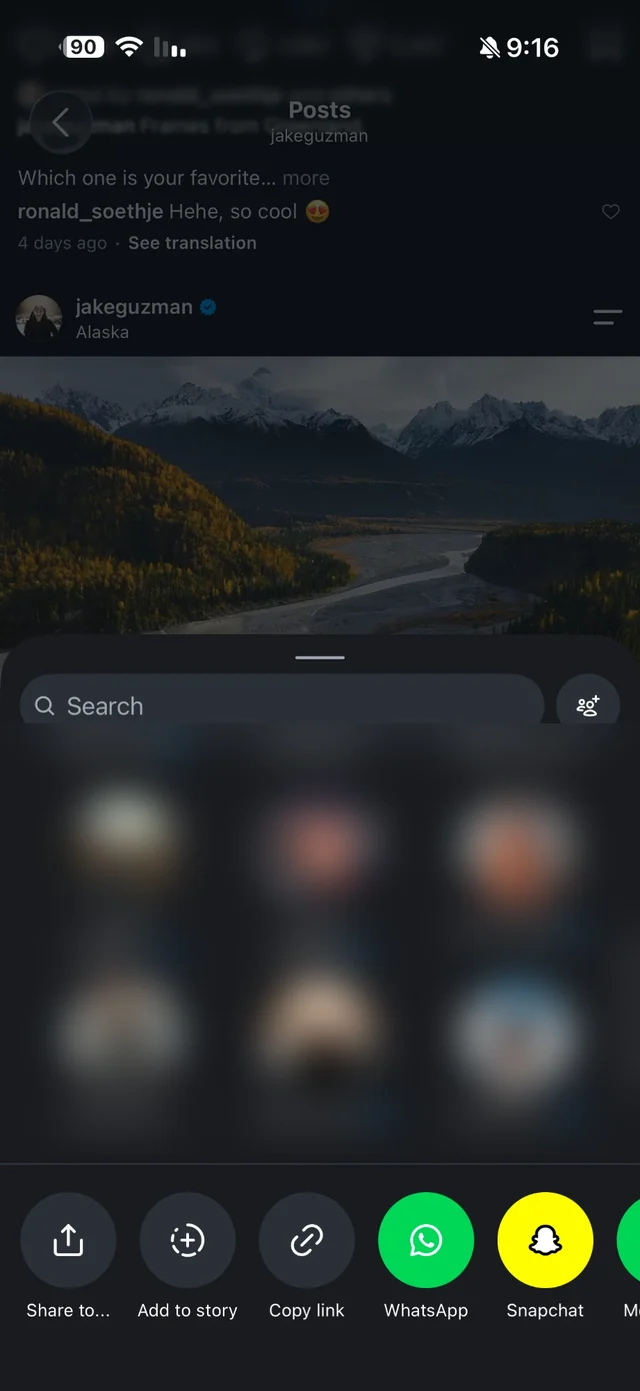
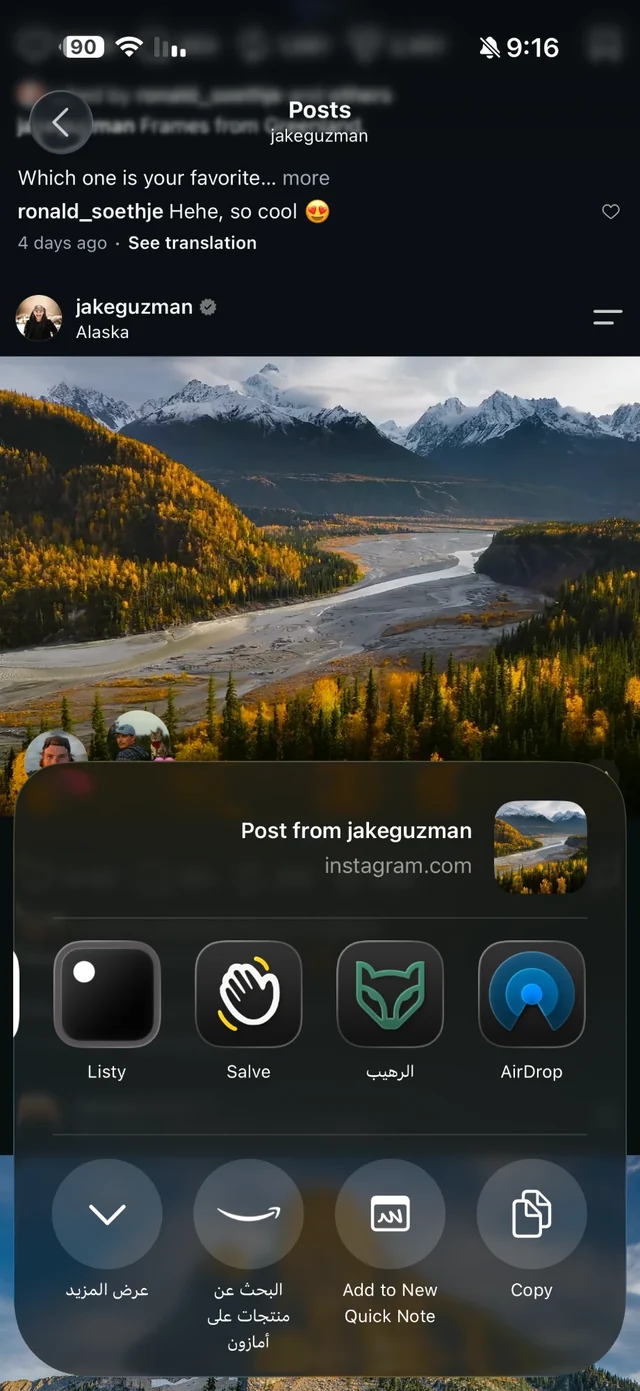
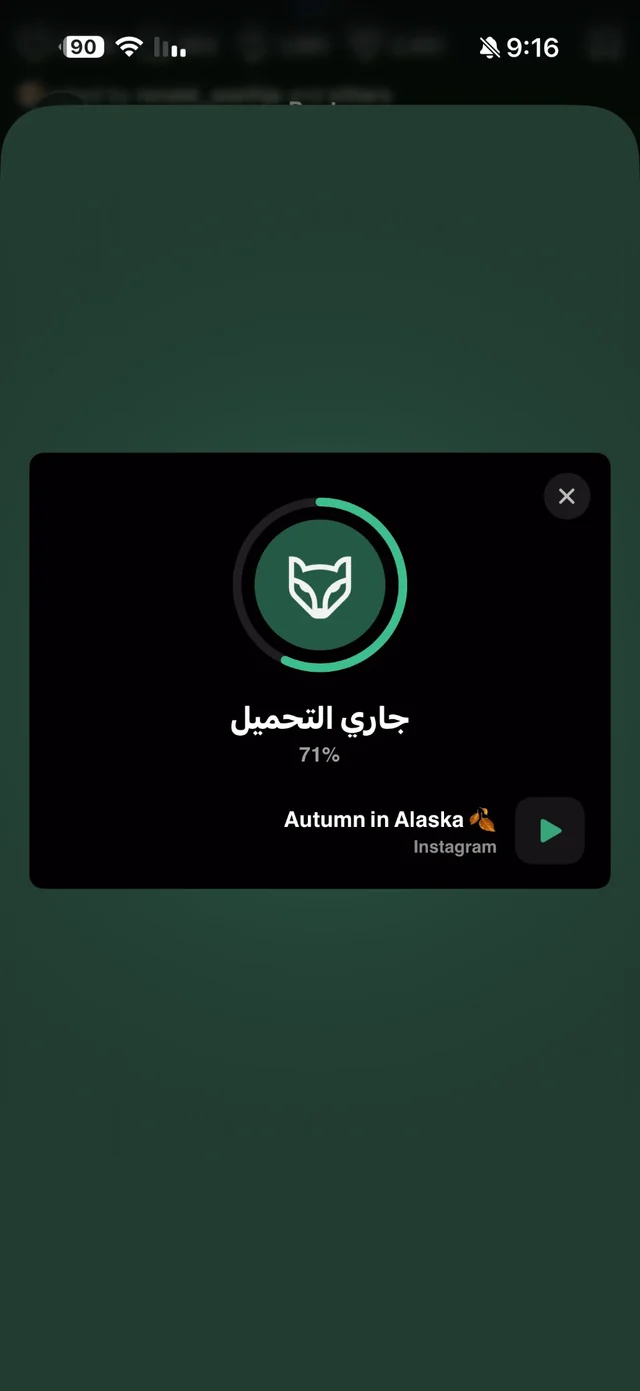
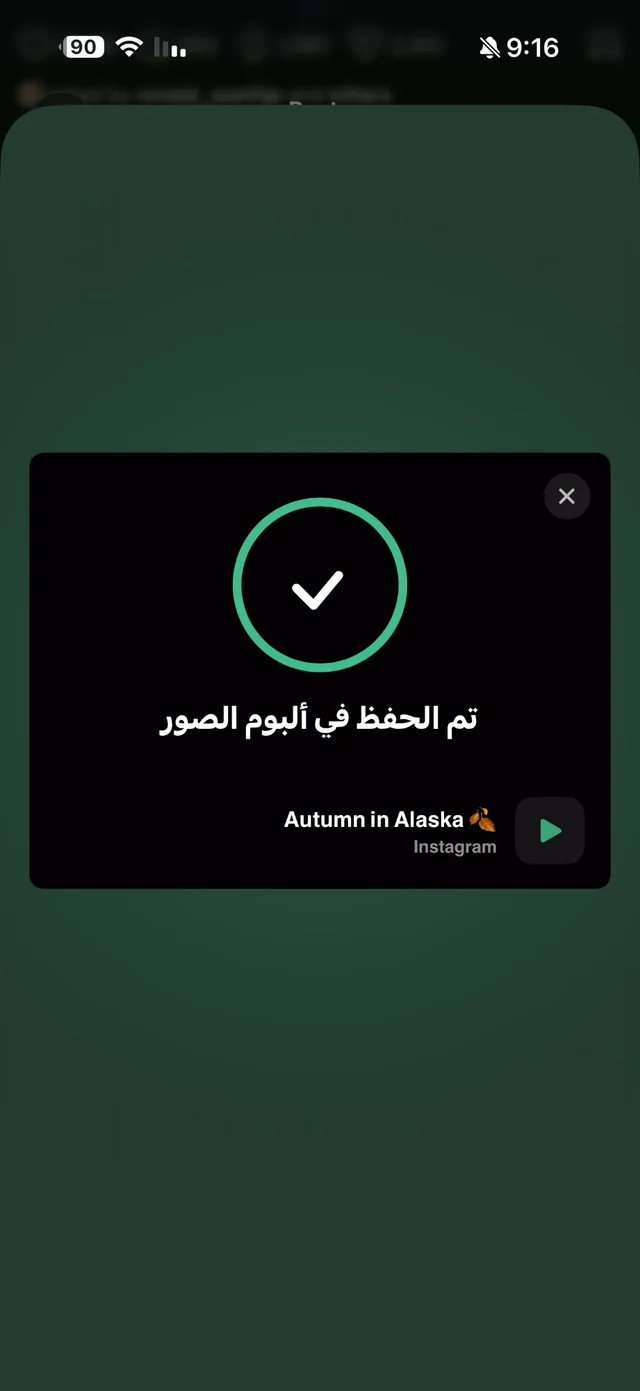
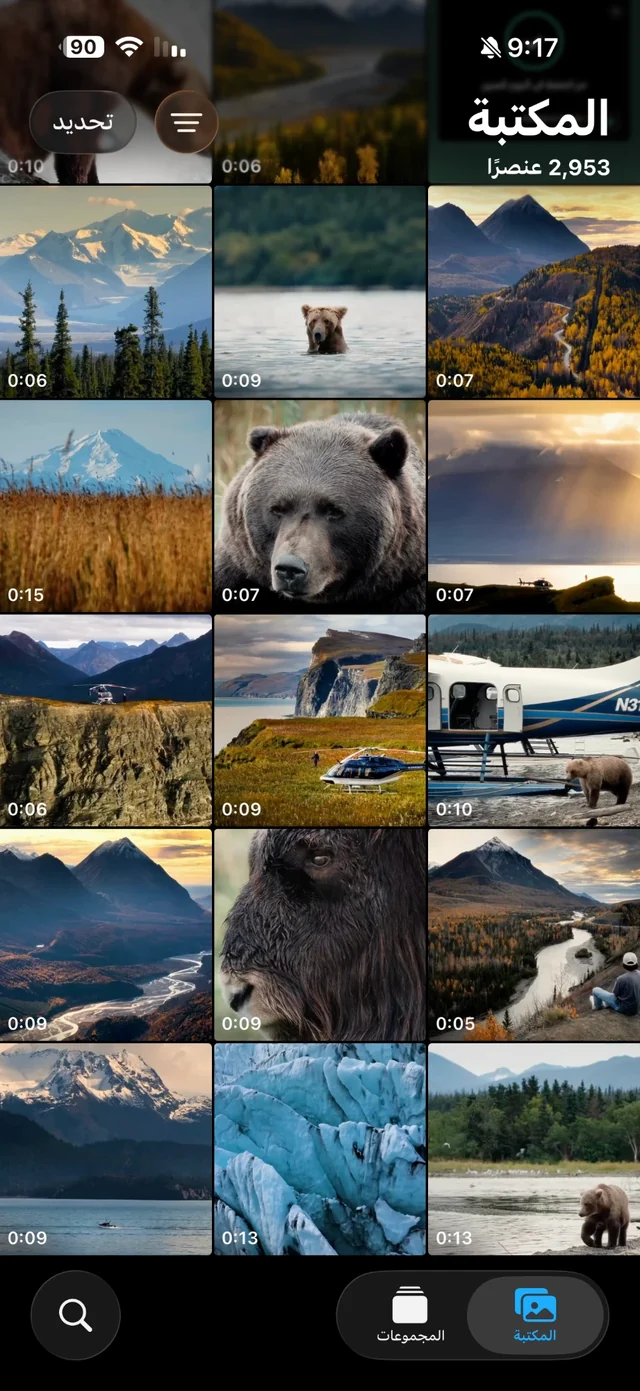
All of this happens while you're still in Instagram: close the card and keep scrolling. How the extension works, and how to pin it to the front of the share sheet, is on the Share button page.
Method 2: copy the post link
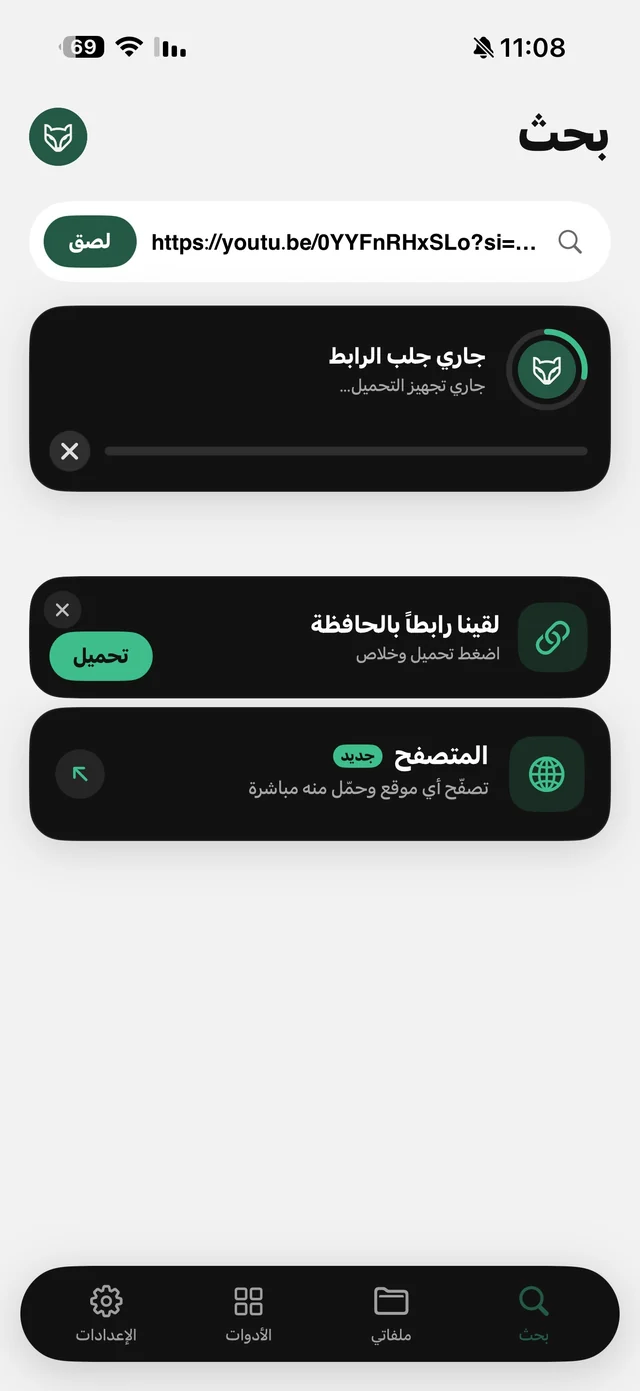
Prefer copying? In the same Instagram menu tap “Copy link”, then open Raheeb. The Search tab spots the link on its own and shows a card with a download button — tap it. A carousel downloads in full with no quality sheet, because every item comes down at the resolution Instagram serves.
What exactly do you get?
| Screenshots / screen recording | Raheeb | |
|---|---|---|
| A 10-item post | 10 screenshots + cropping each | One link, all at once |
| Resolution | Your screen's | The image as Instagram serves it |
| Account name and buttons | Baked into the image | Not there |
| Videos inside the carousel | A screen recording each | Saved as files with sound |
| Daily allowance used | — | One download for the whole post |
The same goes for TikTok photo slideshows (the posts whose photos flip by): every photo downloads at once — see how to save TikTok videos.

Try it on the first carousel you want to keep — 3 free downloads a day, no account needed.
Where do the carousel items go — and how to keep them tidy
Each item is saved on its own, and where it goes is set by “Where downloads are saved” under Settings → Downloads: Photos and My Files (the default), Photos only or My Files only. Raheeb asks for add-only access to Photos: it adds to your library but never reads it.
- Save lots of carousels? Pick “My Files only” so your camera roll stays for your own photos, with carousels organised inside Raheeb.
- A folder per topic: in My Files make one folder for recipes, one for decor ideas, one for study, and drag the images in — more in organising files on iPhone.
- Back to Photos any time: every image or video in My Files has “Save to Photos” in its ⋯ menu.
- A summary or tips carousel? Turn it into a single PDF you can read — see how to turn an Instagram carousel into a PDF.
What doesn't download — honestly
And remember: the photos belong to their owners. Save them for yourself — a reference, a recipe, an idea — and ask before reposting.