In this guide
- 1How to download a YouTube video and choose the quality
- 2The full quality list, with sizes
- 3What do “⚡ Fast”, “👑 Plus” and “📁 Files” mean?
- 4Which quality should you choose?
- 5Long videos: progress in the Dynamic Island and on the Lock Screen
- 6Downloading YouTube Shorts
- 7Storage, data and after the download
How to download a YouTube video and choose the quality
- 1Copy the linkIn YouTube, tap “Share” under the video, then “Copy link”. youtube.com, youtu.be and Shorts links all work.
- 2Open RaheebIn the Search tab a “Found a link in your clipboard” card appears — tap “Download Now”, or tap “Paste”.
- 3Pick the qualityEach quality has its size next to it, along with an “Audio” card and a “Video transcript” card.
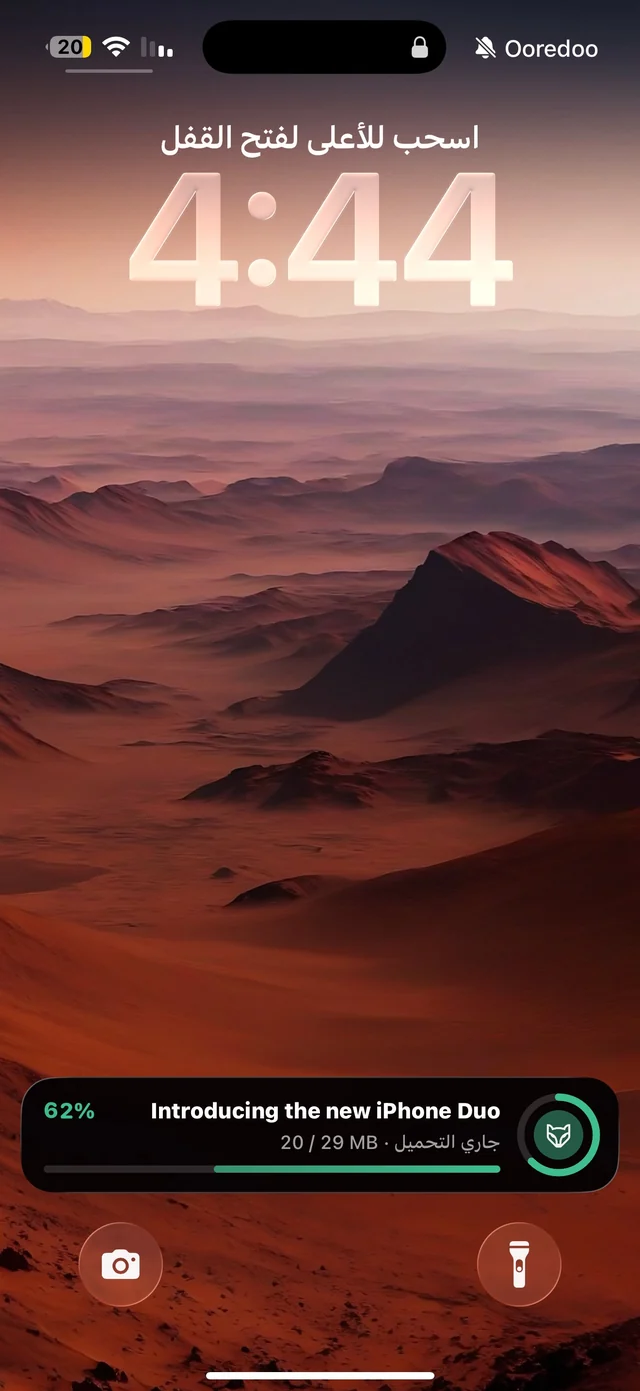
- 4Watch or leaveThe progress card shows the percentage, what's left and the time, and you can leave the app while the progress shows on the Lock Screen.
The Share button inside YouTube works too (“Share”, then Raheeb), but it downloads straight away without the quality sheet. If quality matters to you, paste the link.
The full quality list, with sizes
Raheeb shows everything the video actually offers: 2160p (4K) · 1440p · 1080p · 720p · 480p · 360p · 240p · 144p. 4K only appears if the video itself was uploaded at that resolution — the list reflects the video, not a fixed promise. And each quality shows its size, so you know how much data and storage it will take before downloading, not after.
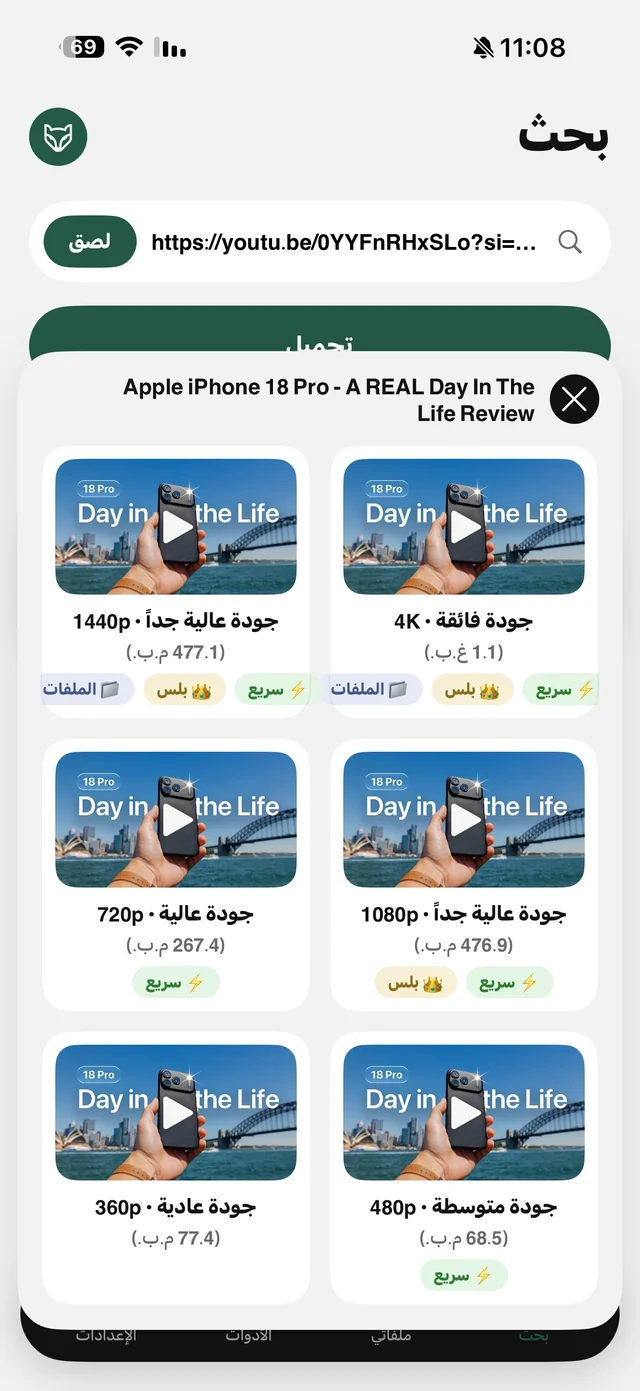
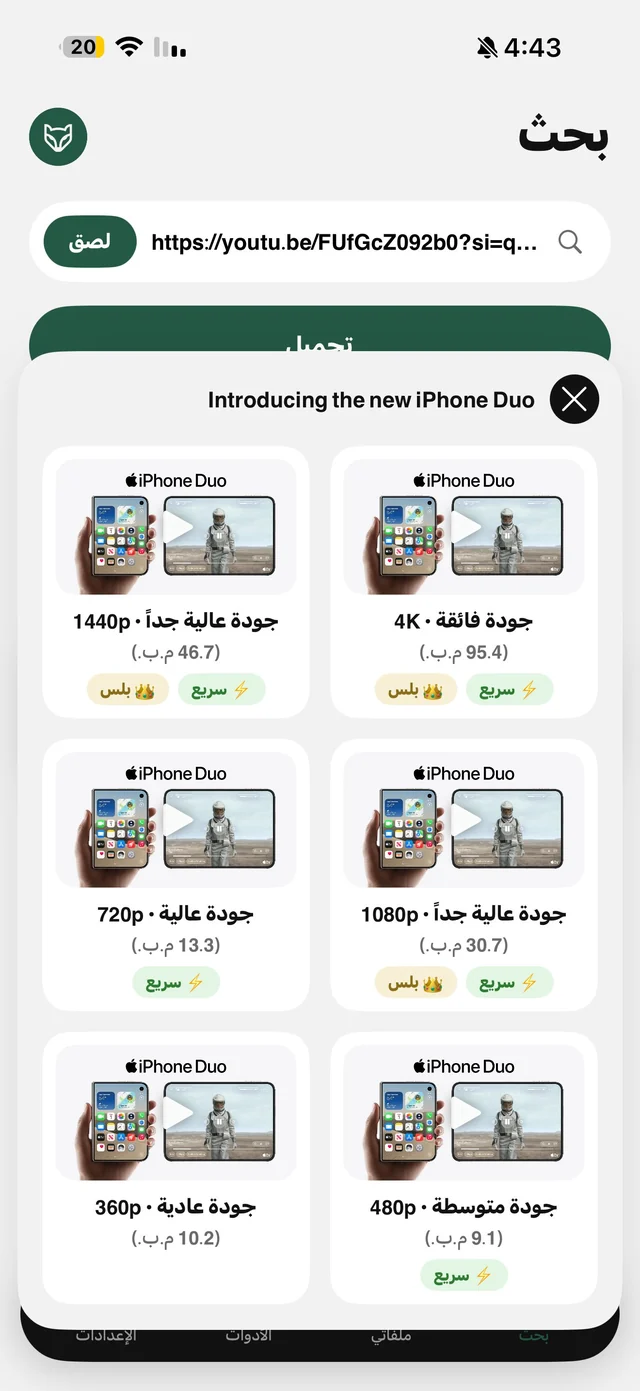
What do “⚡ Fast”, “👑 Plus” and “📁 Files” mean?
| Tag | What it means |
|---|---|
| ⚡ Fast | The download is split into parts that come down in parallel, so it finishes faster |
| 👑 Plus | YouTube only: 1080p and above for Raheeb Pro subscribers; 720p and below are free |
| 📁 Files | A long AV1 video above 1080p — it goes to My Files because the photo album doesn't accept it |
The “📁 Files” tag isn't a bug: some long videos above 1080p come encoded in AV1, which the Photos app doesn't accept. So instead of the save failing, Raheeb puts them in My Files and you play them in its player. The qualities are explained on the quality selection page.
Which quality should you choose?
- For watching on your phone: 720p is usually plenty on an iPhone screen, and it's free.
- For the TV or editing: 1080p and above — play it on the TV with AirPlay from Raheeb's player.
- To save data and storage: 480p or 360p, with the size shown under each one.
- For a lecture or podcast: the “Audio” card — in one example from the app, the audio was 3.7 MB versus 74.5 MB for 1080p of the same video. Explained in YouTube to MP3.
Long videos: progress in the Dynamic Island and on the Lock Screen
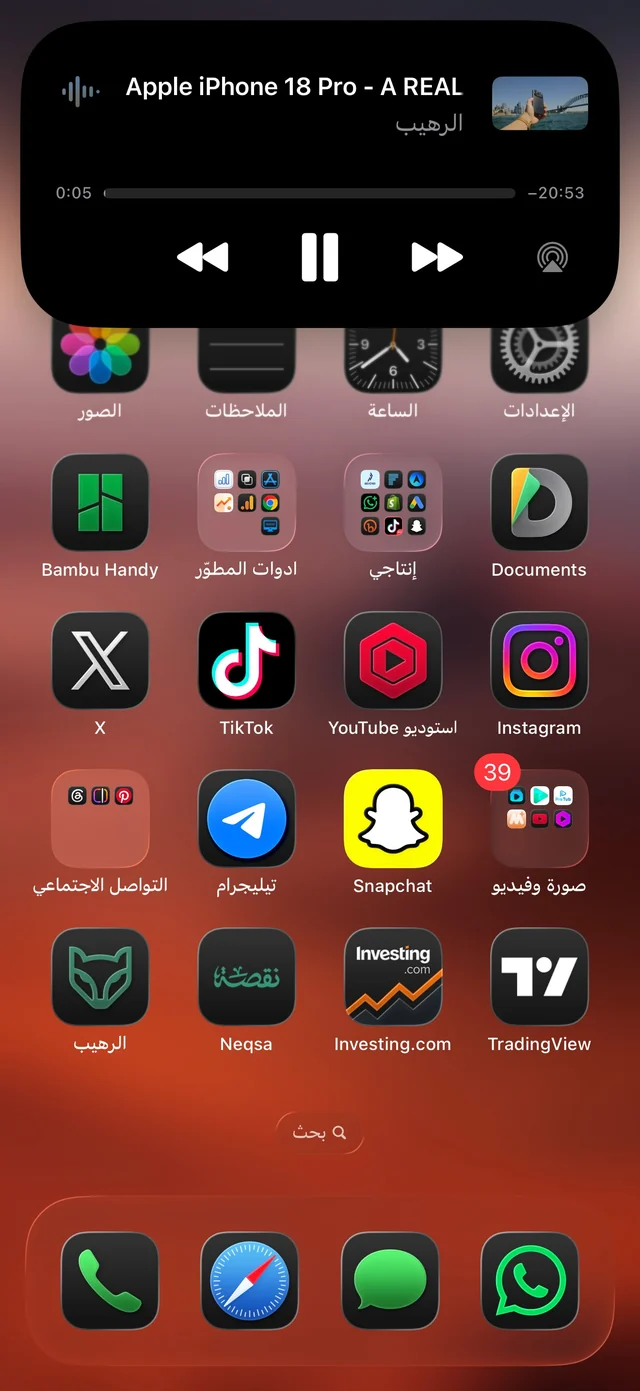
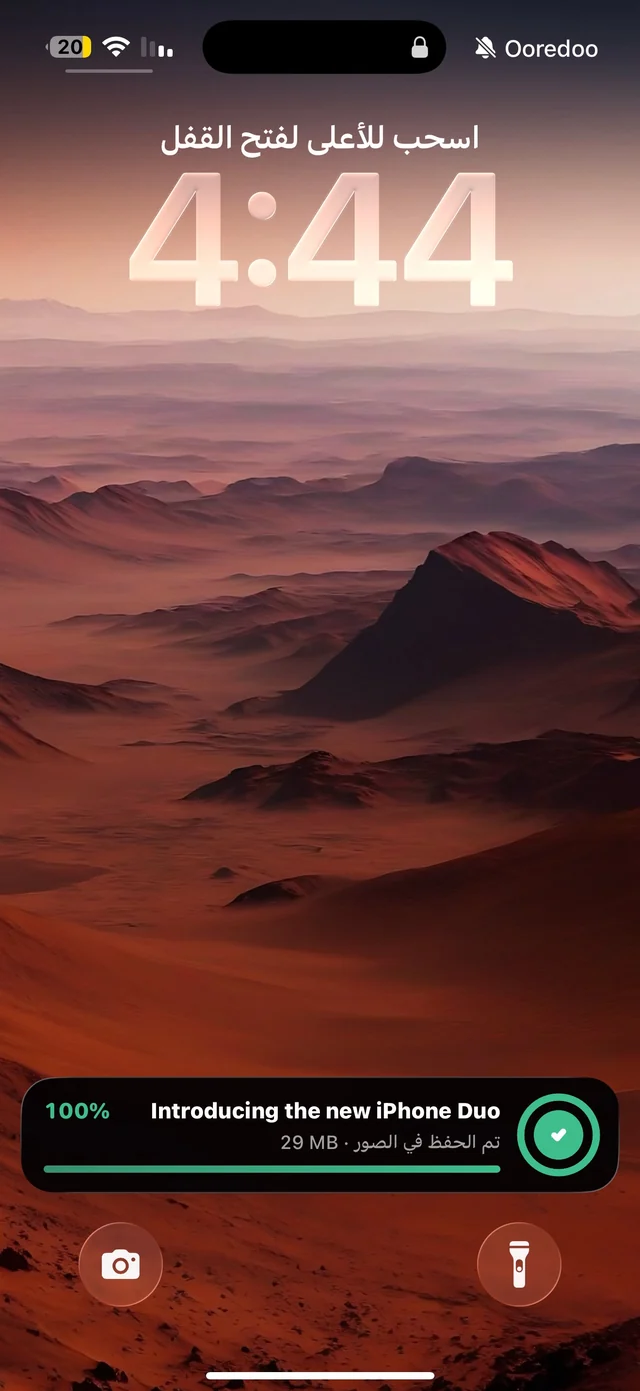
A two-hour lesson or a video podcast takes a while. Inside the app you see the progress card with the size downloaded out of the total (like 42 of 68 MB), what's left and the estimated time, plus a ✕ button to cancel — and a cancelled download doesn't count against your allowance. If you leave the app, on iOS 16.2 and later the progress appears in the Dynamic Island and on the Lock Screen through its stages: “Preparing…”, then “Downloading”, then “Saving…”, then “Saved to Photos” or “Saved to My Files”.
Downloading YouTube Shorts
A Short's link is read like any YouTube video: the same quality sheet and the same “Audio” card. The clip is vertical 9:16, ready for Stories, and after saving you can trim it or turn it into a GIF or a Live Photo wallpaper from its menu in My Files. But a channel link or the whole Shorts page won't download — you need the link to a single Short.
Storage, data and after the download
A full hour of 4K video can take up a lot of space, which is why the number under each quality is the most important thing on the sheet. Before you tap, check the size and compare it with the free space on your phone. And if you're downloading on mobile data, 720p or 480p saves a lot without much difference on a phone screen.
- One copy instead of two: setting “Where downloads are saved” to “My Files only” or “Photos only” avoids having two copies of the same video.
- Download before you travel: get your videos ready on Wi-Fi and play them later from My Files with no connection — see watch videos offline while traveling.
- For your computer: move heavy videos from My Files to your computer over Wi-Fi with no cable, then delete them from the phone.

Download your first YouTube video — 3 free downloads a day, and 720p and below are free.
The player and the video transcript
Raheeb's player gives you 10-second skip forward and back, speeds from 0.5× to 2×, a floating window, and audio that keeps playing with the screen locked — all free. The “Video transcript” card takes the video's captions as text you can copy or export as an .srt file, and it's part of Raheeb Pro — see video transcript.