In this guide
What your photo carries without you knowing
The camera writes a set of details inside the image file that you never see when you look at the picture. The four that matter most:
- Location (GPS): latitude and longitude, precise enough to point to a single building if Location Services is on for the Camera.
- Camera and phone model: which iPhone and which lens took it.
- Date and time taken: down to the minute.
- Editing software: the name of the app that edited the photo, if any.
A shot of your living room for a sofa listing, or the kids playing in the yard, can carry the coordinates of your home. That doesn't mean everyone who sees the picture knows where you are — but anyone who receives the original file can read it easily.
When does this data actually travel?
Many messaging apps compress a photo on a normal send and drop most of its data along the way. The risk is in the cases where the file arrives exactly as it is:
- Sending the photo as a document or file (like WhatsApp's Document option) to keep full quality.
- Attaching it to an email or sharing a link from a cloud storage service.
- Uploading it to classifieds sites, online stores or forms that don't clean images.
- Sending it over AirDrop, or moving it to a computer and posting it from there.
The built-in iOS way (location only)
The iPhone itself lets you turn off location for a given photo: in the Photos app tap Share, then Options at the top of the sheet, and switch off Location before sending. Or open the photo, swipe up (or tap ⓘ), tap Adjust next to the map and choose No Location. Both methods handle location only, one photo at a time, and don't show you the rest of the data.
With Raheeb: see all the data and strip it from several photos at once
The “Photo privacy” tool in the “Tools” tab shows the hidden data of several photos at the same time, with a count like “In 3 of 5” for each kind, then saves clean copies at the same resolution.
- 1Open “Photo privacy”From the “Tools” tab in Raheeb.
- 2Pick your photosOne photo or several from your library.
- 3See what they carryLocation, camera / phone model, date and time taken, and editing software — for each photo.
- 4Tap “Save clean copies”Copies are saved without that data and without losing resolution.
- 5Share themTap “Share now” and send the clean copies instead of the originals.
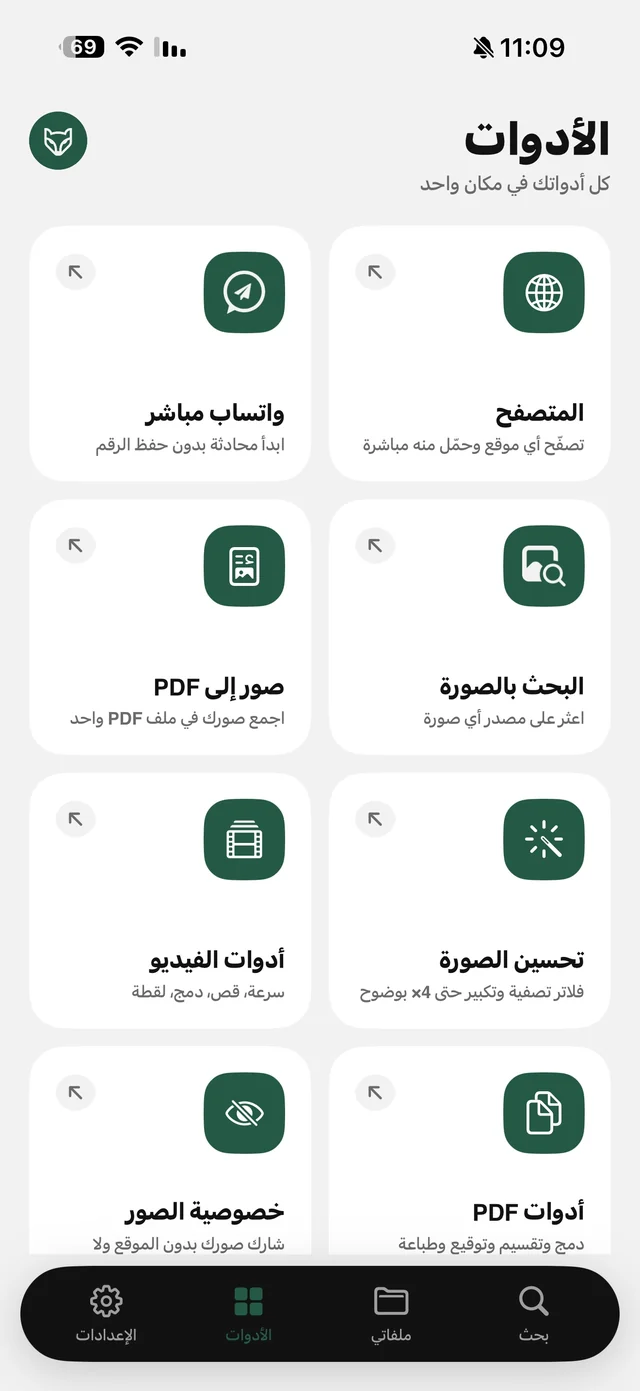
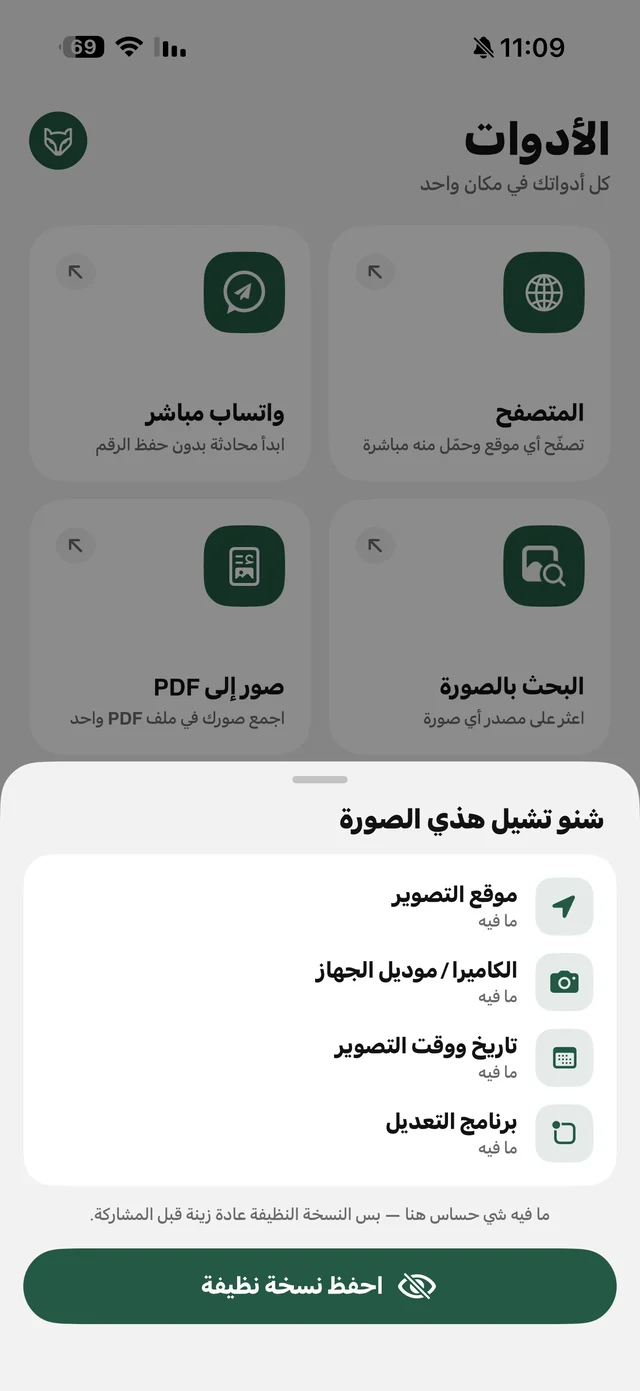
Clean copies are saved in “My Files”, while the originals in your library keep their data — so you don't lose the place memories in your album. All processing happens on your device; the photo is never uploaded to any server. The tool is also in the ⋯ menu of any image inside “My Files”.

“Photo privacy” is free in Raheeb.
5 things to check before posting a photo taken at home
- Windows: does a landmark or well-known building show through?
- Papers and parcels: an address or name printed on a shipping box.
- Screens: a notification or message visible on a phone or laptop in the background.
- License plates, and the house number by the door.
- Timing: posting travel photos while you're still away tells people the house is empty.
And if the photo is of something you're selling, once it's clean you can remove its background or combine it with others into a PDF from the same app.