In this guide
Which tip fits what you're doing?
| Situation | Tip |
|---|---|
| You copied a link and want it downloaded now | The “Paste & save” button on the widget, or a Siri command |
| You want to know how many downloads you have left | The widget counter, or “Today's allowance” on the lock screen |
| You copied a number and want to message it | “WhatsApp the copied number” from the icon |
| You deleted a video and need it again | Download History |
| A long download while you're in another app | The Dynamic Island and the lock screen |
| You've used up your free downloads | An invite code |
Home screen and lock screen tips
1. The Raheeb widget with a daily counter
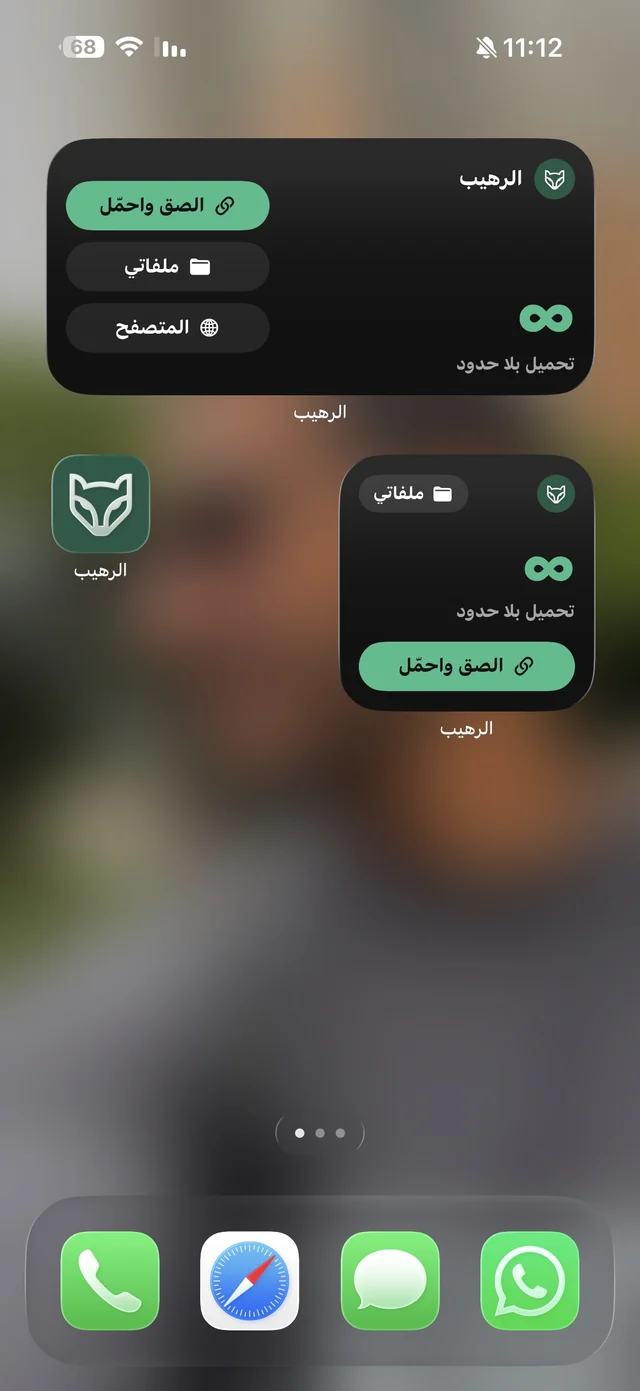
The widget comes in two sizes: the small one has “Paste & save” and “My Files”, and the medium one adds “Browser”. “Paste & save” downloads the link in your clipboard directly. For free users, the counter shows the downloads left today, like “2 / 3 · Left today”, and if you have credit from invites a “+N bonus” line appears; for Raheeb Pro subscribers it shows ∞ “Unlimited downloads”. The counter updates after every download, every hour, and at midnight when the new day's allowance kicks in. Requires iOS 16.2 or later.
- 1Long-press an empty spotOn the Home Screen, until the icons jiggle.
- 2Tap the + buttonAt the top of the screen.
- 3Choose RaheebFrom the list of apps, or by searching.
- 4Pick a sizeSmall or medium, then tap Add Widget.
2. Lock-screen widgets
“Today's allowance” appears as a ring that empties with every download, or as a line above the clock like “Raheeb · 3 left today”. Alongside it are four round buttons: “Paste & save” · “My Files” · “Browser” · Direct WhatsApp. To add them: long-press the lock screen → Customize → Add Widgets → Raheeb.
3. Long-press the icon
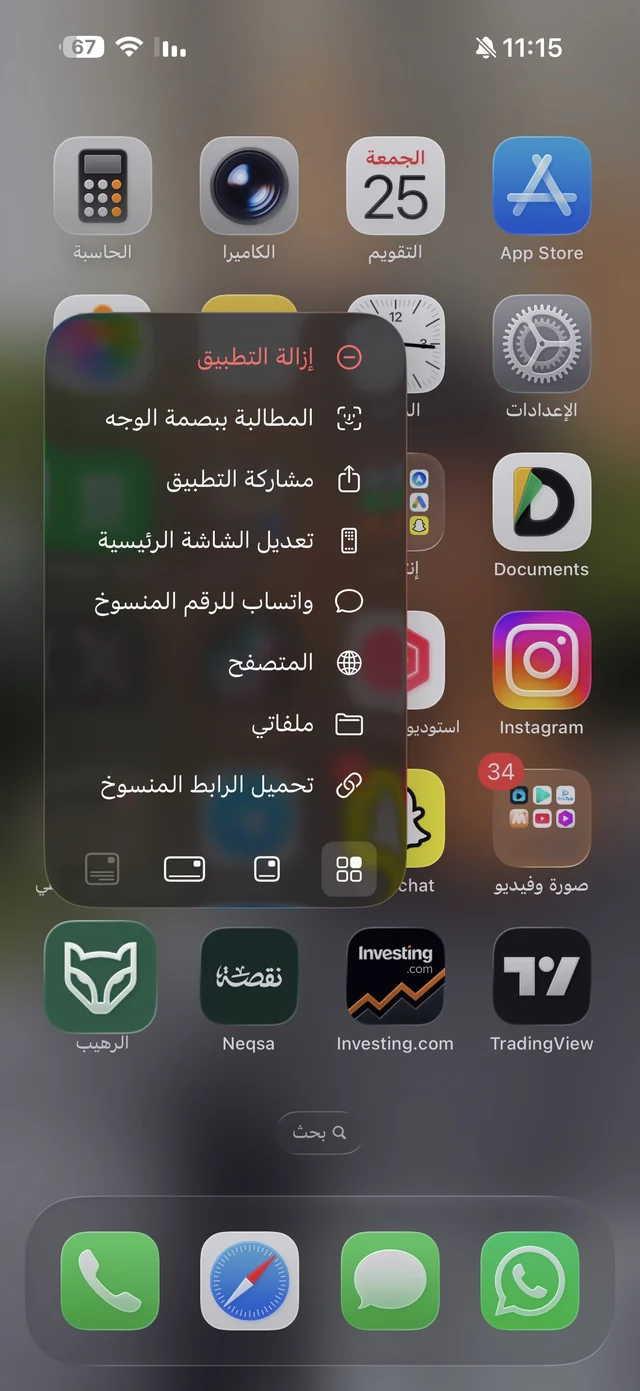
No setup needed: long-press the Raheeb icon and four shortcuts appear — “Download copied link” · “My Files” · “Browser” · “WhatsApp the copied number”. The last one opens Direct WhatsApp on the number you copied; the full walkthrough is in messaging a number without saving it.
Siri and Shortcuts tips
4. Siri commands (iOS 16.4 and later)
Copy the link and say the phrase to Siri exactly as written; Raheeb opens and the download starts right away:
- “Download the copied link with Raheeb”
- “Download from clipboard in Raheeb”
- “Open my files in Raheeb”
- “Show my downloads in Raheeb”
- “WhatsApp the copied number with Raheeb”
If there's no link in the clipboard you'll see “No link in the clipboard”, and iOS may ask for paste permission the first time.
5. The Shortcuts app and the Action button
Raheeb's actions show up in the Shortcuts app: “Download the copied link”, “Download a link” (which takes a link from another shortcut), “Open My Files”, and “WhatsApp the copied number”. You can build them into an automation, or assign them to the Action button on iPhones that have one — one press on the side of the phone and the copied link starts downloading.
Tips during and after a download
6. Follow downloads in the Dynamic Island
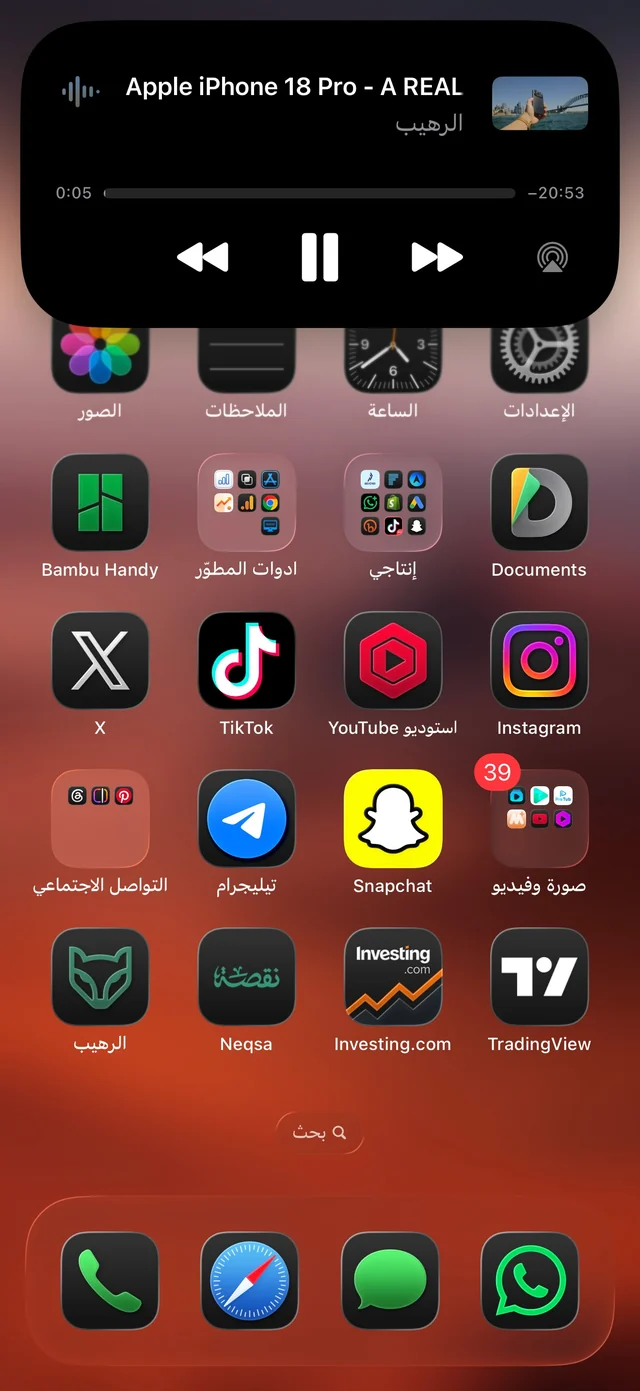
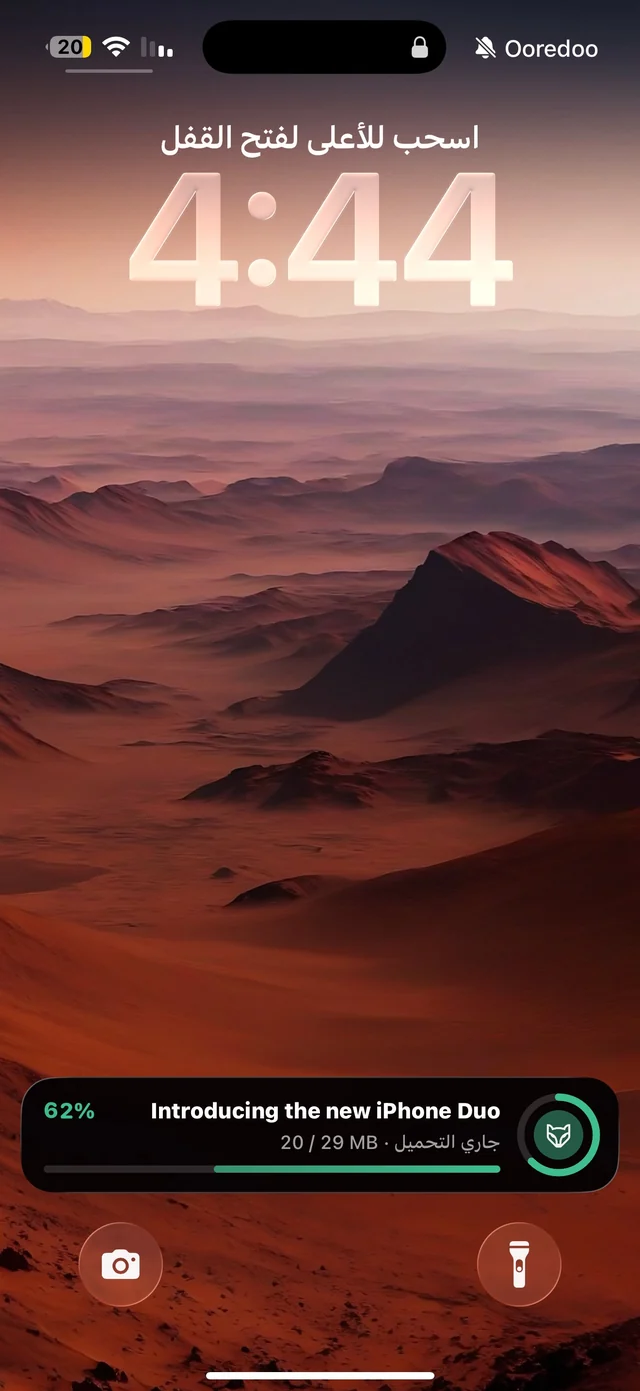
On iOS 16.2 and later, progress shows in the Dynamic Island and on the lock screen while you're in another app: “Preparing…”, then the percentage and size, then “Saving…”, and finally “Saved to Photos” or “Saved to My Files”. Tapping the card opens My Files, and it never shows the platform's name — only the clip's title. The first time, iOS asks whether to allow Live Activities for Raheeb.
7. Download History: get back anything you downloaded
Deleted a video from Photos to free up space and then needed it? The Download History card in the “Tools” tab keeps your last 200 successful downloads — even the ones made from the Share button without opening the app. Tap any row and the original link comes back and starts downloading; if it has more than one quality, the quality picker appears so you can choose. Swipe a row to delete it, or tap “Clear All”.
Allowance and settings tips
8. Invite codes: 30 downloads for you, 15 for your friend
From the Invite Friends card in the Tools tab, send an invite with your code. Your friend enters it in Settings → “Redeem a code”, and you get 30 downloads while they get 15, for up to 30 invites. The extra credit is used after your free daily downloads run out. One invite code per device, you can't use your own code, and the card is hidden for Raheeb Pro subscribers. The same “Redeem a code” field also accepts promo codes.
9. Change the app's language from inside it
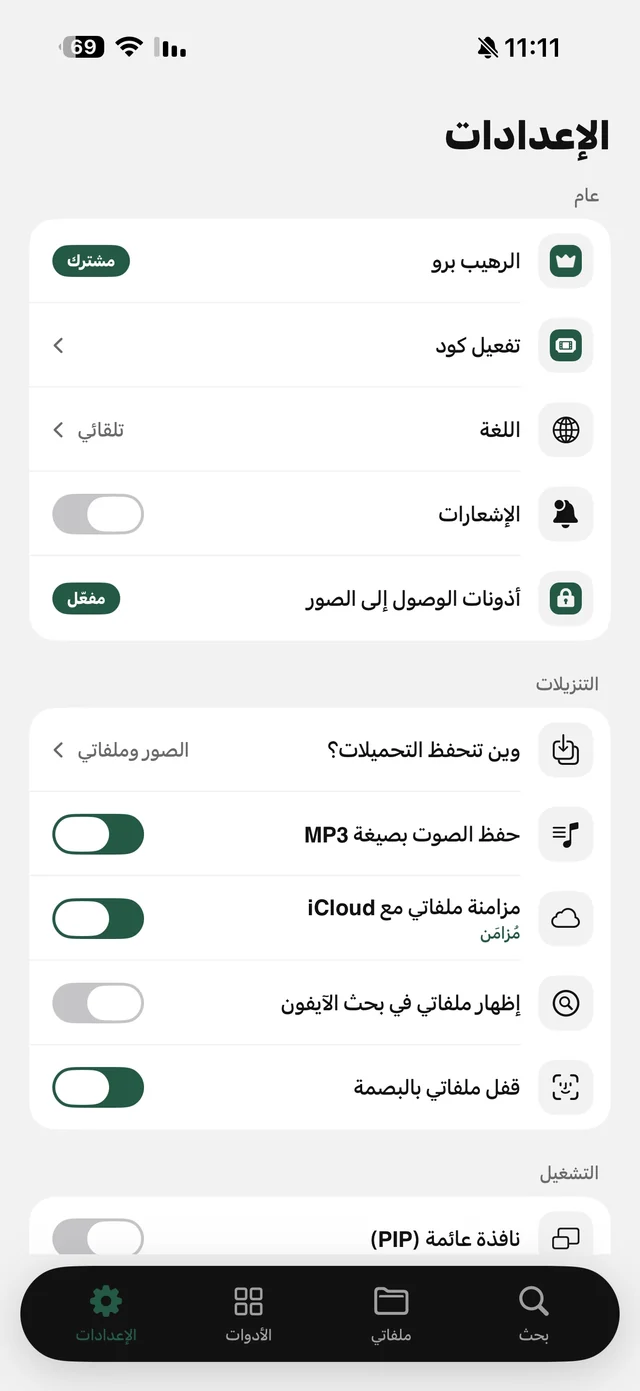
Settings → General → “Language”: “Automatic”, “العربية” or “English”, and the switch takes effect immediately, no restart needed. Handy if your phone is set to Arabic and you want the app in English, or the other way around. The icon name and the widget language follow the phone's own language.
10. Decide where downloads are saved
“Where downloads are saved” in Settings: Photos and My Files, Photos only, or My Files only — documents and audio always go to My Files. More on sorting things into folders in organizing files on iPhone.

All these tips are free — 3 downloads every day, no account needed.