In this guide
Three ways to get something still or moving out of a video
| Live Photo wallpaper | GIF | Grab a frame | |
|---|---|---|---|
| From which part | The first 3 seconds | The first 6 seconds | Any frame you choose |
| Sound | — | No sound | A photo |
| Where it's saved | Straight to your Photos library | My Files, named “(GIF)” | My Files, named “(Frame)”, and Photos if enabled |
| Good for | Your phone's wallpaper | WhatsApp replies and group chats | A Reel cover or a still from a video of the kids |
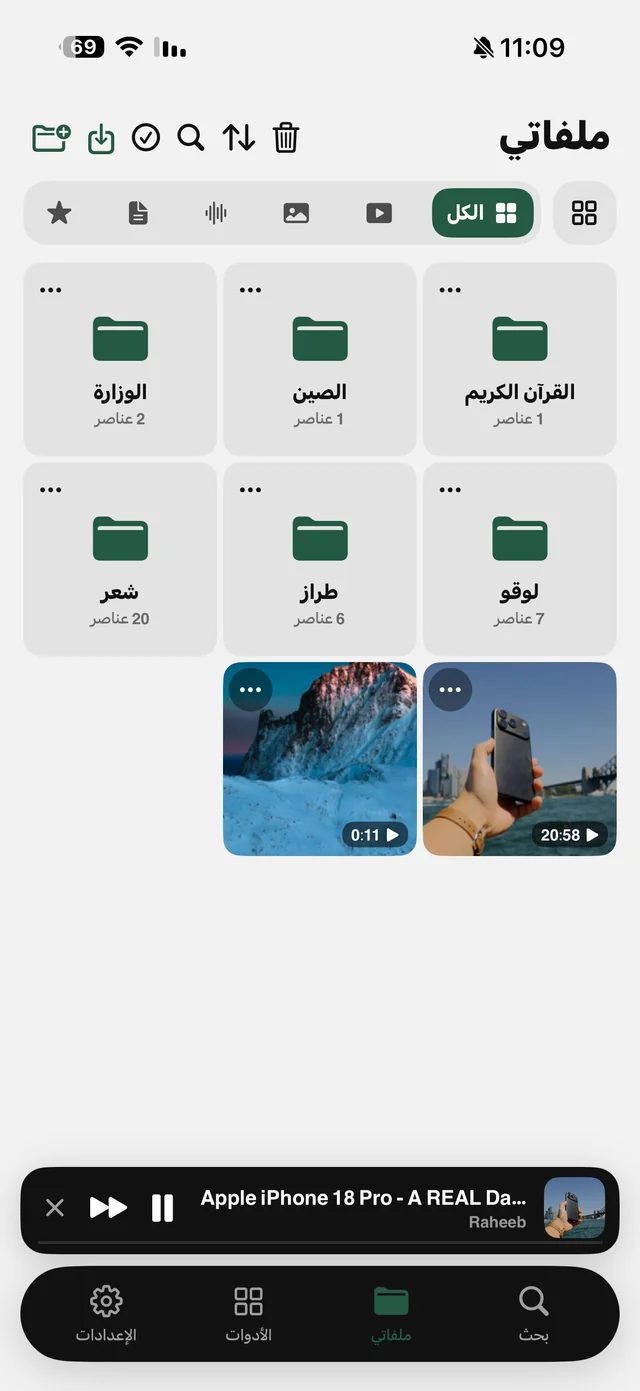
All three tools are in the ⋯ menu of any video in My Files, under the “Convert & export” group. The clip can be one you downloaded from TikTok or Instagram with Raheeb, or a video you shot and brought into My Files with the import button.
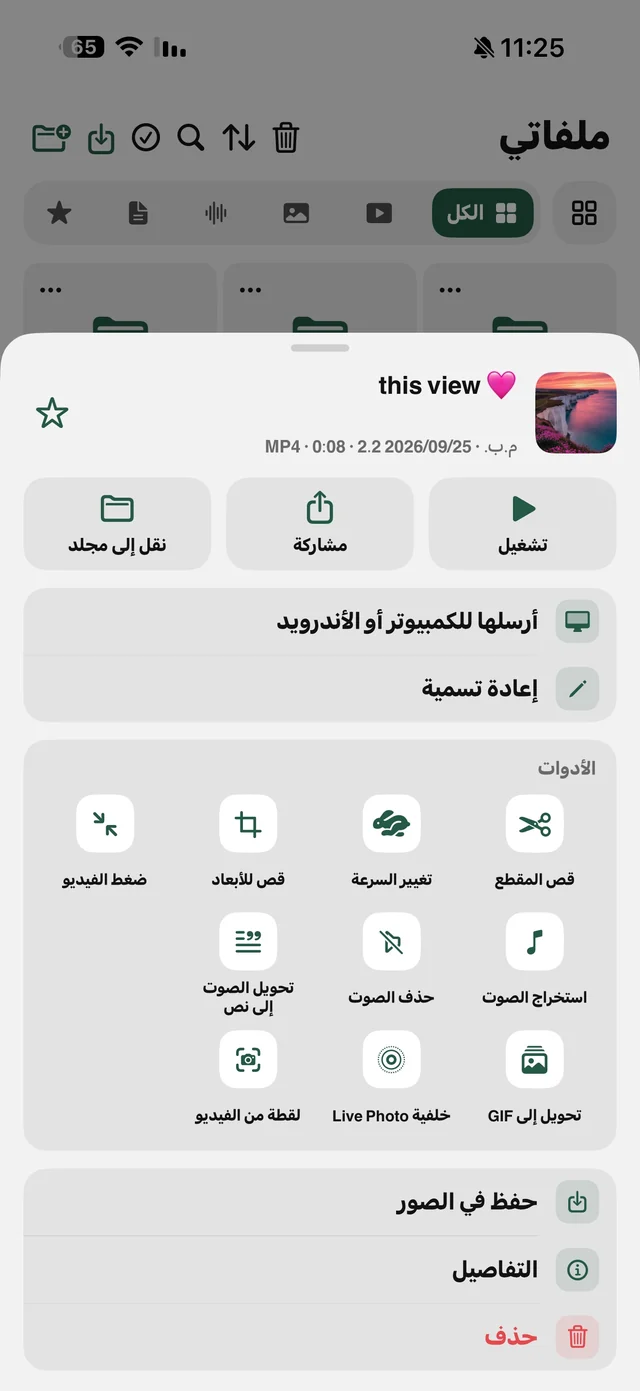
Before anything: trim the clip to the moment
The wallpaper always takes the first 3 seconds and the GIF always takes the first 6 seconds — there's no start-point option. So if the shot you want is in the middle of the video, use “Trim video” first and make it the start. Trimming doesn't re-encode, so you lose no quality.
Video to a live wallpaper for iPhone
- 1Trim the clipso the moment you want is in the first 3 seconds.
- 2Choose “Live Photo wallpaper”from the ⋯ menu on the video in My Files, under “Convert & export”.
- 3Wait“Building the Live Photo…” shows until the Live Photo is saved to your Photos library.
- 4Open the photo in the Photos appIt's now in your library as a Live Photo.
- 5Tap Share, then “Use as Wallpaper”and set it on the Lock Screen or Home Screen.
A Live Photo can only be saved in the Photos app, so Raheeb needs permission to add to your Photos library — without it, nothing is saved. That permission is “add only”, meaning the app adds to your library and never reads your photos.
Video to GIF for WhatsApp
“Make GIF” creates an animation from the first 6 seconds at 12 frames per second, with the longest side at 480 pixels, looping endlessly with no sound. A size that works well for group-chat replies and for showing a short motion inside an app.
- Tap ⋯ on the video (or the trimmed copy) and choose “Make GIF”.
- Wait for the ring until the ✓ and the new size appear.
- The GIF is saved next to the original, named “(GIF)”, and you share it from My Files to any app like any other file.

The wallpaper, GIF and frame grab are free in Raheeb.
A clean still from any frame (better than a screenshot)
A screenshot while the video plays captures the playback bar and buttons, and it's hard to stop on the exact moment. “Grab a frame” gives you a filmstrip to scrub along, plus previous/next frame buttons to step frame by frame, with the timestamp shown below. Tap “Save photo” and it's saved as a JPG at the video's own resolution, with no buttons in the shot.
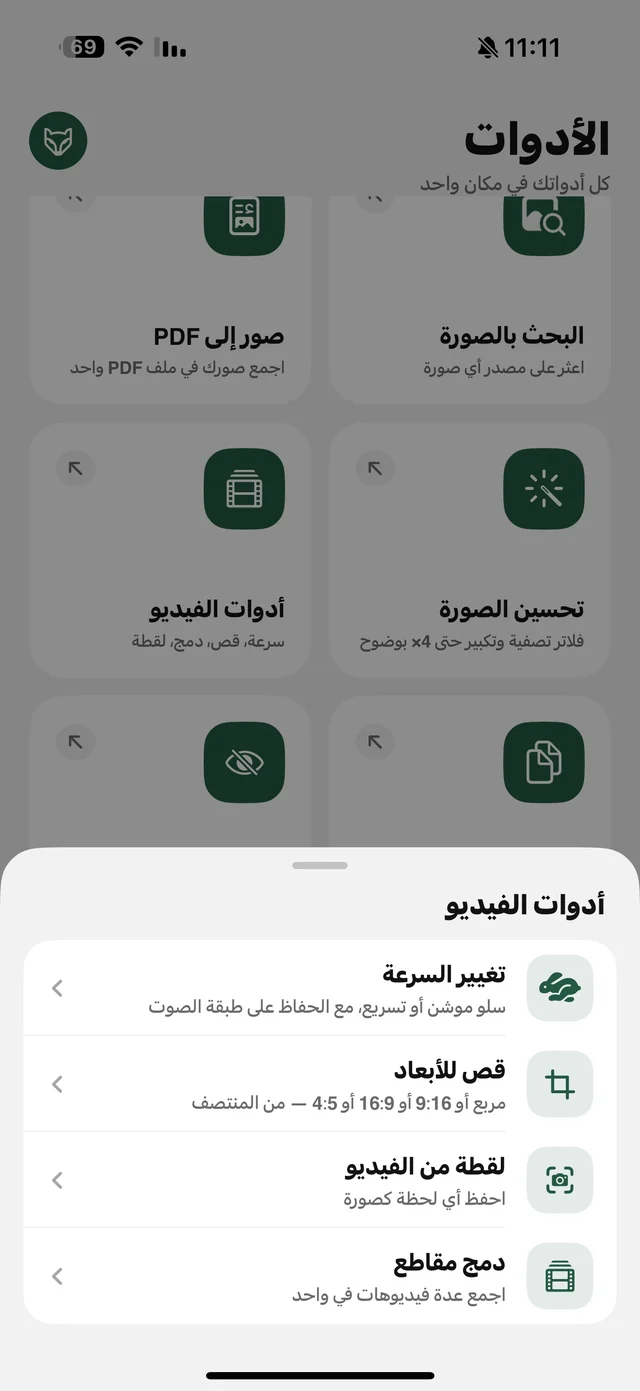
The frame grab is also on the “Video tools” card in the Tools tab, where you pick the video from your library. Afterwards you can upscale it 2× or 4× — see improving photo quality — or remove its background.
Ideas for using all three tools
- A wallpaper from a video of the kids: a first step or a laugh, trimmed to 3 seconds and slowed down.
- A goal on your Lock Screen: fans trim the moment and turn it into a moving wallpaper.
- A GIF for the WhatsApp group: a funny reaction from a clip you downloaded, trimmed to 6 seconds.
- A cover for a Reel or YouTube video: a clean still from the same clip instead of an outside image.
- Text shown in a video: grab a frame of the slide or sign, then copy the text from it — see copying text from an image.
Best of all, every result is a new copy next to the original: you can try several trims and several speeds, keep the best one and delete the rest.